
 TypingMind×
 DeepInfra
How to use Qwen3 Max with your DeepInfra API key on TypingMind
Learn how to access and use Qwen3 Max with your DeepInfra API key through TypingMind. Get started with this AI model in minutes.
Flagship Qwen3 model for coding agents, complex reasoning, and tool use
DeepInfra is a cloud inference platform providing fast and cost-effective access to a wide range of open-source AI models including Llama, Mistral, DeepSeek, and more through an OpenAI-compatible API.
Key features include serverless inference with pay-per-token pricing, support for text generation, embeddings, and image models, low-latency responses powered by optimized GPU infrastructure, and easy integration with any OpenAI-compatible client or SDK.
See the official DeepInfra documentation for more details.
Qwen3 Max Overview
| Model Name | Qwen3 Max |
| Provider | DeepInfra |
| Model ID | Qwen/Qwen3-Max |
| Model Logo | Get the logo URL |
| Release Date | Sep 23, 2025 |
| Last Updated | Sep 23, 2025 |
| Knowledge Cutoff | 2025-04 |
| Context Window | 256,000 tokens |
| Max Output | 65,536 tokens |
| Pricing /1M tokens | $1.20 input $6.00 output $0.24 cache read |
| Input Modalities | text |
| Output Modalities | text |
| Capabilities | Tool CallingStructured OutputTemperature Control |
Complete Setup Guide
Get Your DeepInfra API Key
First, you'll need to obtain an API key from DeepInfra. This key allows you to access their AI models directly and pay only for what you use.
- Visit DeepInfra's API console
- Sign up or log in to your account
- Navigate to the API keys section
- Generate a new API key (copy it immediately as some providers only show it once)
- Save your API key in a secure password manager or encrypted note
Sometimes, this provider will require you to add a payment method to your account before you can use your API key to chat with AI. So, to avoid any hiccups, make sure you've got a payment method set up and ready to go!
Important: Keep your API key secure and never share it publicly. Store it safely as you'll need it to connect with TypingMind.
Configure TypingMind with DeepInfra API Key
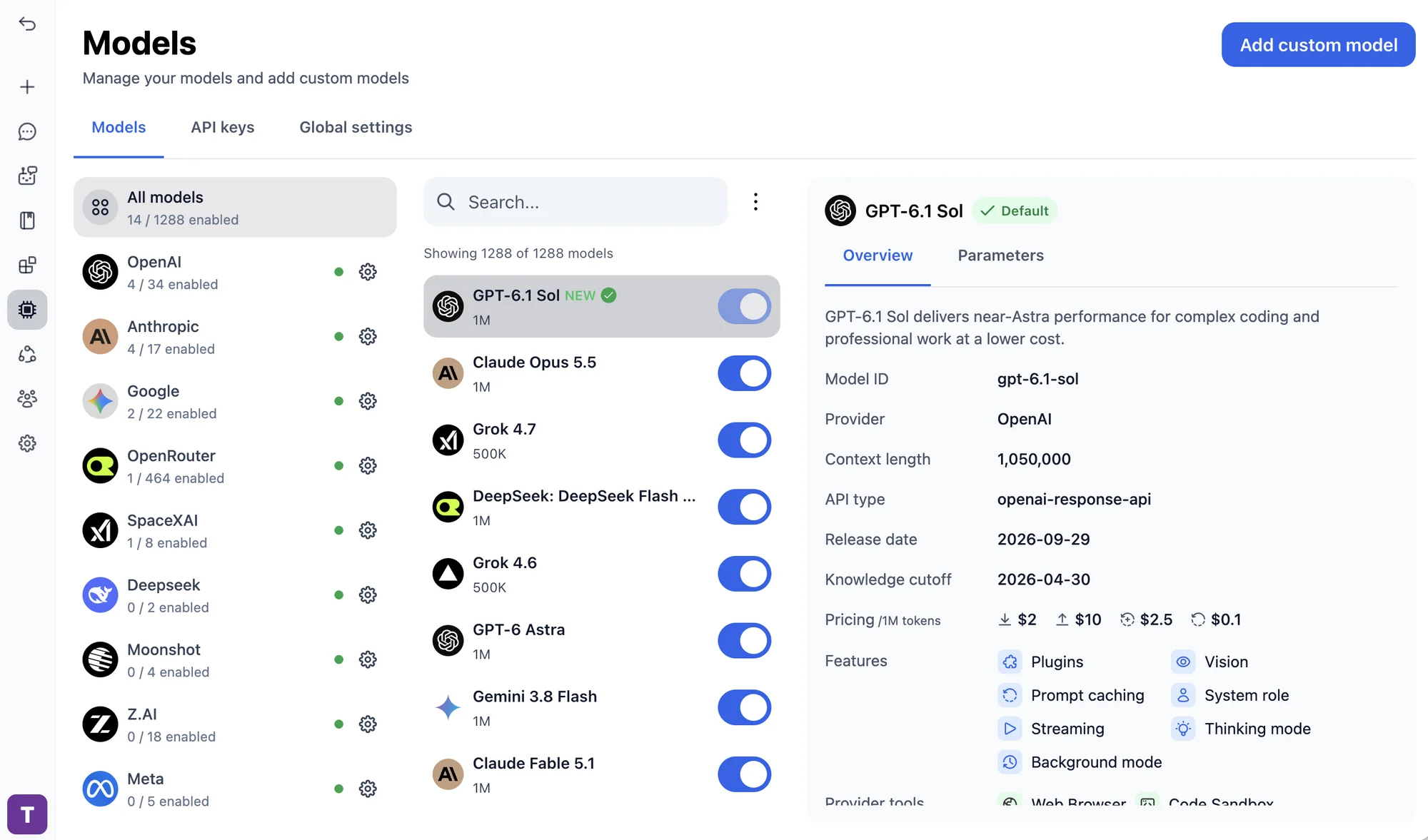
Option 1: Use the built-in Deepinfra provider (recommended)
The quickest way. TypingMind already has Deepinfra set up, so you only need to add your API key.
- Open TypingMind and click "Models" in the left sidebar.
- Search for Deepinfra.
- Click the settings (gear) button next to Deepinfra.
- Paste your API key and save.
Option 2: Add the model manually
If you can't find the provider or model ID in the official list, you can add the model manually:
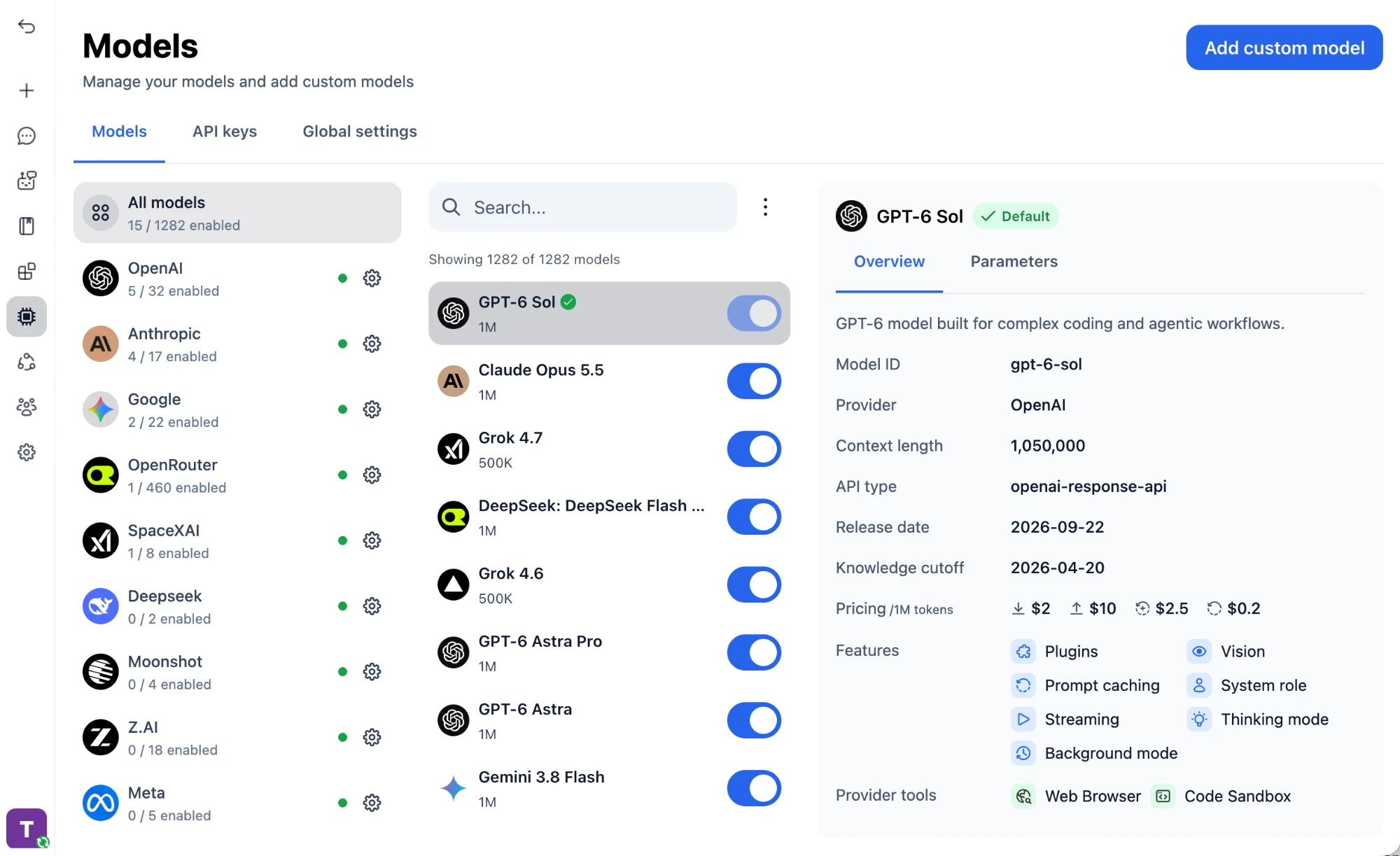
Open the Models page
Open TypingMind, click "Models" in the left sidebar, then click "Add custom model" in the top right corner.
Enter the model details
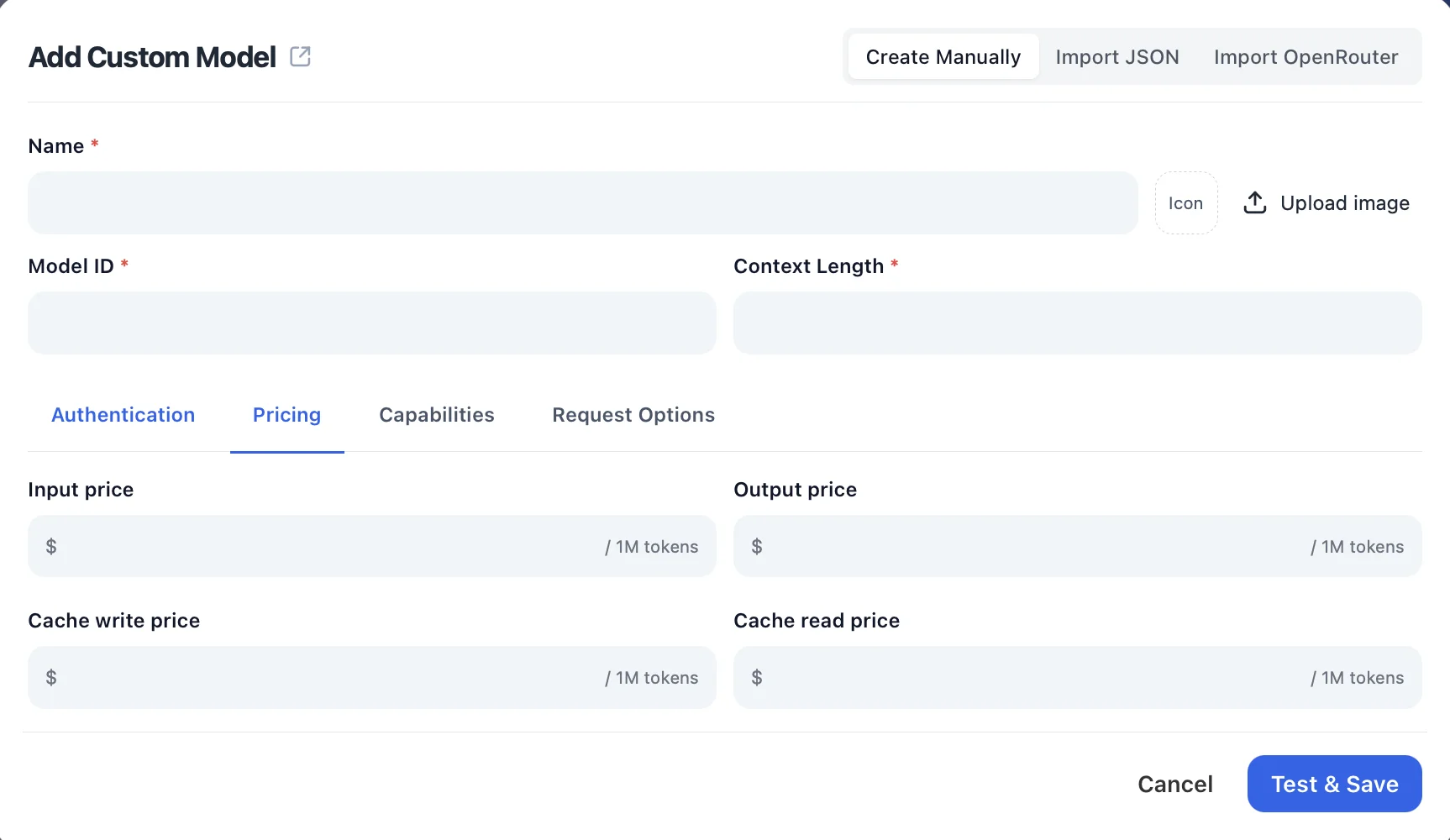
Keep "Create Manually" selected and fill in the model details:
Name:Qwen3 Max via DeepInfra(or your preferred name)Model ID:Qwen/Qwen3-Maxfor example (check DeepInfra model list)Context Length: Enter the model's context window (e.g., 256000 for Qwen/Qwen3-Max)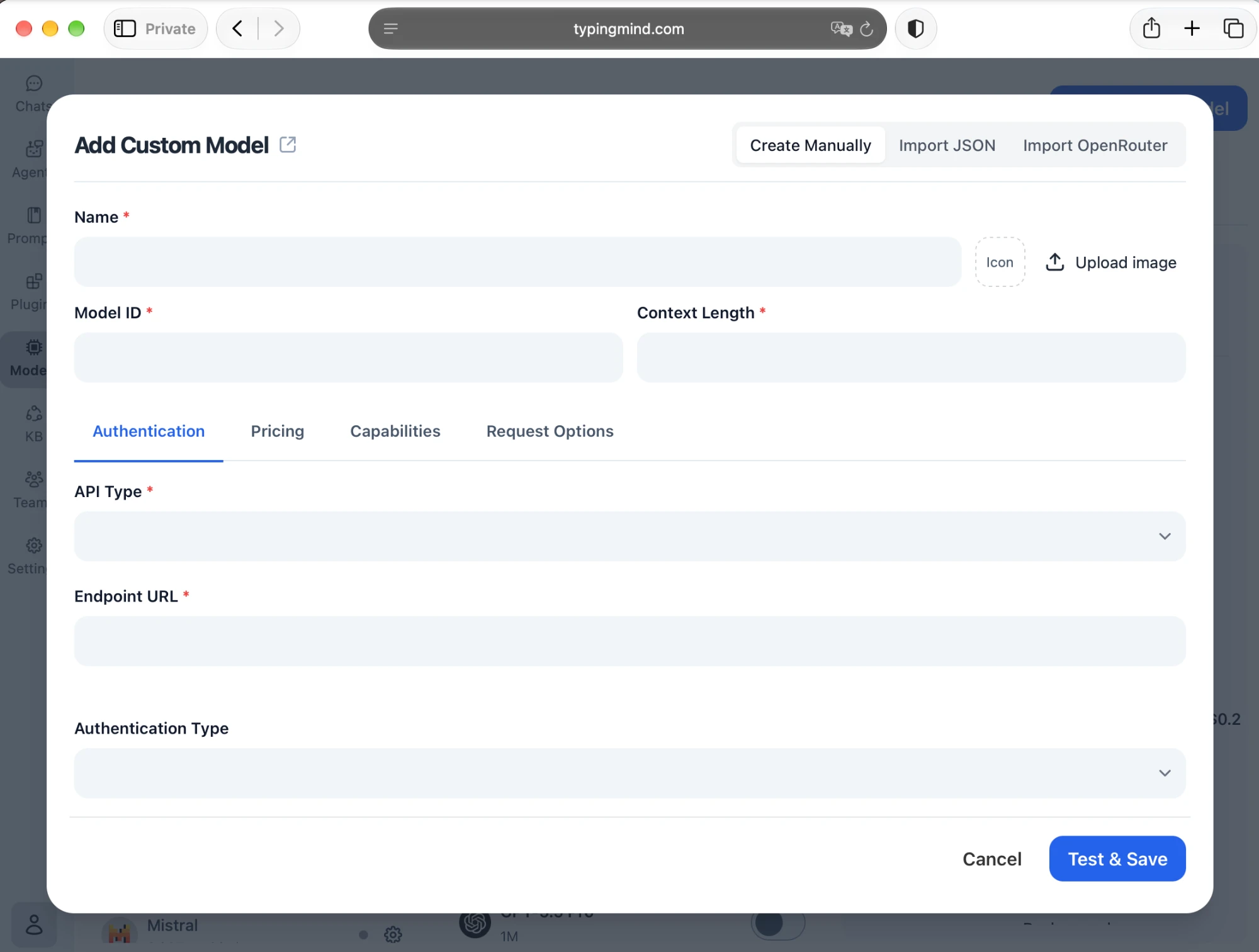
Set up authentication
In the "Authentication" tab, set the connection details:
API Type:OpenAI Chat Completions APIEndpoint URL:https://api.deepinfra.com/v1/chat/completionsAuthentication Type:API Key via HTTP HeaderHeader Key:AuthorizationHeader Value:Bearer <DEEPINFRA_API_KEY>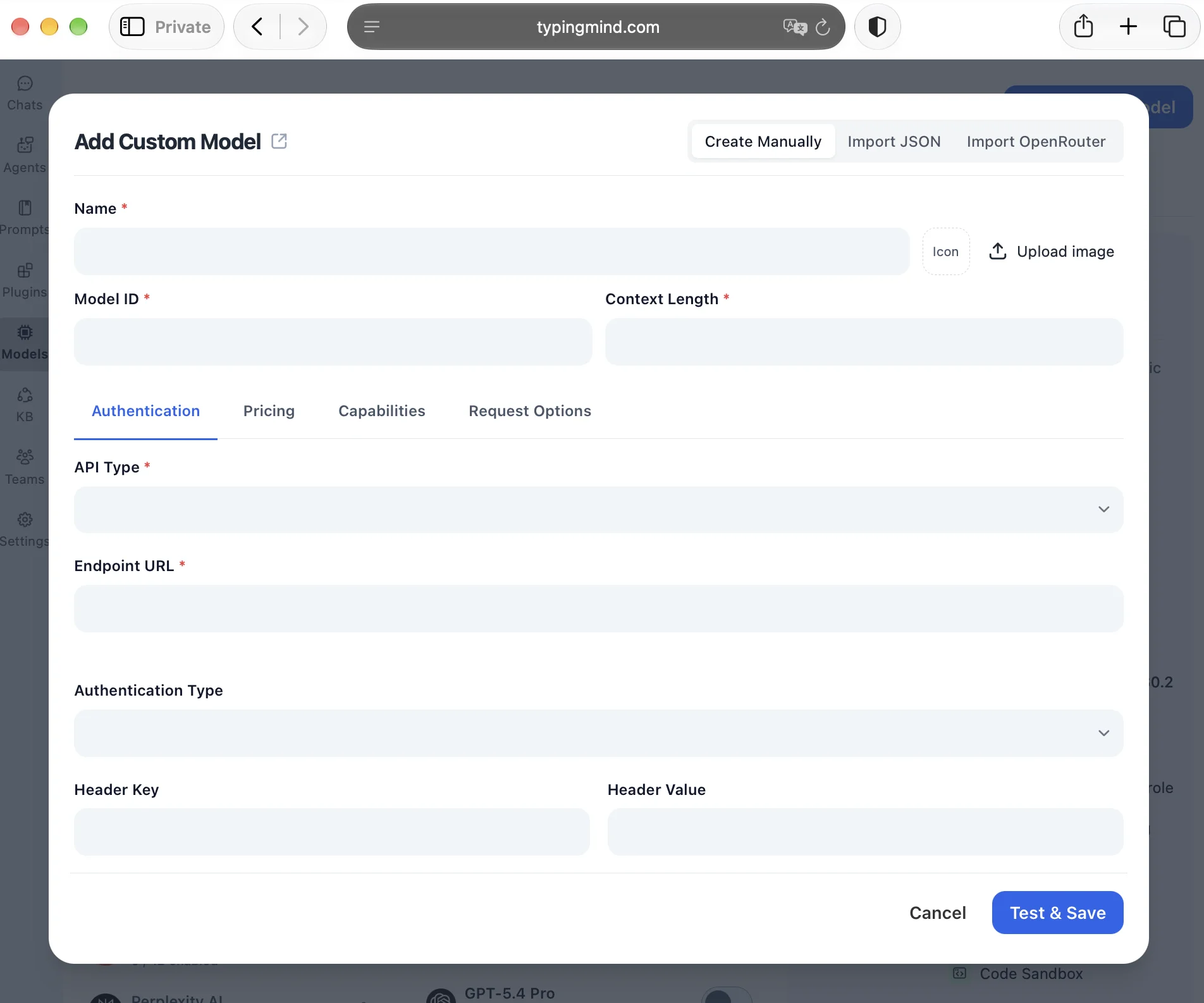
Add pricing (optional)
Open the "Pricing" tab and enter the model's input, output, and cache prices per 1M tokens so TypingMind can estimate your usage costs.
Check the capabilities
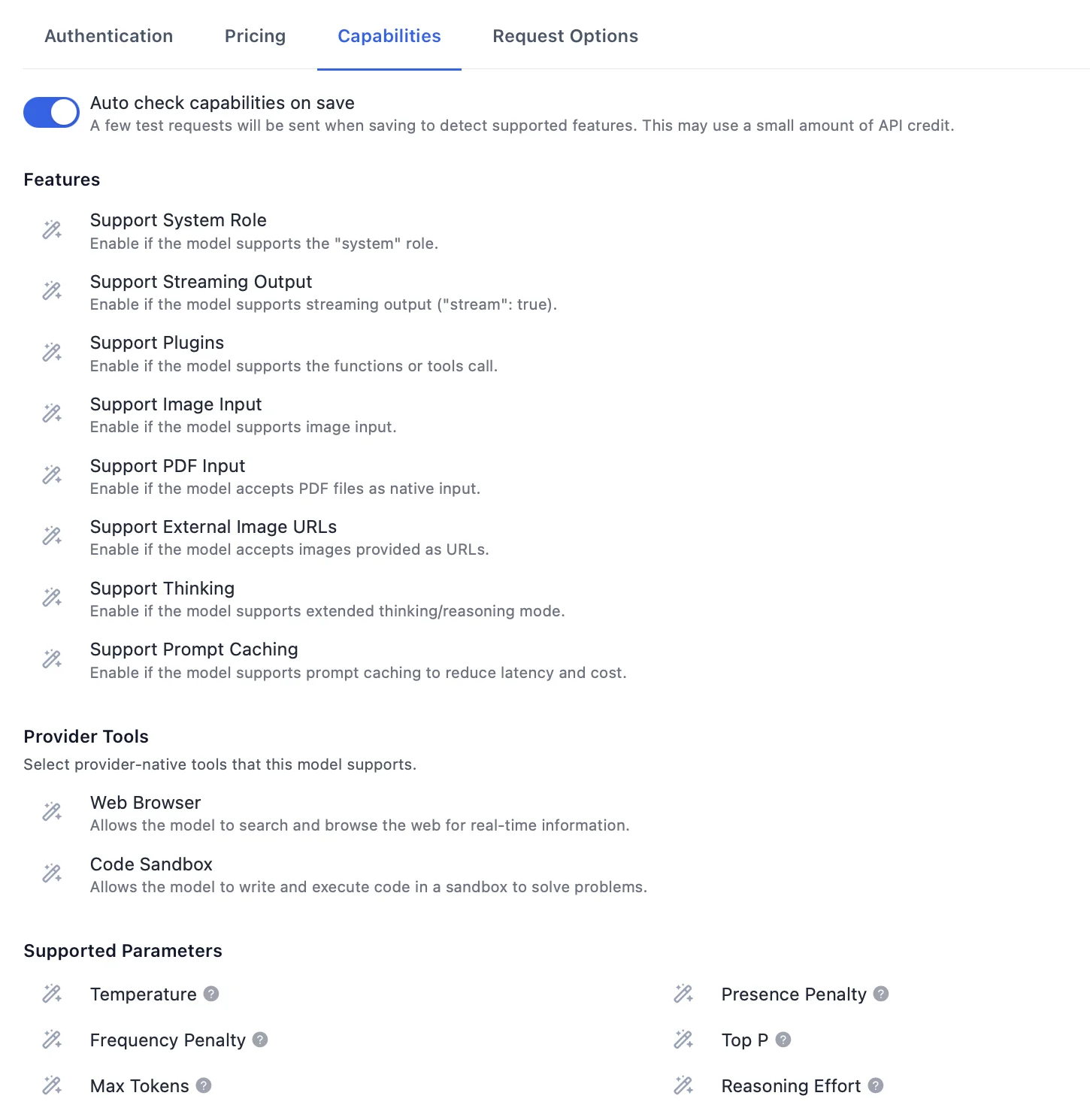
In the "Capabilities" tab, keep "Auto check capabilities on save" on so TypingMind detects supported features like plugins, image input, and thinking, or enable them manually.
Test and save
Click "Test & Save" to verify the connection and add the model.
Start chatting with Qwen3 Max
Now you can start chatting with Qwen3 Max through TypingMind:
- Select Qwen3 Max from the model dropdown menu
- Start typing your message in the chat input
- Enjoy faster responses and better features than the official interface
- Switch between different AI models as needed
💡 Pro tips for better results:
- Use specific, detailed prompts for better responses (How to use Prompt Library)
- Create AI agents with custom instructions for repeated tasks (How to create AI Agents)
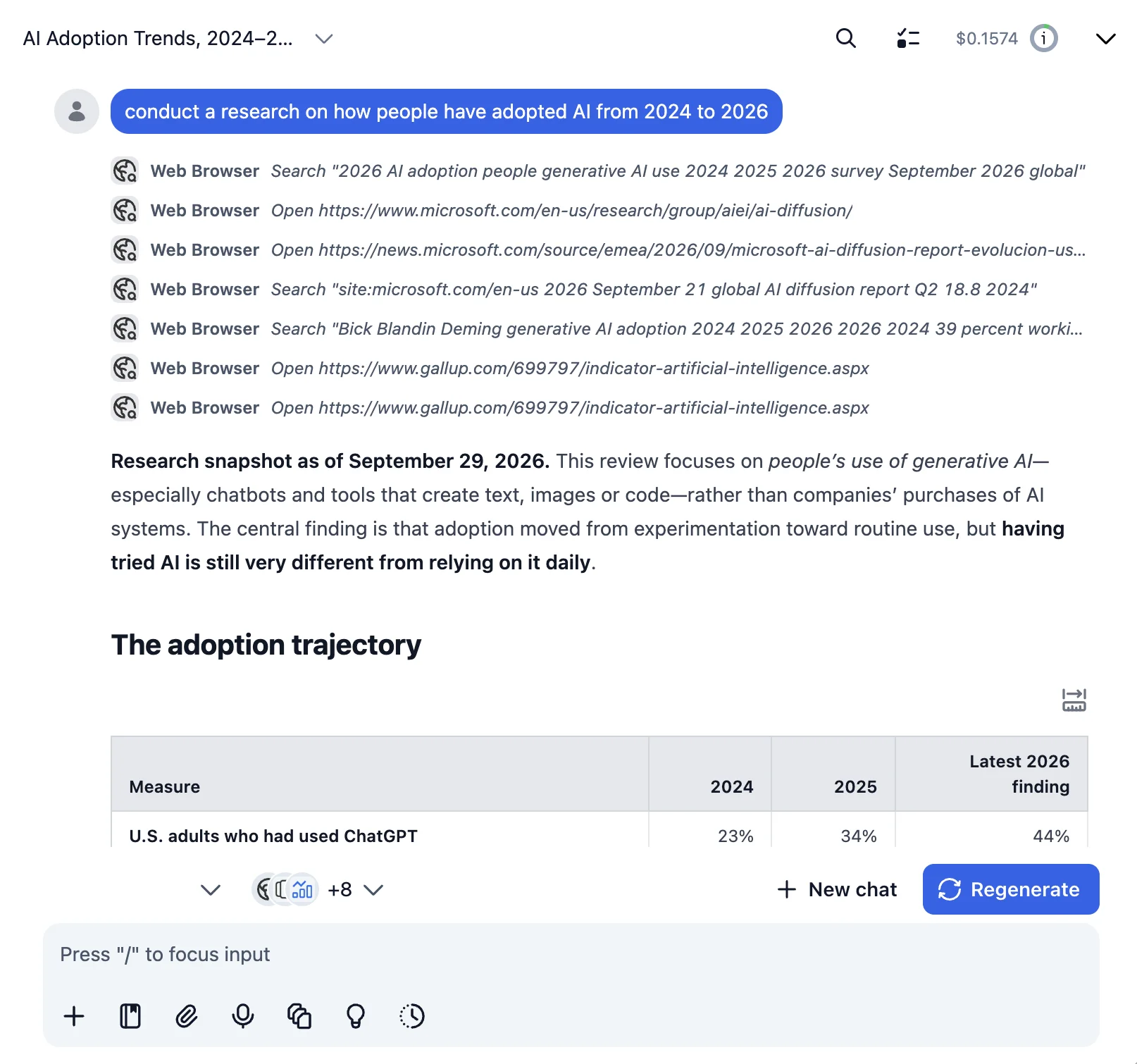
- Use plugins to extend Qwen3 Max with web search, code execution, and more (How to use plugins)
Why TypingMind + DeepInfra?
Chat with Qwen3 Max and 200+ other models in one workspace, using your own DeepInfra API key.
Best-in-class UI
TypingMind's interface is far superior to standard chat UIs.
Model flexibility
Switch between Qwen3 Max and 200+ models instantly.
Cost control
Pay only for what you use through DeepInfra.
One-time purchase
Buy TypingMind once, use forever with any DeepInfra model.
Data privacy
Your conversations are stored locally by default, not on external servers.
Plugins, MCP, Skills & AI agents
Extend Qwen3 Max with web search, image generation, and custom AI agents.
Frequently Asked Questions
Do I need a subscription to use Qwen3 Max?
No. With your own DeepInfra API key, you pay only for what you use, with no monthly subscription. TypingMind is also a one-time purchase, not a subscription.
How much does it cost to use Qwen3 Max?
Qwen3 Max costs $1.20/1M input tokens and $6.00/1M output tokens via DeepInfra. A typical conversation costs around $0.01-0.10, depending on length.
Can I use other models besides Qwen3 Max?
Yes. Any model your DeepInfra API key can access works in TypingMind, and you can switch between it and models from other providers in the same chat.
Is my data private when using Qwen3 Max with TypingMind?
TypingMind stores your conversations locally (in your browser on the web version, on your device in the desktop app). Your messages are sent to DeepInfra with your API key, so check DeepInfra's data policy for how it handles API requests.
