Access and Use OpenAI: GPT-5.2 Chat via OpenRouter using API Key
 Ann Ng
Access and Use gpt-5.2-chat via OpenRouter
GPT-5.2 Chat (AKA Instant) is the fast, lightweight member of the 5.2 family, optimized for low-latency chat while retaining strong general intelligence. It uses adaptive reasoning to selectively “think” on harder queries, improving accuracy on math, coding, and multi-step tasks without slowing down typical conversations. The model is warmer and more conversational by default, with better instruction following and more stable short-form reasoning. GPT-5.2 Chat is designed for high-throughput, interactive workloads where responsiveness and consistency matter more than deep deliberation.
OpenAI: GPT-5.2 Chat Overview
| Full Name | OpenAI: GPT-5.2 Chat |
| Provider | OpenAI |
| Model ID | openai/gpt-5.2-chat |
| Release Date | Dec 10, 2025 |
| Context Window | 128,000 tokens |
| Pricing /1M tokens | $0.002 for input $0.014 for output |
| Supported Input Types | file, image, text |
| Supported Parameters | max_tokensresponse_formatseedstructured_outputstool_choicetools |
Complete Setup Guide
Create OpenRouter Account
- Visit openrouter.ai
- Click "Sign In" and create an account (free)
- Verify your email address
- You'll receive $1 in free credits to test models
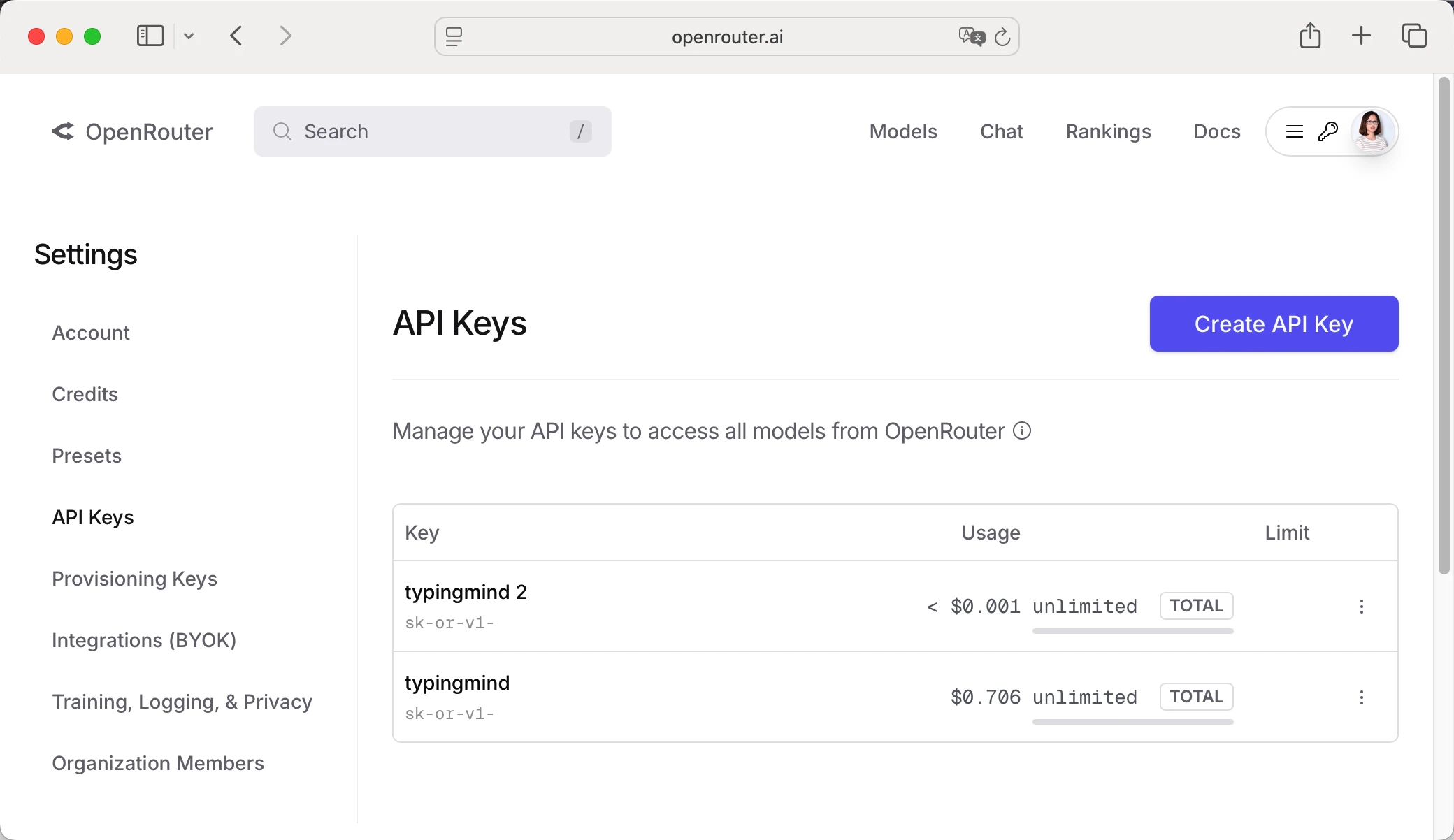
Get Your OpenRouter API Key
- Log in to OpenRouter dashboard
- Go to "API Keys" section in the menu
- Click "Create API Key"
- Give it a name (e.g., "TypingMind")
- Copy your API key (starts with "sk-or-v1-...")
Add Credits to OpenRouter (Optional)
- Go to "Credits" in OpenRouter dashboard
- Click "Add Credits"
- Choose amount ($5 minimum, $20 recommended for testing)
- Complete payment (credit card or crypto)
- Credits never expire!
Configure TypingMind with OpenRouter API Key
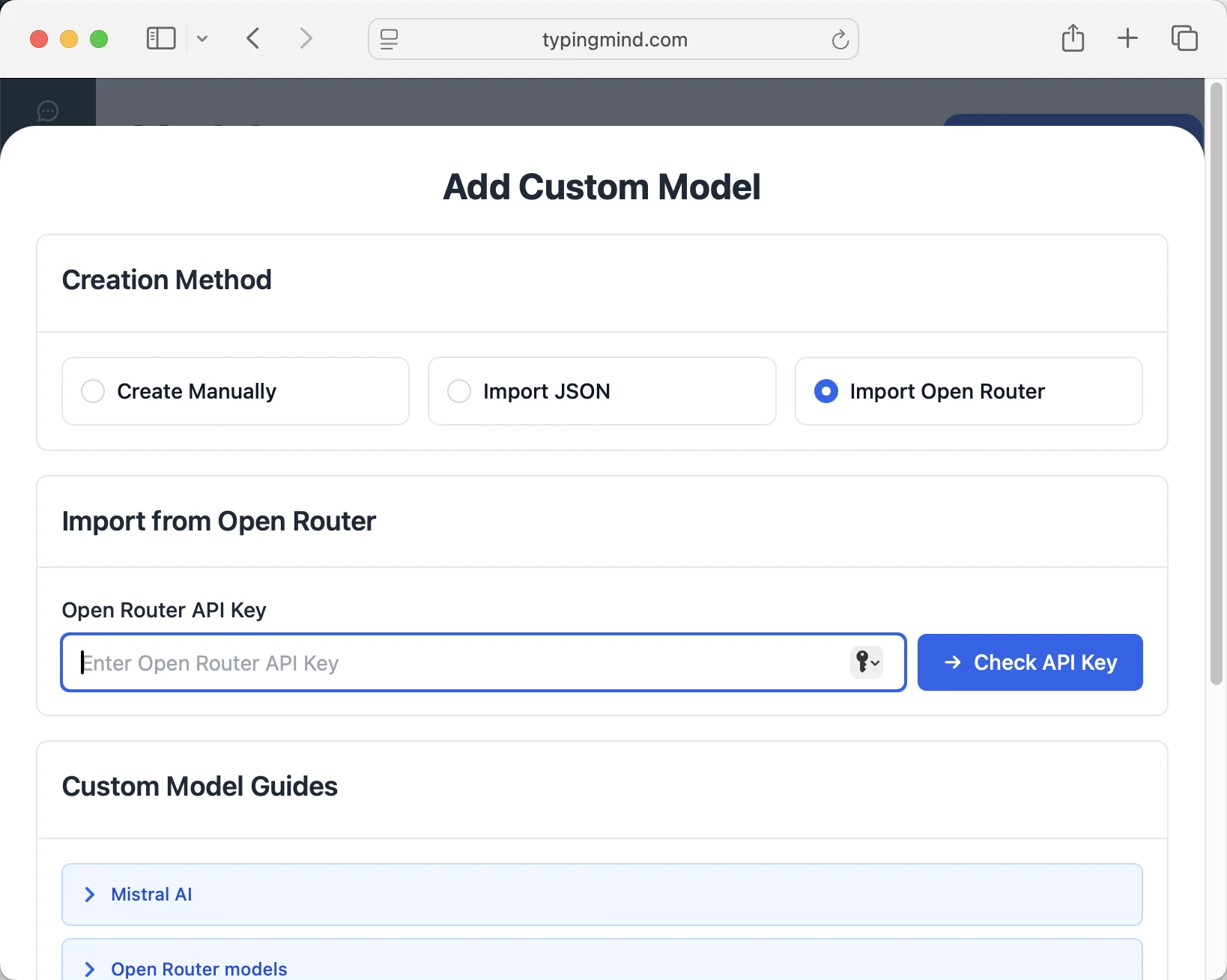
Method 1: Direct Import (Recommended)
- Open TypingMind in your browser
- Click the "Settings" icon (gear symbol)
- Navigate to "Manage Models" section
- Click "Add Custom Model"
- Select "Import OpenRouter" from the options
- Enter your OpenRouter API key from Step 1
- Click "Check API Key" to verify the connection
- Choose which models you want to add from the list (you can add multiple at once)
- Click "Import Models" to complete the setup
Method 2: Manual Custom Model Setup
- Open TypingMind in your browser
- Click the "Settings" icon (gear symbol)
- Navigate to "Models" section
- Click "Add Custom Model"
- Fill in the model information:Name:
openai/gpt-5.2-chat via OpenRouter(or your preferred name)Endpoint:https://openrouter.ai/api/v1/chat/completionsModel ID:openai/gpt-5.2-chatContext Length: Enter the model's context window (e.g., 128000 for openai/gpt-5.2-chat)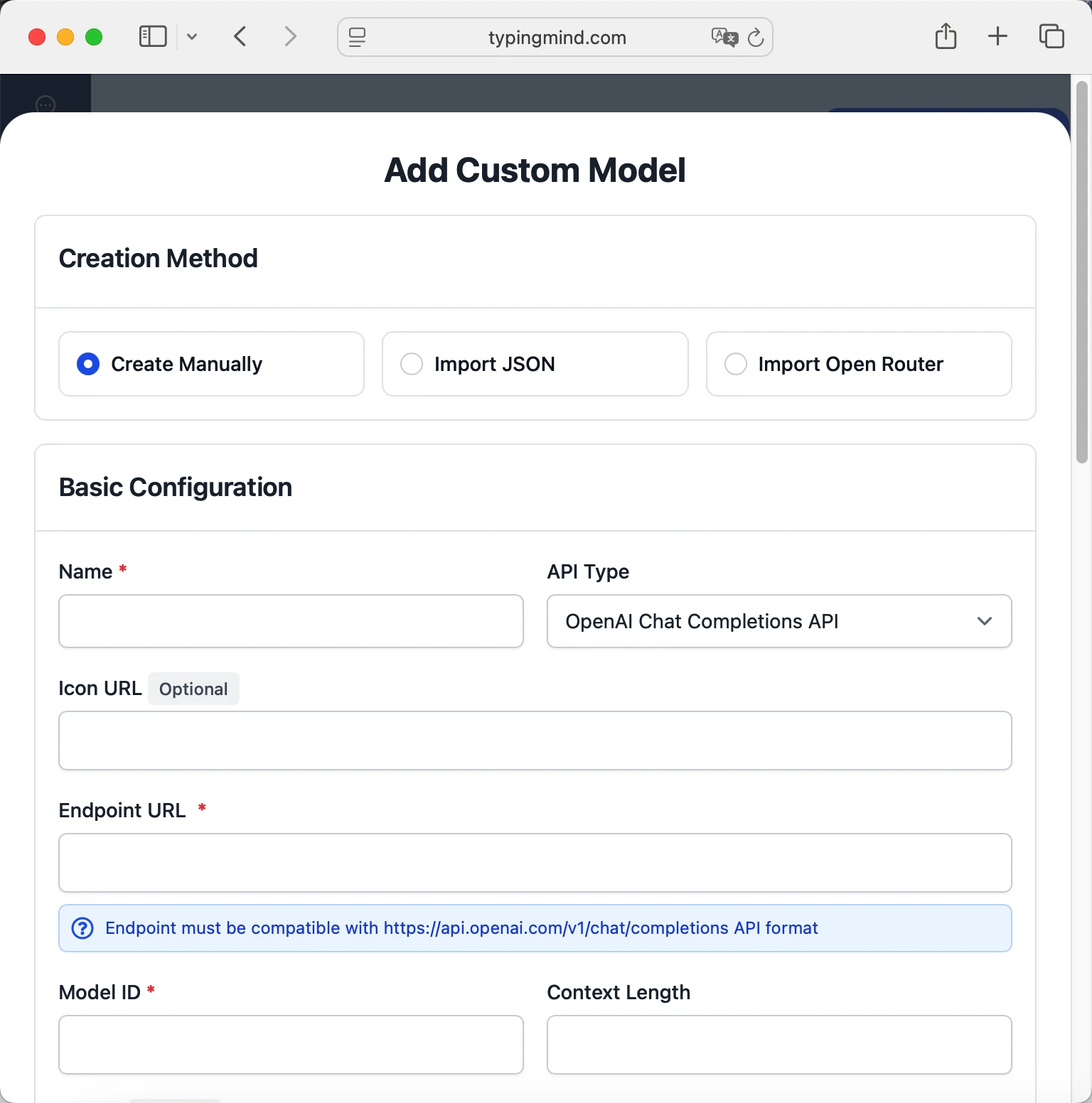 openai/gpt-5.2-chathttps://openrouter.ai/api/v1/chat/completionsopenai/gpt-5.2-chat via OpenRouterhttps://www.typingmind.com/model-logo.webp128000
 - Add custom headers by clicking "Add Custom Headers" in the Advanced Settings section:Authorization:
Bearer <OPENROUTER_API_KEY>:X-Title:typingmind.comHTTP-Referer:https://www.typingmind.com - Enable "Support Plugins (via OpenAI Functions)" if the model supports the "functions" or "tool_calls" parameter, or enable "Support OpenAI Vision" if the model supports vision.
- Click "Test" to verify the configuration
- If you see "Nice, the endpoint is working!", click "Add Model"
Start chatting with openai/gpt-5.2-chat
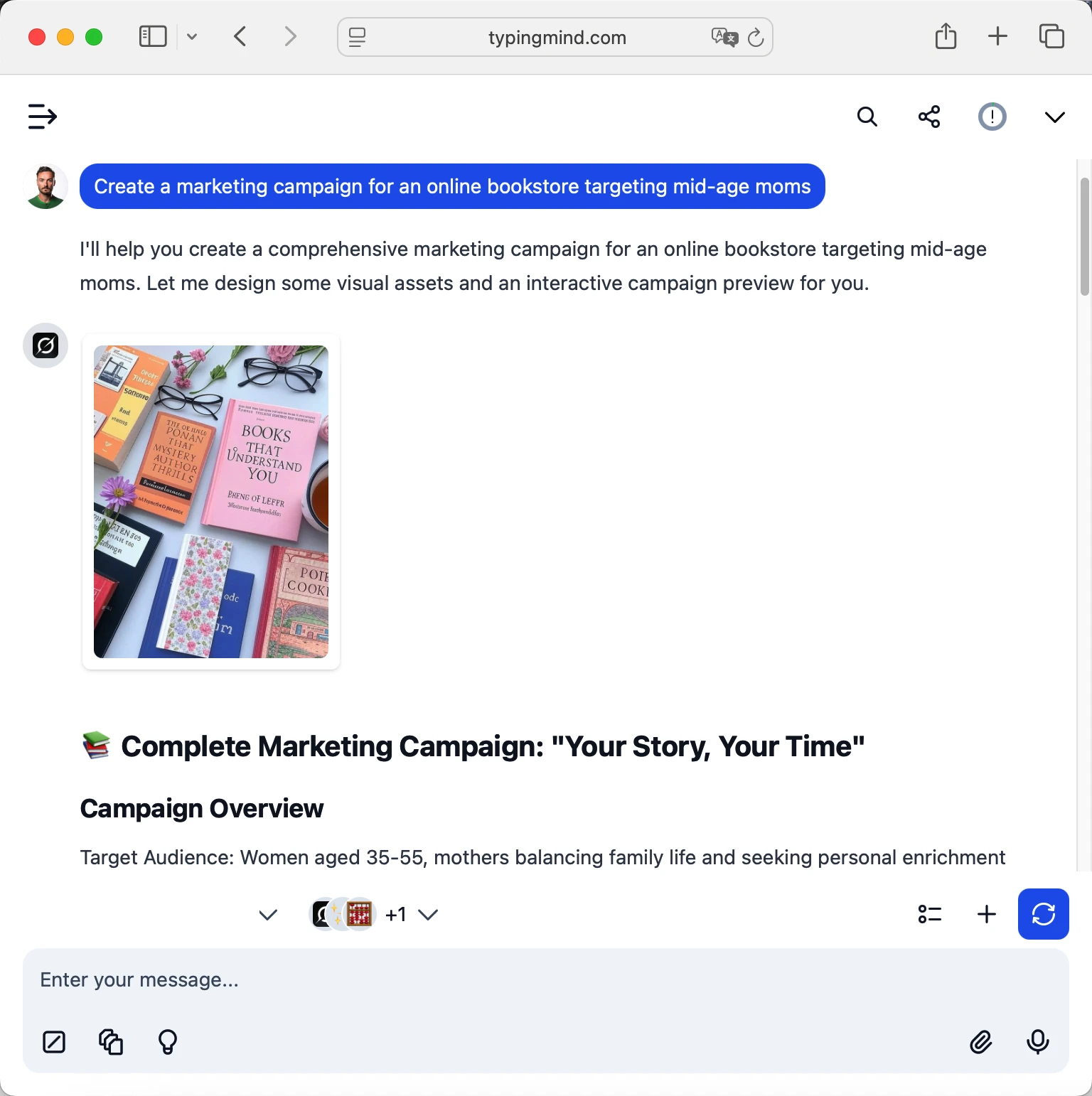
Now you can start chatting with the openai/gpt-5.2-chat model via OpenRouter on TypingMind:
- Select your preferred openai/gpt-5.2-chat model from the model dropdown menu
- Start typing your message in the chat input
- Enjoy faster responses and better features than the official interface
- Switch between different AI models as needed
 openai/gpt-5.2-chat
Pro tips for better results:
- Use specific, detailed prompts for better responses (How to use Prompt Library)
- Create AI agents with custom instructions for repeated tasks (How to create AI Agents)
- Use plugins to extend openai/gpt-5.2-chat capabilities (How to use plugins)
- Upload documents and images directly to chat for AI analysis and discussion (Chat with documents)
Why TypingMind + OpenRouter?
- Best-in-class UI: TypingMind's interface is far superior to standard chat UIs
- Model flexibility: Switch between OpenAI: GPT-5.2 Chat and 200+ models instantly
- Cost control: Pay only for what you use through OpenRouter
- One-time purchase: Buy TypingMind once, use forever with any OpenRouter model
- Data privacy: Your conversations stored locally, not on external servers
Frequently Asked Questions
Do I need a subscription to use OpenAI: GPT-5.2 Chat?
No! Through OpenRouter, you pay only for what you use with no monthly subscription. Add credits to your OpenRouter account and they never expire. TypingMind is also a one-time purchase, not a subscription.
How much will it cost to use OpenAI: GPT-5.2 Chat?
It costs 0.00175 for input and 0.014 for output via OpenRouter. A typical conversation might cost $0.01-0.10 depending on length. Start with $5-10 in credits to test.
Can I use other models besides OpenAI: GPT-5.2 Chat?
Yes! With OpenRouter + TypingMind, you get access to 200+ models including GPT-4, Claude, Gemini, Llama, Mistral, and many more. Switch between them instantly in TypingMind.
Is my data private and secure?
Yes! TypingMind stores conversations locally (web version in browser, desktop version on your device). OpenRouter handles API calls securely and doesn't train on your data. Check each provider's data policy for specifics.
Can I use OpenAI: GPT-5.2 Chat for commercial projects?
Yes! Check OpenAI's terms of service for specific commercial use policies. OpenRouter and TypingMind both support commercial use.
What if OpenAI: GPT-5.2 Chat is unavailable?
OpenRouter allows you to configure fallback models. If OpenAI: GPT-5.2 Chat is down, it can automatically route to your backup choice. You can also manually switch models in TypingMind anytime.
How do I cancel or get a refund?
OpenRouter: No subscriptions to cancel. Unused credits remain in your account forever.
 ByteDance Seed: Seed 1.6 Flash
Access ByteDance Seed: Seed 1.6 Flash via OpenRouter
Seed 1.6 Flash is an ultra-fast multimodal deep thinking model by ByteDance Seed, supporting both text and visual understanding. It features a 256k context window and can generate outputs of up to 16k tokens.
 ByteDance Seed: Seed 1.6
Access ByteDance Seed: Seed 1.6 via OpenRouter
Seed 1.6 is a general-purpose model released by the ByteDance Seed team. It incorporates multimodal capabilities and adaptive deep thinking with a 256K context window.
 MiniMax: MiniMax M2.1
Access MiniMax: MiniMax M2.1 via OpenRouter
MiniMax-M2.1 is a lightweight, state-of-the-art large language model optimized for coding, agentic workflows, and modern application development. With only 10 billion activated parameters, it delivers a major jump in real-world capability while maintaining exceptional latency, scalability, and cost efficiency. Compared to its predecessor, M2.1 delivers cleaner, more concise outputs and faster perceived response times. It shows leading multilingual coding performance across major systems and application languages, achieving 49.4% on Multi-SWE-Bench and 72.5% on SWE-Bench Multilingual, and serves as a versatile agent “brain” for IDEs, coding tools, and general-purpose assistance. To avoid degrading this model's performance, MiniMax highly recommends preserving reasoning between turns. Learn more about using reasoning_details to pass back reasoning in our [docs](https://openrouter.ai/docs/use-cases/reasoning-tokens#preserving-reasoning-blocks).
 Z.AI: GLM 4.7
Access Z.AI: GLM 4.7 via OpenRouter
GLM-4.7 is Z.AI’s latest flagship model, featuring upgrades in two key areas: enhanced programming capabilities and more stable multi-step reasoning/execution. It demonstrates significant improvements in executing complex agent tasks while delivering more natural conversational experiences and superior front-end aesthetics.
 Google: Gemini 3 Flash Preview
Access Google: Gemini 3 Flash Preview via OpenRouter
Gemini 3 Flash Preview is a high speed, high value thinking model designed for agentic workflows, multi turn chat, and coding assistance. It delivers near Pro level reasoning and tool use performance with substantially lower latency than larger Gemini variants, making it well suited for interactive development, long running agent loops, and collaborative coding tasks. Compared to Gemini 2.5 Flash, it provides broad quality improvements across reasoning, multimodal understanding, and reliability. The model supports a 1M token context window and multimodal inputs including text, images, audio, video, and PDFs, with text output. It includes configurable reasoning via thinking levels (minimal, low, medium, high), structured output, tool use, and automatic context caching. Gemini 3 Flash Preview is optimized for users who want strong reasoning and agentic behavior without the cost or latency of full scale frontier models.
 Mistral: Mistral Small Creative
Access Mistral: Mistral Small Creative via OpenRouter
Mistral Small Creative is an experimental small model designed for creative writing, narrative generation, roleplay and character-driven dialogue, general-purpose instruction following, and conversational agents.
 AllenAI: Olmo 3.1 32B Think
Access AllenAI: Olmo 3.1 32B Think via OpenRouter
Olmo 3.1 32B Think is a large-scale, 32-billion-parameter model designed for deep reasoning, complex multi-step logic, and advanced instruction following. Building on the Olmo 3 series, version 3.1 delivers refined reasoning behavior and stronger performance across demanding evaluations and nuanced conversational tasks. Developed by Ai2 under the Apache 2.0 license, Olmo 3.1 32B Think continues the Olmo initiative’s commitment to openness, providing full transparency across model weights, code, and training methodology.
 Xiaomi: MiMo-V2-Flash (free)
Access Xiaomi: MiMo-V2-Flash (free) via OpenRouter
MiMo-V2-Flash is an open-source foundation language model developed by Xiaomi. It is a Mixture-of-Experts model with 309B total parameters and 15B active parameters, adopting hybrid attention architecture. MiMo-V2-Flash supports a hybrid-thinking toggle and a 256K context window, and excels at reasoning, coding, and agent scenarios. On SWE-bench Verified and SWE-bench Multilingual, MiMo-V2-Flash ranks as the top #1 open-source model globally, delivering performance comparable to Claude Sonnet 4.5 while costing only about 3.5% as much. Note: when integrating with agentic tools such as Claude Code, Cline, or Roo Code, **turn off reasoning mode** for the best and fastest performance—this model is deeply optimized for this scenario. Users can control the reasoning behaviour with the `reasoning` `enabled` boolean. [Learn more in our docs](https://openrouter.ai/docs/use-cases/reasoning-tokens#enable-reasoning-with-default-config).
NVIDIA: Nemotron 3 Nano 30B A3B (free)Access NVIDIA: Nemotron 3 Nano 30B A3B (free) via OpenRouter
NVIDIA Nemotron 3 Nano 30B A3B is a small language MoE model with highest compute efficiency and accuracy for developers to build specialized agentic AI systems. The model is fully open with open-weights, datasets and recipes so developers can easily customize, optimize, and deploy the model on their infrastructure for maximum privacy and security. Note: For the free endpoint, all prompts and output are logged to improve the provider's model and its product and services. Please do not upload any personal, confidential, or otherwise sensitive information. This is a trial use only. Do not use for production or business-critical systems.
 NVIDIA: Nemotron 3 Nano 30B A3B
Access NVIDIA: Nemotron 3 Nano 30B A3B via OpenRouter
NVIDIA Nemotron 3 Nano 30B A3B is a small language MoE model with highest compute efficiency and accuracy for developers to build specialized agentic AI systems. The model is fully open with open-weights, datasets and recipes so developers can easily customize, optimize, and deploy the model on their infrastructure for maximum privacy and security. Note: For the free endpoint, all prompts and output are logged to improve the provider's model and its product and services. Please do not upload any personal, confidential, or otherwise sensitive information. This is a trial use only. Do not use for production or business-critical systems.
 OpenAI: GPT-5.2 Pro
Access OpenAI: GPT-5.2 Pro via OpenRouter
GPT-5.2 Pro is OpenAI’s most advanced model, offering major improvements in agentic coding and long context performance over GPT-5 Pro. It is optimized for complex tasks that require step-by-step reasoning, instruction following, and accuracy in high-stakes use cases. It supports test-time routing features and advanced prompt understanding, including user-specified intent like "think hard about this." Improvements include reductions in hallucination, sycophancy, and better performance in coding, writing, and health-related tasks.
 OpenAI: GPT-5.2
Access OpenAI: GPT-5.2 via OpenRouter
GPT-5.2 is the latest frontier-grade model in the GPT-5 series, offering stronger agentic and long context perfomance compared to GPT-5.1. It uses adaptive reasoning to allocate computation dynamically, responding quickly to simple queries while spending more depth on complex tasks. Built for broad task coverage, GPT-5.2 delivers consistent gains across math, coding, sciende, and tool calling workloads, with more coherent long-form answers and improved tool-use reliability.
