
 TypingMind×
 OpenRouter
How to use Mistral Large with your OpenRouter API key on TypingMind
Learn how to access and use Mistral Large with your OpenRouter API key through TypingMind. Get started with this AI model in minutes.
This is Mistral AI's flagship model, Mistral Large 2 (version mistral-large-2407). It's a proprietary weights-available model and excels at reasoning, code, JSON, chat, and more. Read the launch announcement here....
OpenRouter is a unified API gateway that provides access to 400+ AI models from 50+ providers through a single OpenAI-compatible endpoint, eliminating vendor lock-in and simplifying multi-model integration.
Key features include automatic fallbacks (seamlessly switching to backup models if primary fails), smart model routing with :floor (cheapest) and :nitro (fastest) options, standardized API normalization across all providers, and multi-modal support for text and images.
OpenRouter uses pass-through pricing at exact provider rates plus a 5% platform fee (5.5% on credits), offers 13+ free models with daily limits, consolidated analytics dashboards, and enterprise-grade privacy controls with no code changes needed to switch between models like GPT-4, Claude, Gemini, Llama, and DeepSeek.
Mistral Large Overview
| Model Name | Mistral Large |
| Provider | OpenRouter |
| Model ID | mistralai/mistral-large |
| Model Logo | Get the logo URL |
| Release Date | Feb 26, 2024 |
| Knowledge Cutoff | 2024-11-30 |
| Context Window | 128,000 tokens |
| Max Output | 102,400 tokens |
| Pricing /1M tokens | $2.00 input $6.00 output $0.20 cache read |
| Input Modalities | text, file |
| Output Modalities | text |
| Capabilities | File UploadTool CallingStructured OutputTemperature Control |
Complete Setup Guide
Get Your OpenRouter API Key
First, you'll need to obtain an API key from OpenRouter. This key allows you to access their AI models directly and pay only for what you use.
-
Go to openrouter.ai, click Sign In, and create a free account.
-
Open API Keys in the OpenRouter dashboard and click Create API Key.
-
Give the key a name, for example
TypingMind, and copy it. It starts withsk-or-v1-.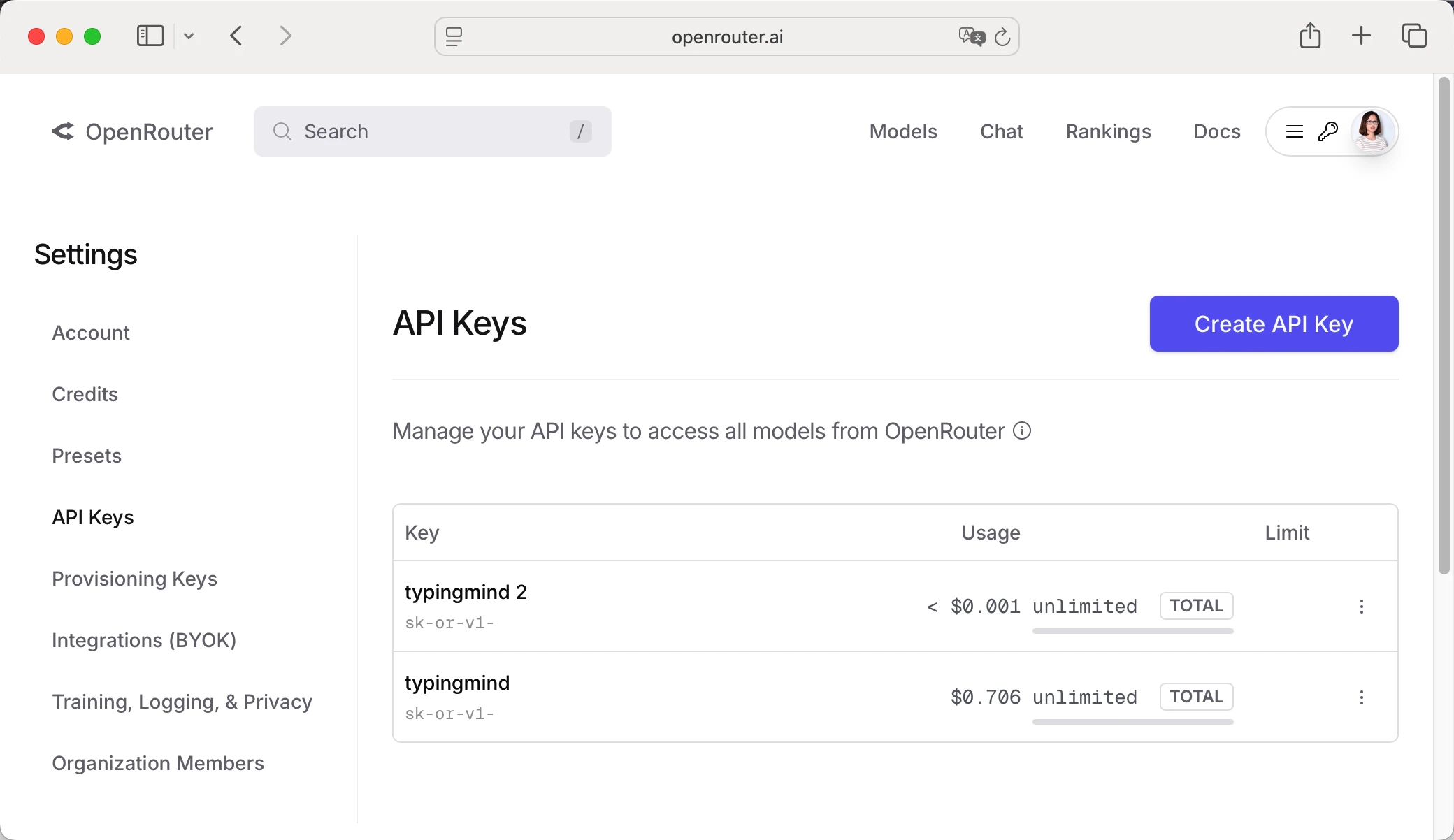
-
Optional: open Credits and click Add Credits ($5 minimum, paid by card or crypto). Credits never expire, and some models are free to try without them.
Sometimes, this provider will require you to add a payment method to your account before you can use your API key to chat with AI. So, to avoid any hiccups, make sure you've got a payment method set up and ready to go!
Important: Keep your API key secure and never share it publicly. Store it safely as you'll need it to connect with TypingMind.
Configure TypingMind with OpenRouter API Key
Option 1: Use the built-in OpenRouter provider (recommended)
The quickest way. TypingMind already has OpenRouter set up, so you only need to add your API key.
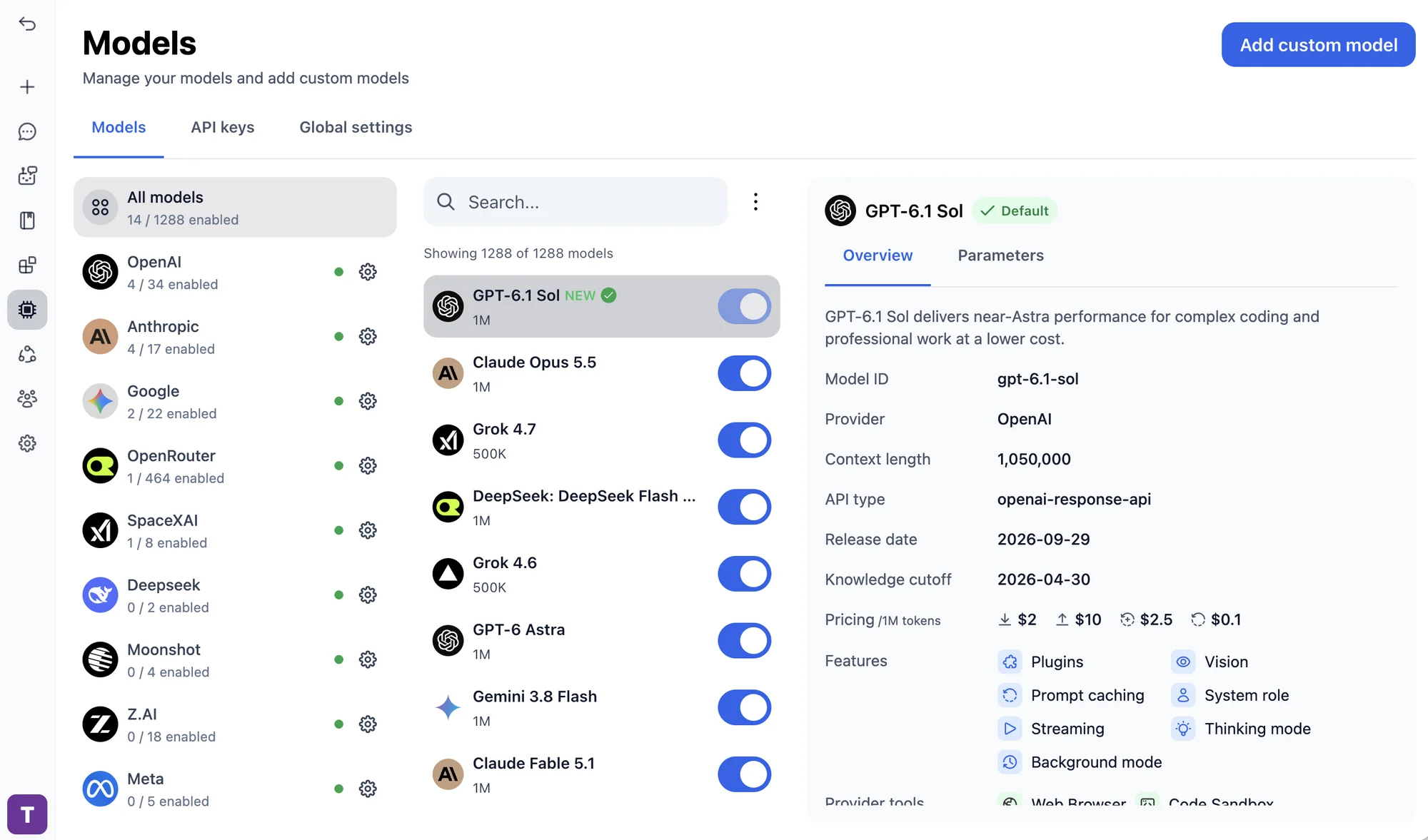
- Open TypingMind and click "Models" in the left sidebar.
- Search for OpenRouter.
- Click the settings (gear) button next to OpenRouter.
- Paste your API key and save.
Option 2: Import from OpenRouter
Add OpenRouter models as custom models. TypingMind fills in the endpoint, authentication, and model details for you.
- Open TypingMind, click "Models" in the left sidebar, then click "Add custom model".
- Select "Import OpenRouter".
- Paste your OpenRouter API key and click "Check API Key".
- Select Mistral Large from the list. You can pick several models at once.
- Click "Import models".
Option 3: Add the model manually
If you can't find the provider or model ID in the official list, you can add the model manually:
Open the Models page
Open TypingMind, click "Models" in the left sidebar, then click "Add custom model" in the top right corner.
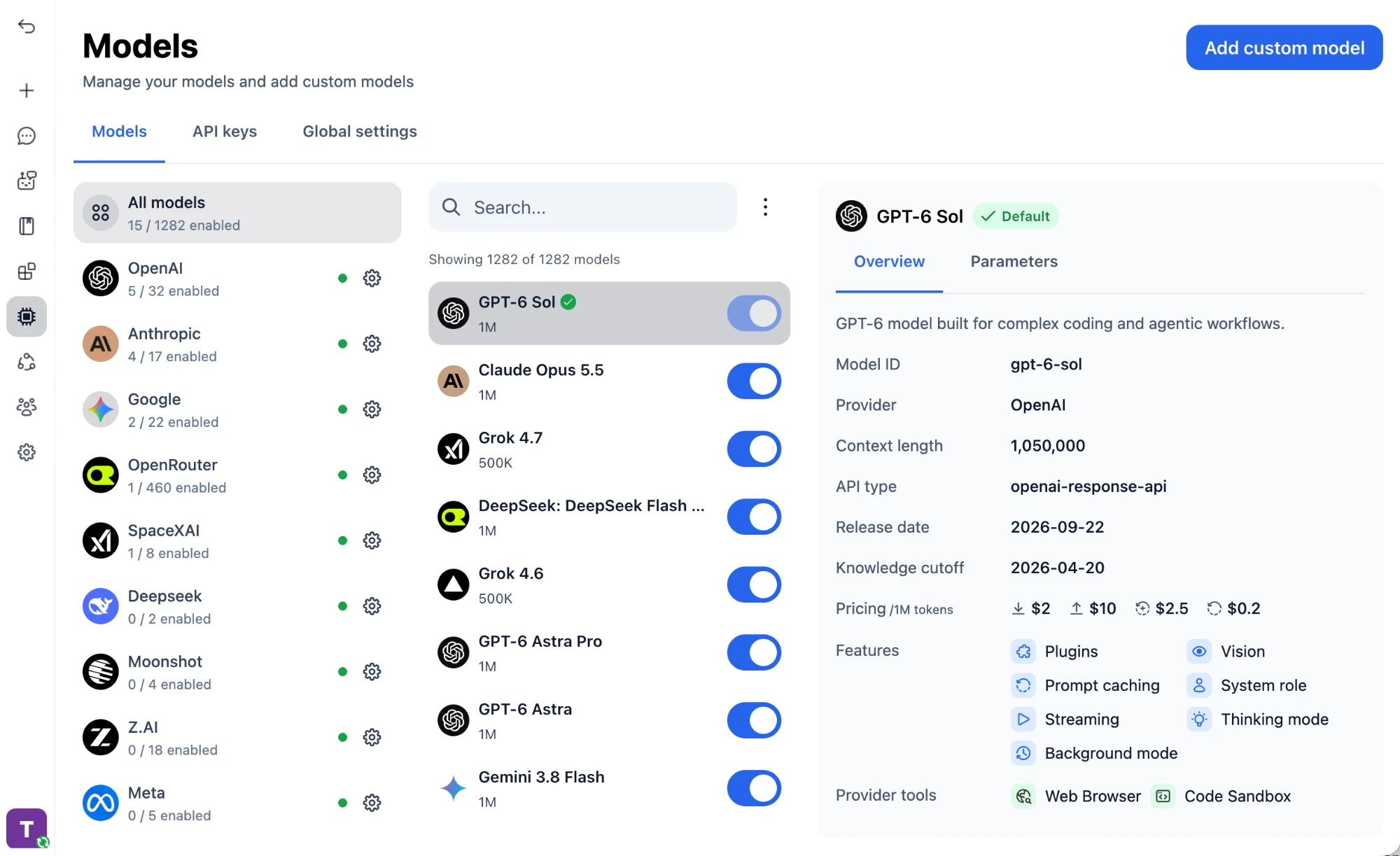
Enter the model details
Keep "Create Manually" selected and fill in the model details:
Name:Mistral Large via OpenRouter(or your preferred name)Model ID:mistralai/mistral-largefor example (check OpenRouter model list)Context Length: Enter the model's context window (e.g., 128000 for mistralai/mistral-large)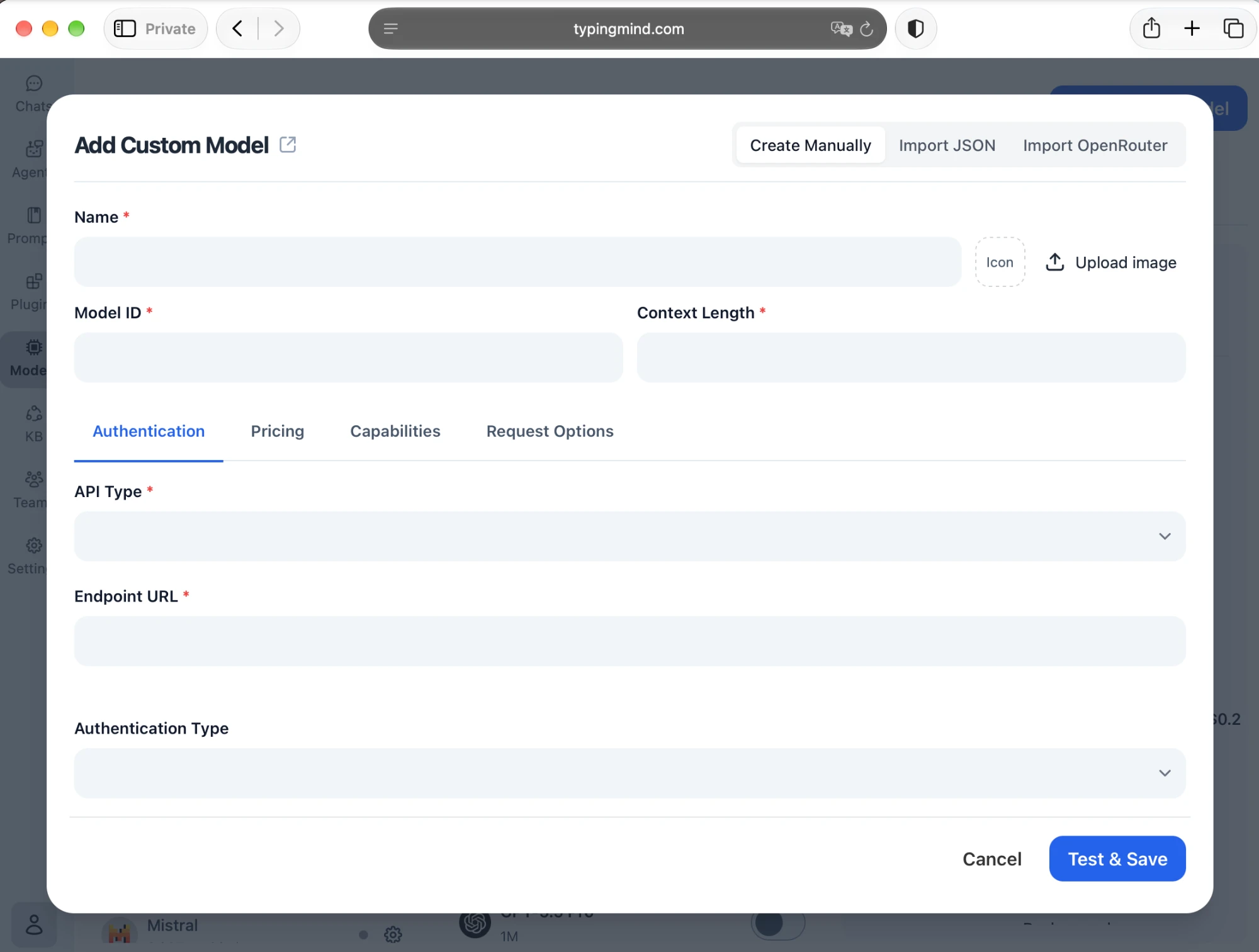
Set up authentication
In the "Authentication" tab, set the connection details:
API Type:OpenAI Chat Completions APIEndpoint URL:https://openrouter.ai/api/v1/chat/completionsAuthentication Type:API Key via HTTP HeaderHeader Key:AuthorizationHeader Value:Bearer <OPENROUTER_API_KEY>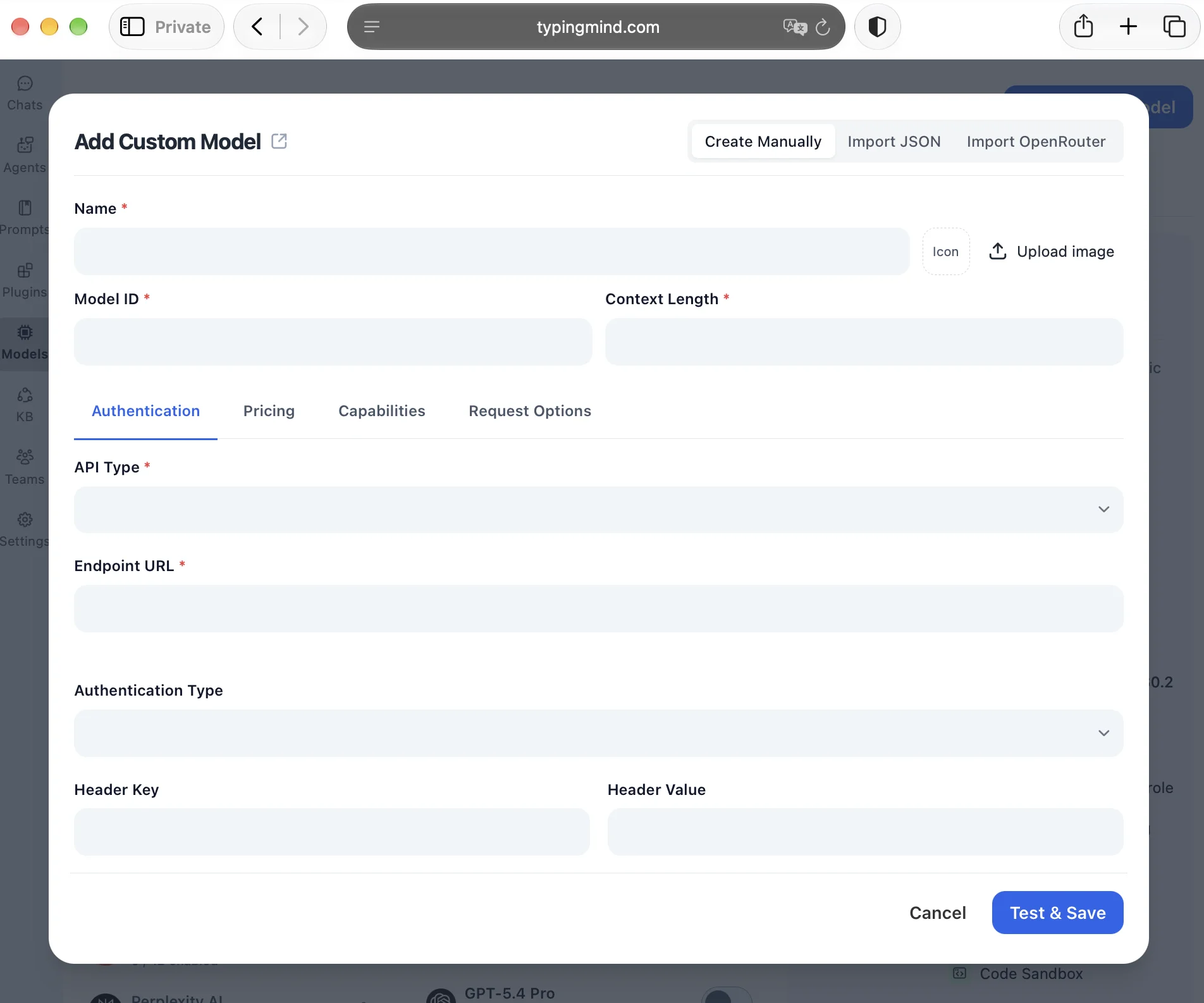
Add pricing (optional)
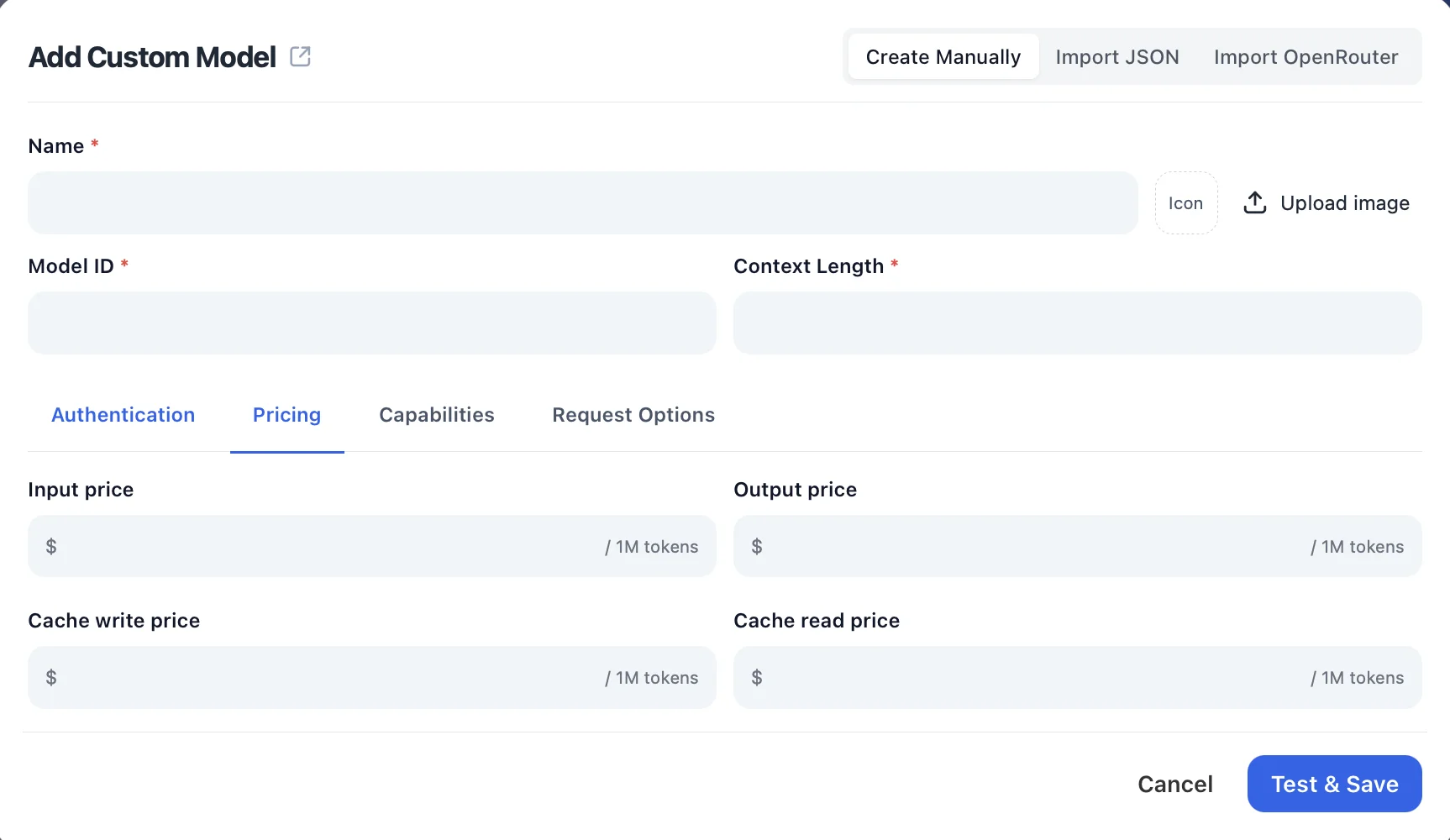
Open the "Pricing" tab and enter the model's input, output, and cache prices per 1M tokens so TypingMind can estimate your usage costs.
Check the capabilities
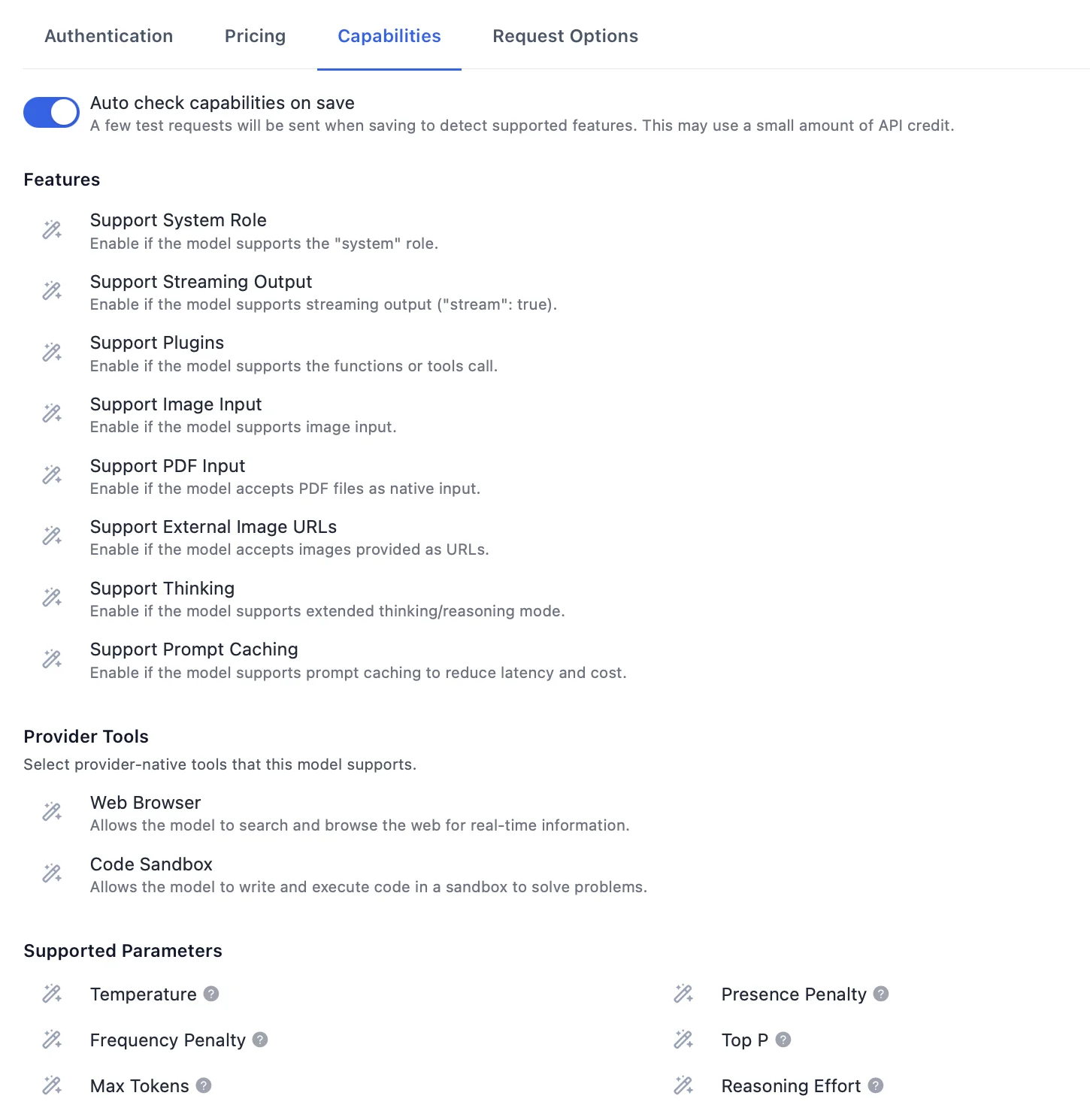
In the "Capabilities" tab, keep "Auto check capabilities on save" on so TypingMind detects supported features like plugins, image input, and thinking, or enable them manually.
Test and save
Click "Test & Save" to verify the connection and add the model.
Start chatting with Mistral Large
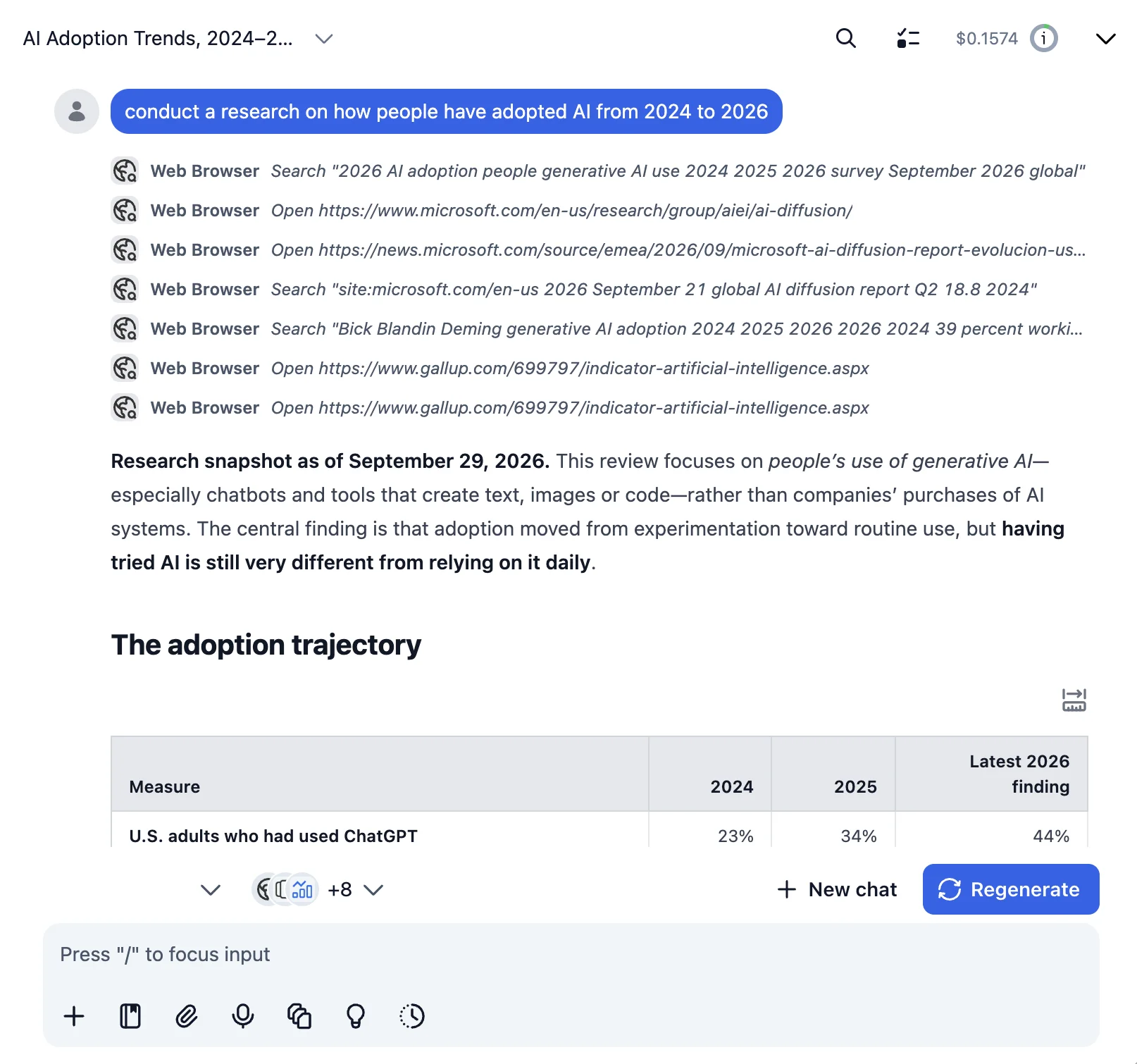
Now you can start chatting with Mistral Large through TypingMind:
- Select Mistral Large from the model dropdown menu
- Start typing your message in the chat input
- Enjoy faster responses and better features than the official interface
- Switch between different AI models as needed
💡 Pro tips for better results:
- Use specific, detailed prompts for better responses (How to use Prompt Library)
- Create AI agents with custom instructions for repeated tasks (How to create AI Agents)
- Use plugins to extend Mistral Large with web search, code execution, and more (How to use plugins)
- Upload documents and images directly to chat for AI analysis and discussion (Chat with documents)
Why TypingMind + OpenRouter?
Chat with Mistral Large and 200+ other models in one workspace, using your own OpenRouter API key.
Best-in-class UI
TypingMind's interface is far superior to standard chat UIs.
Model flexibility
Switch between Mistral Large and 200+ models instantly.
Cost control
Pay only for what you use through OpenRouter.
One-time purchase
Buy TypingMind once, use forever with any OpenRouter model.
Data privacy
Your conversations are stored locally by default, not on external servers.
Plugins, MCP, Skills & AI agents
Extend Mistral Large with web search, image generation, and custom AI agents.
Frequently Asked Questions
Do I need a subscription to use Mistral Large?
No. With your own OpenRouter API key, you pay only for what you use, with no monthly subscription. TypingMind is also a one-time purchase, not a subscription.
How much does it cost to use Mistral Large?
Mistral Large costs $2.00/1M input tokens and $6.00/1M output tokens via OpenRouter. A typical conversation costs around $0.01-0.10, depending on length.
Can I use other models besides Mistral Large?
Yes. Any model your OpenRouter API key can access works in TypingMind, and you can switch between it and models from other providers in the same chat.
Is my data private when using Mistral Large with TypingMind?
TypingMind stores your conversations locally (in your browser on the web version, on your device in the desktop app). Your messages are sent to OpenRouter with your API key, so check OpenRouter's data policy for how it handles API requests.
What if Mistral Large is unavailable?
OpenRouter allows you to configure fallback models. If Mistral Large is down, it can automatically route to your backup choice. You can also manually switch models in TypingMind anytime.
How do I cancel or get a refund?
There are no subscriptions to cancel. Unused OpenRouter credits remain in your account forever.
