
TUUI - Local AI Playground with MCP
TUUI is a desktop MCP client designed as a tool unitary utility integration, accelerating AI adoption through the Model Context Protocol (MCP) and enabling cross-vendor LLM API orchestration.
Zero accounts Full control Open source Download and Run


📜 Introduction




This repository is essentially an LLM chat desktop application based on MCP. It also represents a bold experiment in creating a complete project using AI. Many components within the project have been directly converted or generated from the prototype project through AI.
Given the considerations regarding the quality and safety of AI-generated content, this project employs strict syntax checks and naming conventions. Therefore, for any further development, please ensure that you use the linting tools I've set up to check and automatically fix syntax issues.
✨ Highlights
- ✨ Accelerate AI tool integration via MCP
- ✨ Orchestrate cross-vendor LLM APIs through dynamic configuring
- ✨ Automated application testing Support
- ✨ TypeScript support
- ✨ Multilingual support
- ✨ Basic layout manager
- ✨ Global state management through the Pinia store
- ✨ Quick support through the GitHub community and official documentation
🔥 MCP features
| Status | Feature | Category | Note |
|---|---|---|---|
| ✅ | Tools | Server | |
| ✅ | Prompts | Server | |
| ✅ | Resources | Server | |
| 🔲 | Roots | Client | This is generally only used for the Vibe Coding IDE and can typically be configured through server environment variables. |
| ✅ | Sampling | Client | |
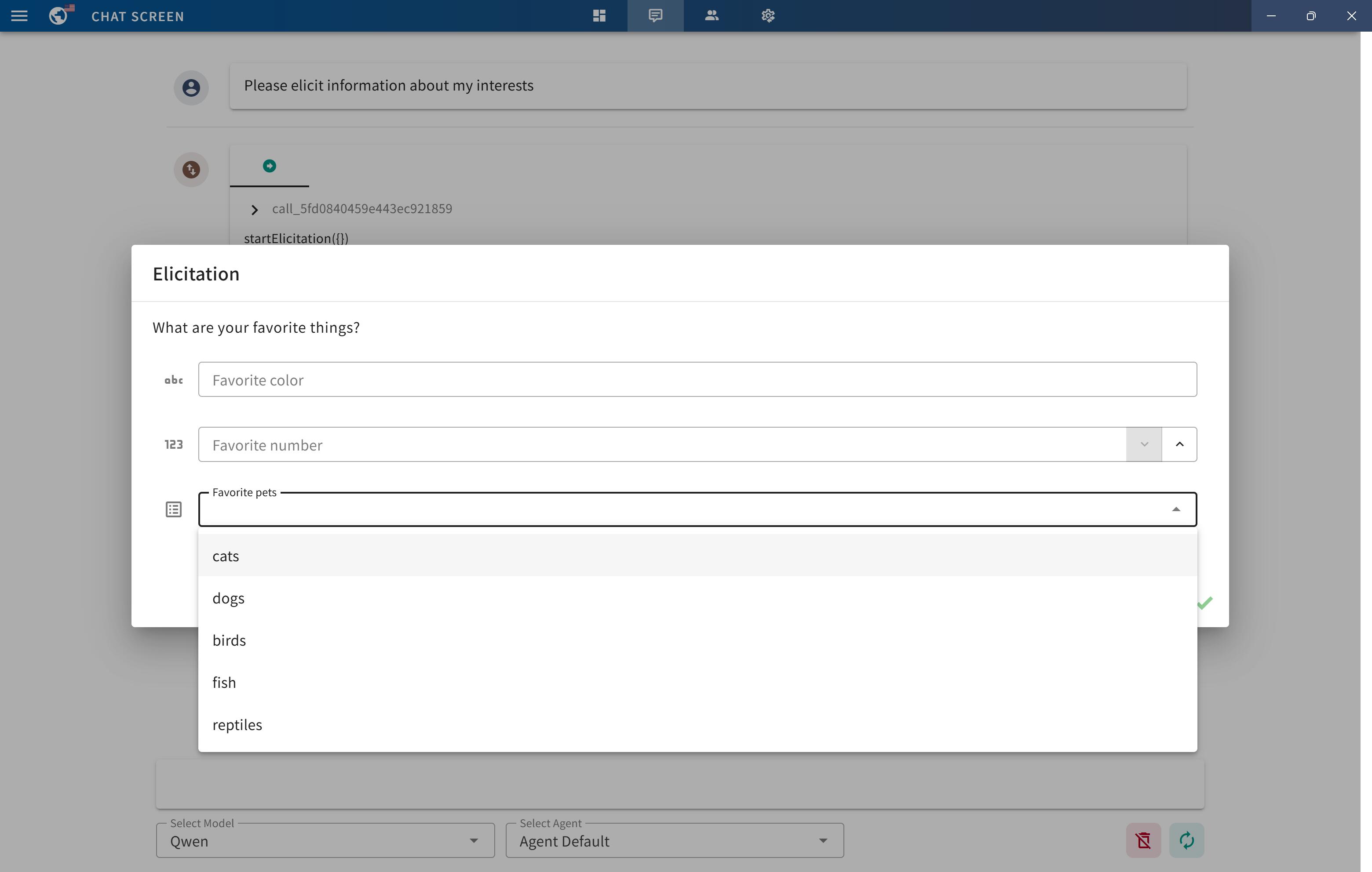
| ✅ | Elicitation | Client | |
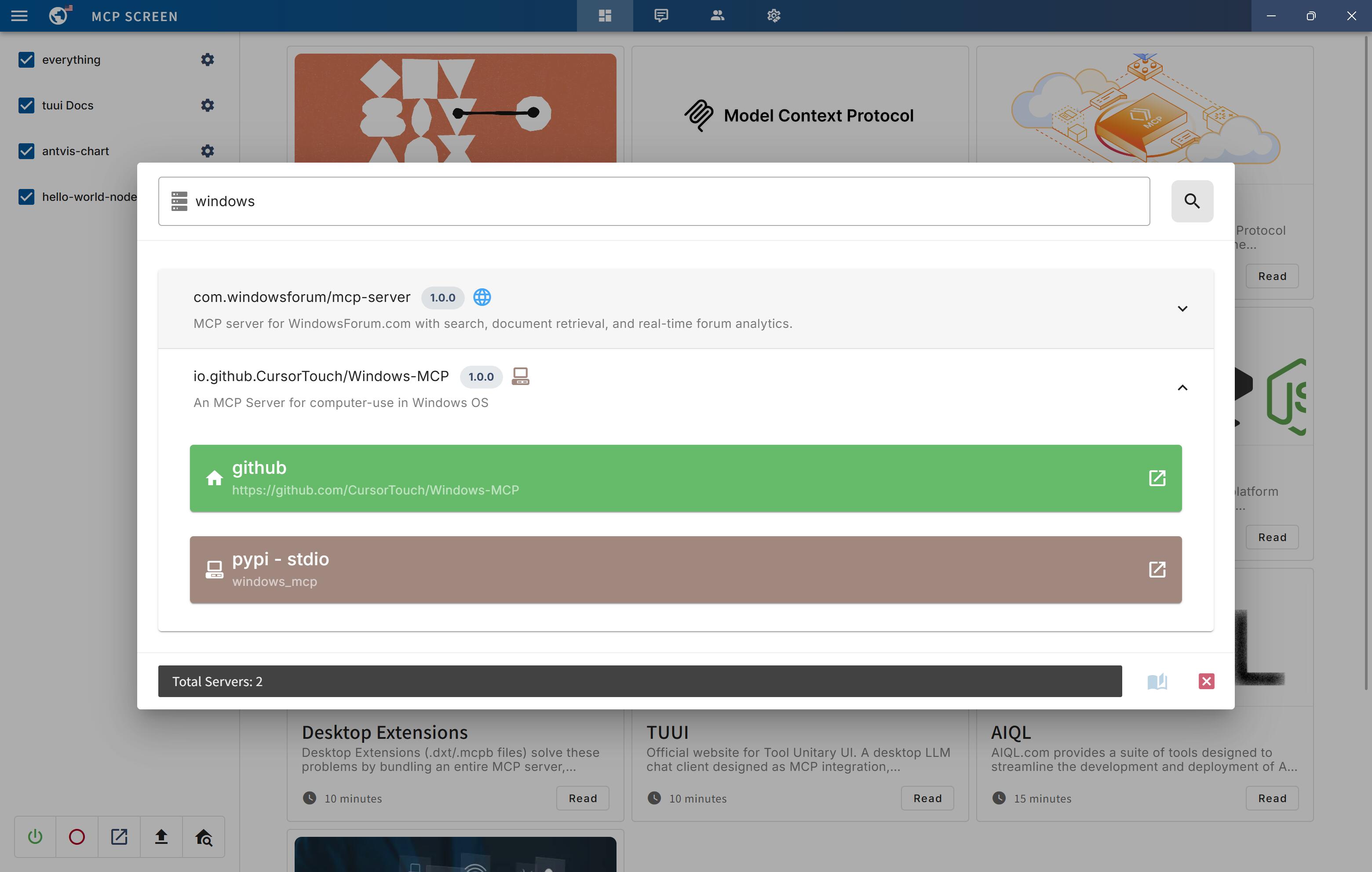
| ✅ | Discovery | Registry | Provides real-time MCP server discovery on the MCP registry |
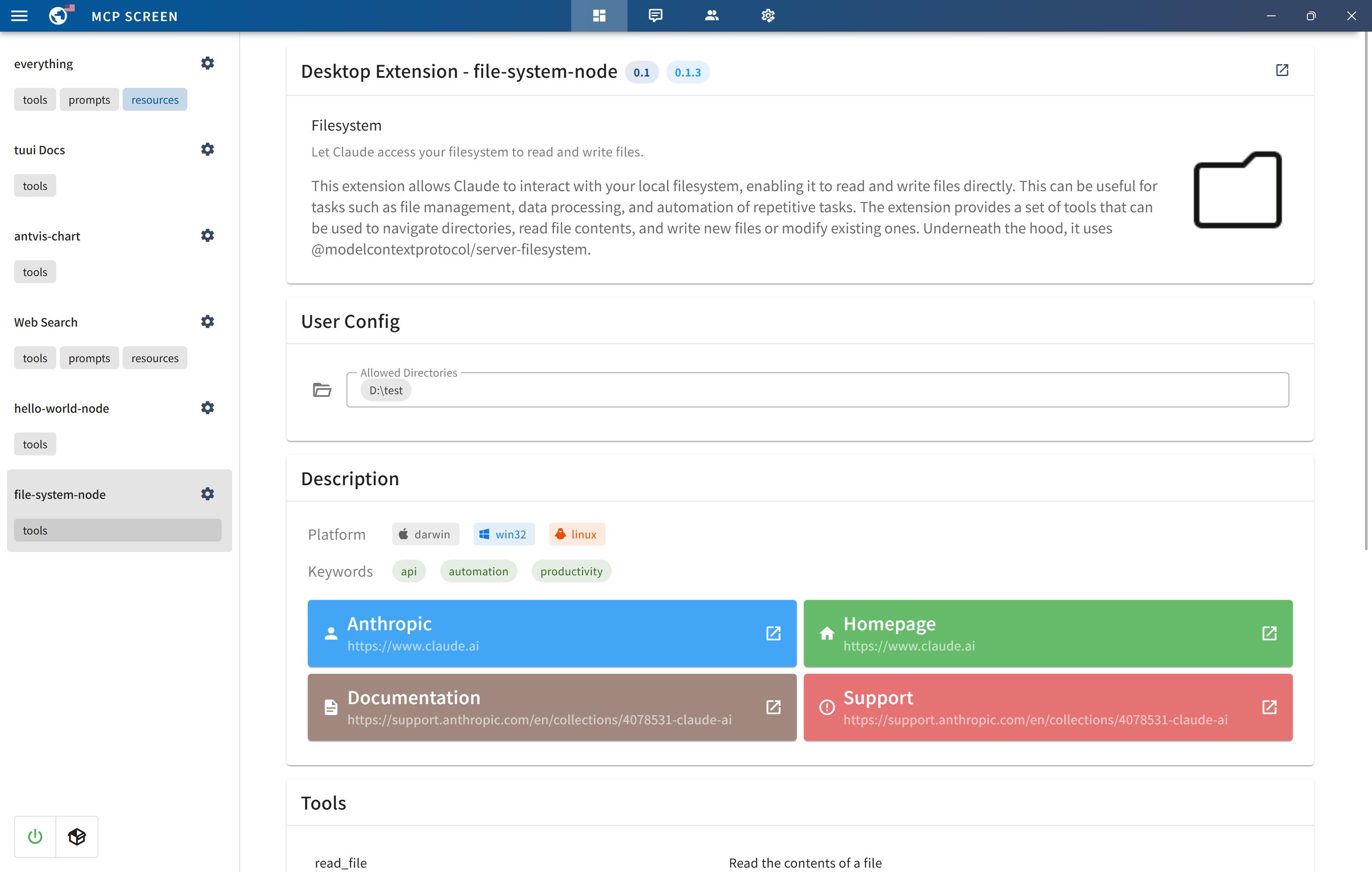
| ✅ | MCPB | Extension | MCP Bundles (.mcpb) is the new name for what was previously known as Desktop Extensions (.dxt) |
🚀 Getting Started
You can quickly get started with the project through a variety of options tailored to your role and needs:
-
To
explorethe project, visit the wiki page: TUUI.com -
To
downloadand use the application directly, go to the releases page: Releases -
For
developersetup, refer to the installation guide: Getting Started (English) | 快速入门 (中文) -
To
ask the AIdirectly about the project, visit: TUUI@DeepWiki
⚙️ Core Requirements
To use MCP-related features, ensure the following preconditions are met for your environment:
-
Set up an LLM backend (e.g.,
ChatGPT,Claude,Qwenor self-hosted) that supports tool/function calling. -
For NPX/NODE-based servers: Install
Node.jsto execute JavaScript/TypeScript tools. -
For UV/UVX-based servers: Install
Pythonand theUVlibrary. -
For Docker-based servers: Install
DockerHub. -
For macOS/Linux systems: Modify the default MCP configuration (e.g., adjust CLI paths or permissions).
Refer to the MCP Server Issue documentation for guidance
For guidance on configuring the LLM, refer to the template(i.e.: Qwen):
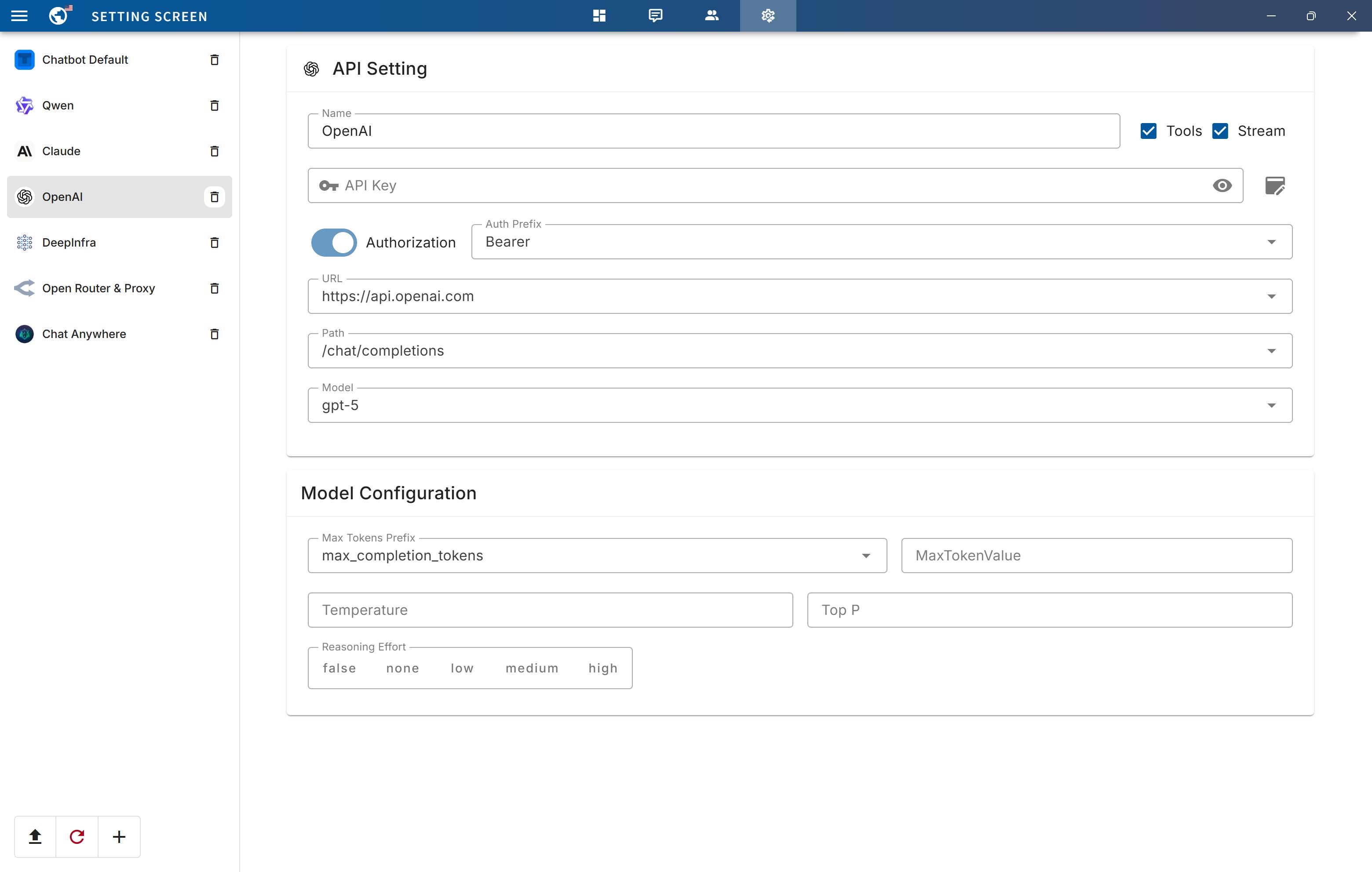
json{ "name": "Qwen", "apiKey": "", "url": "https://dashscope.aliyuncs.com/compatible-mode", "path": "/v1/chat/completions", "model": "qwen-turbo", "modelList": ["qwen-turbo", "qwen-plus", "qwen-max"], "maxTokensValue": "", "mcp": true }
The configuration accepts either a JSON object (for a single chatbot) or a JSON array (for multiple chatbots):
json[ { "name": "Openrouter && Proxy", "apiKey": "", "url": "https://api3.aiql.com", "urlList": ["https://api3.aiql.com", "https://openrouter.ai/api"], "path": "/v1/chat/completions", "model": "openai/gpt-4.1-mini", "modelList": [ "openai/gpt-4.1-mini", "openai/gpt-4.1", "anthropic/claude-sonnet-4", "google/gemini-2.5-pro-preview" ], "maxTokensValue": "", "mcp": true }, { "name": "DeepInfra", "apiKey": "", "url": "https://api.deepinfra.com", "path": "/v1/openai/chat/completions", "model": "Qwen/Qwen3-32B", "modelList": [ "Qwen/Qwen3-32B", "Qwen/Qwen3-235B-A22B", "meta-llama/Meta-Llama-3.1-70B-Instruct" ], "mcp": true } ]
📕 Additional Configuration
| Configuration | Description | Location | Note |
|---|---|---|---|
| LLM Endpoints | Default LLM Chatbots config | llm.json | Full config types could be found in llm.d.ts |
| MCP Servers | Default MCP servers configs | mcp.json | For configuration syntax, see MCP Servers |
| Startup Screen | Default News on Startup Screen | startup.json | |
| Popup Screen | Default Prompts on Startup Screen | popup.json |
For the decomposable package, you can also modify the default configuration of the built release:
For example, src/main/assets/config/llm.json will be located in resources/assets/config/llm.json
Once you modify or import the configurations, it will be stored in your localStorage by default.
Alternatively, you can clear all configurations from the Tray Menu by selecting Clear Storage.
🌐 Remote MCP server
You can utilize Cloudflare's recommended mcp-remote to implement the full suite of remote MCP server functionalities (including Auth). For example, simply add the following to your mcp.json file:
json{ "mcpServers": { "cloudflare": { "command": "npx", "args": ["-y", "mcp-remote", "https://YOURDOMAIN.com/sse"] } } }
In this example, I have provided a test remote server: https://YOURDOMAIN.com on Cloudflare. This server will always approve your authentication requests.
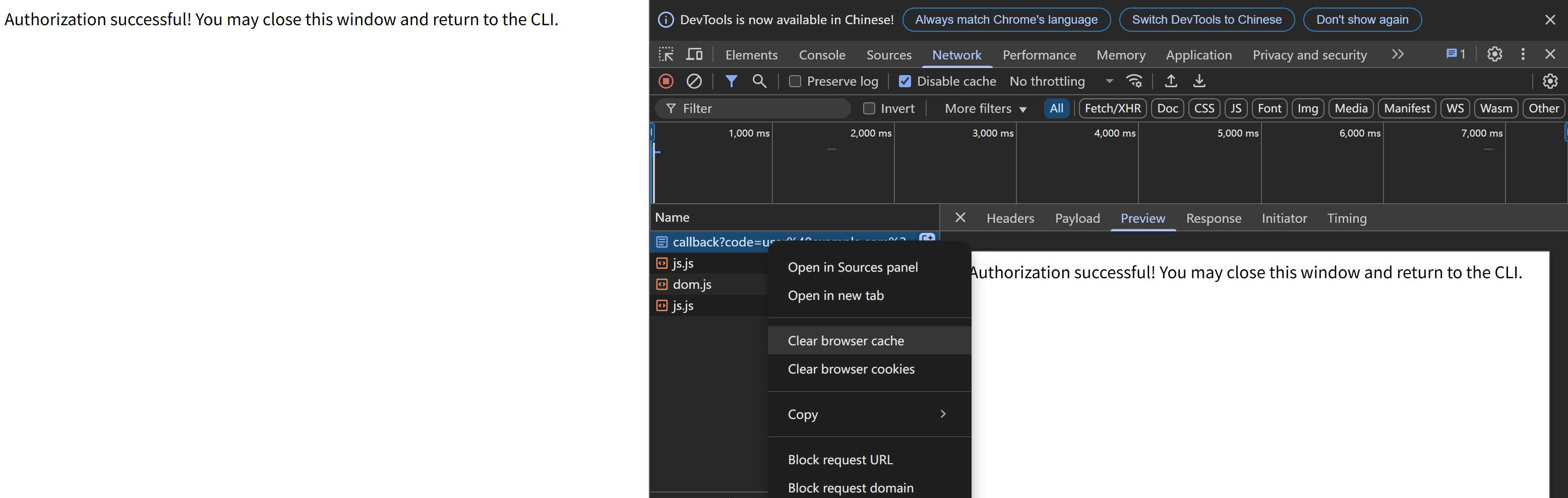
If you encounter any issues (please try to maintain OAuth auto-redirect to prevent callback delays that might cause failures), such as the common HTTP 400 error. You can resolve them by clearing your browser cache on the authentication page and then attempting verification again:
🚸 MCP Server Issue
General
When launching the MCP server, if you encounter any issues, first ensure that the corresponding command can run on your current system — for example, uv/uvx, npx, etc.
ENOENT Spawn Errors
When launching the MCP server, if you encounter spawn errors like ENOENT, try running the corresponding MCP server locally and invoking it using an absolute path.
If the command works but MCP initialization still returns spawn errors, this may be a known issue:
-
Windows: The MCP SDK includes a workaround specifically for
Windowssystems, as documented in ISSUE 101.Details: ISSUE 40 - MCP servers fail to connect with npx on Windows (fixed)
-
mscOS: The issue remains unresolved on other platforms, specifically
macOS. Although several workarounds are available, this ticket consolidates the most effective ones and highlights the simplest method: How to configure MCP on macOS.Details: ISSUE 64 - MCP Servers Don't Work with NVM (still open)
MCP Connection Timeout
If initialization takes too long and triggers the 90-second timeout protection, it may be because the uv/uvx/npx runtime libraries are being installed or updated for the first time.
When your connection to the respective pip or npm repository is slow, installation can take a long time.
In such cases, first complete the installation manually with pip or npm in the relevant directory, and then start the MCP server again.
🤝 Contributing
We welcome contributions of any kind to this project, including feature enhancements, UI improvements, documentation updates, test case completions, and syntax corrections. I believe that a real developer can write better code than AI, so if you have concerns about certain parts of the code implementation, feel free to share your suggestions or submit a pull request.
Please review our Code of Conduct. It is in effect at all times. We expect it to be honored by everyone who contributes to this project.
For more information, please see Contributing Guidelines
🙋 Opening an Issue
Before creating an issue, check if you are using the latest version of the project. If you are not up-to-date, see if updating fixes your issue first.
🔒️ Reporting Security Issues
Review our Security Policy. Do not file a public issue for security vulnerabilities.
🎉 Demo
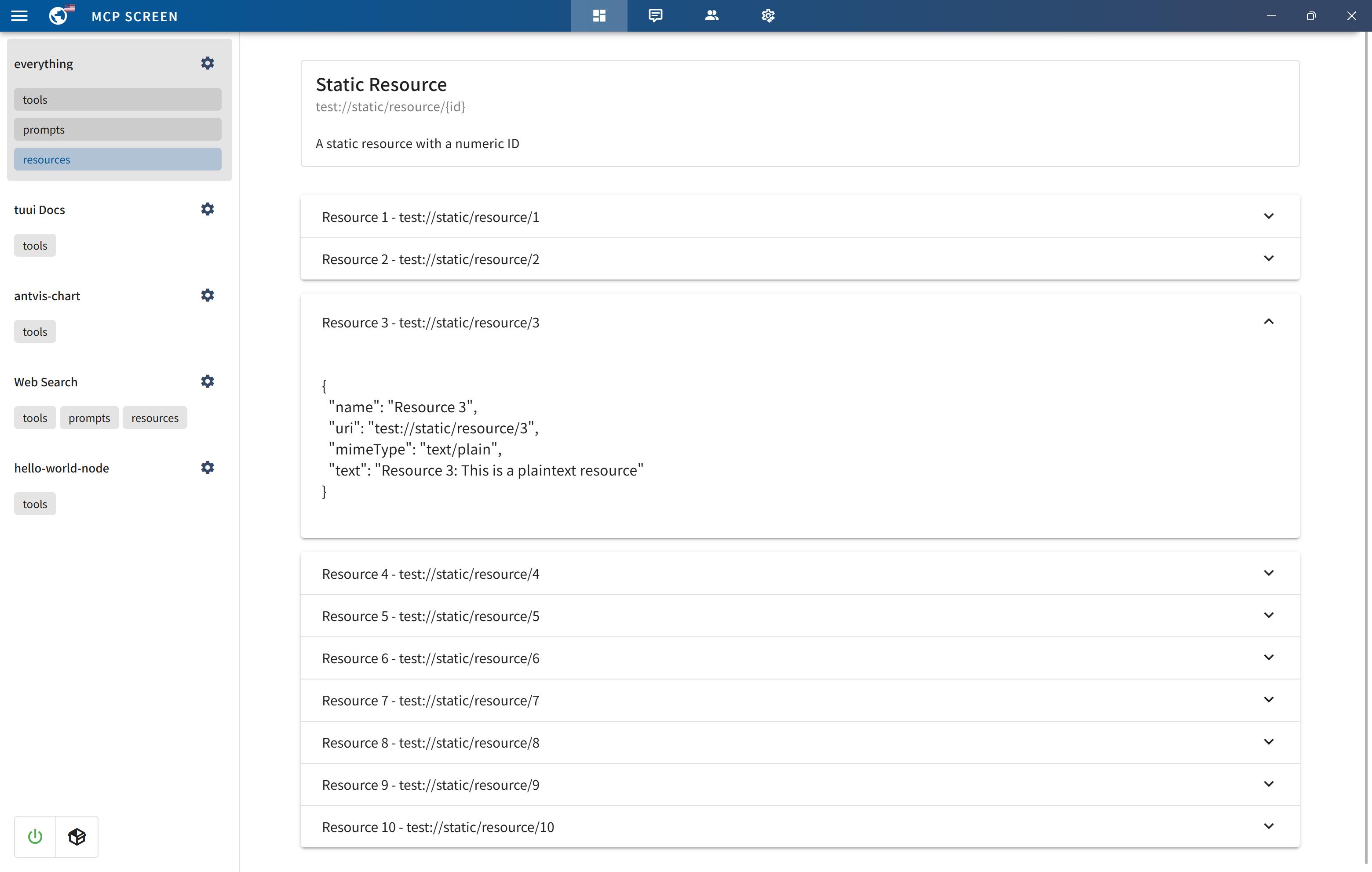
MCP primitive visualization
MCP bundles (.mcpb) support
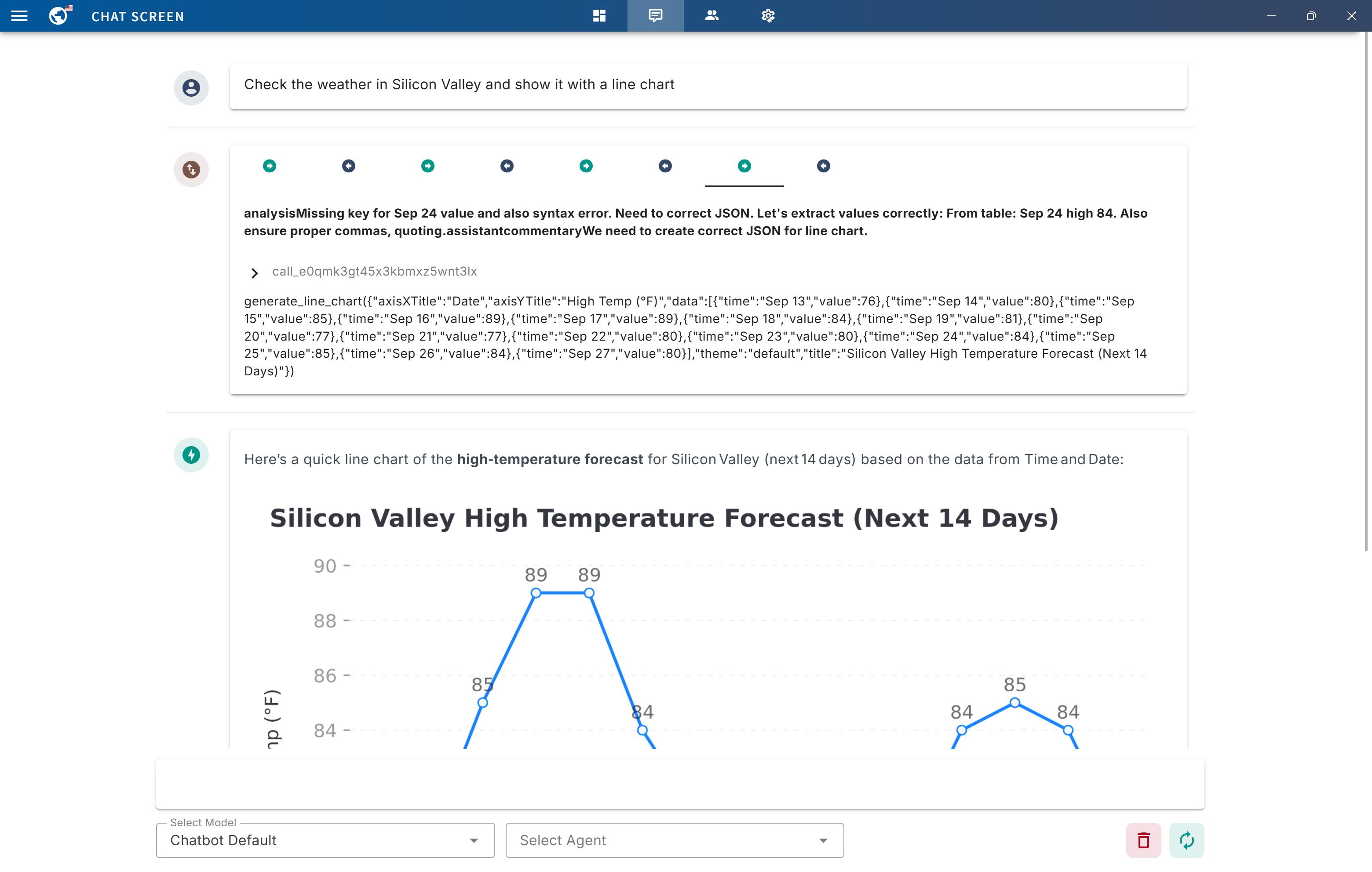
MCP Tool call tracing
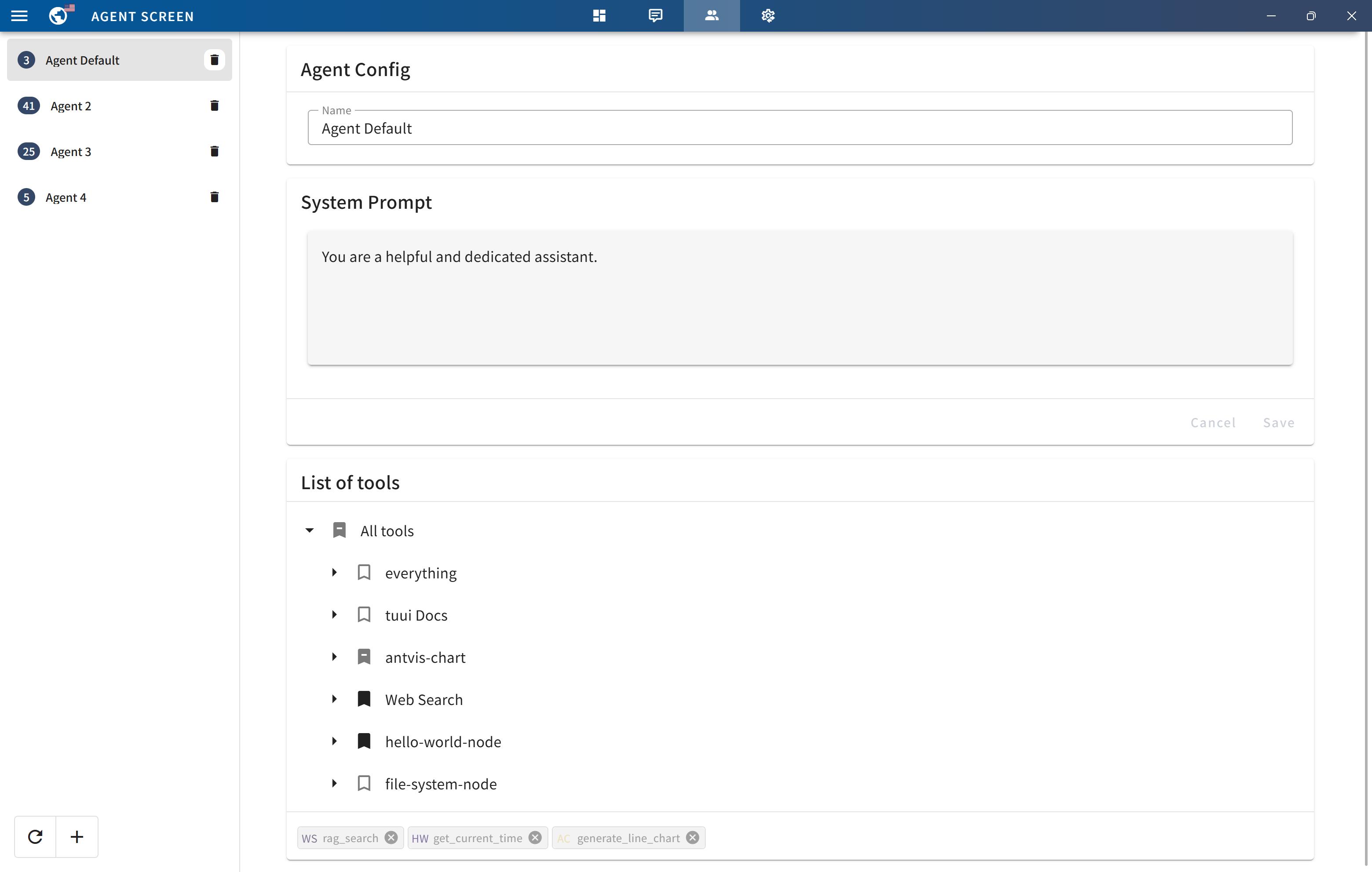
Agent with specified tool selection
LLM API setting
MCP elicitation
MCP Registry
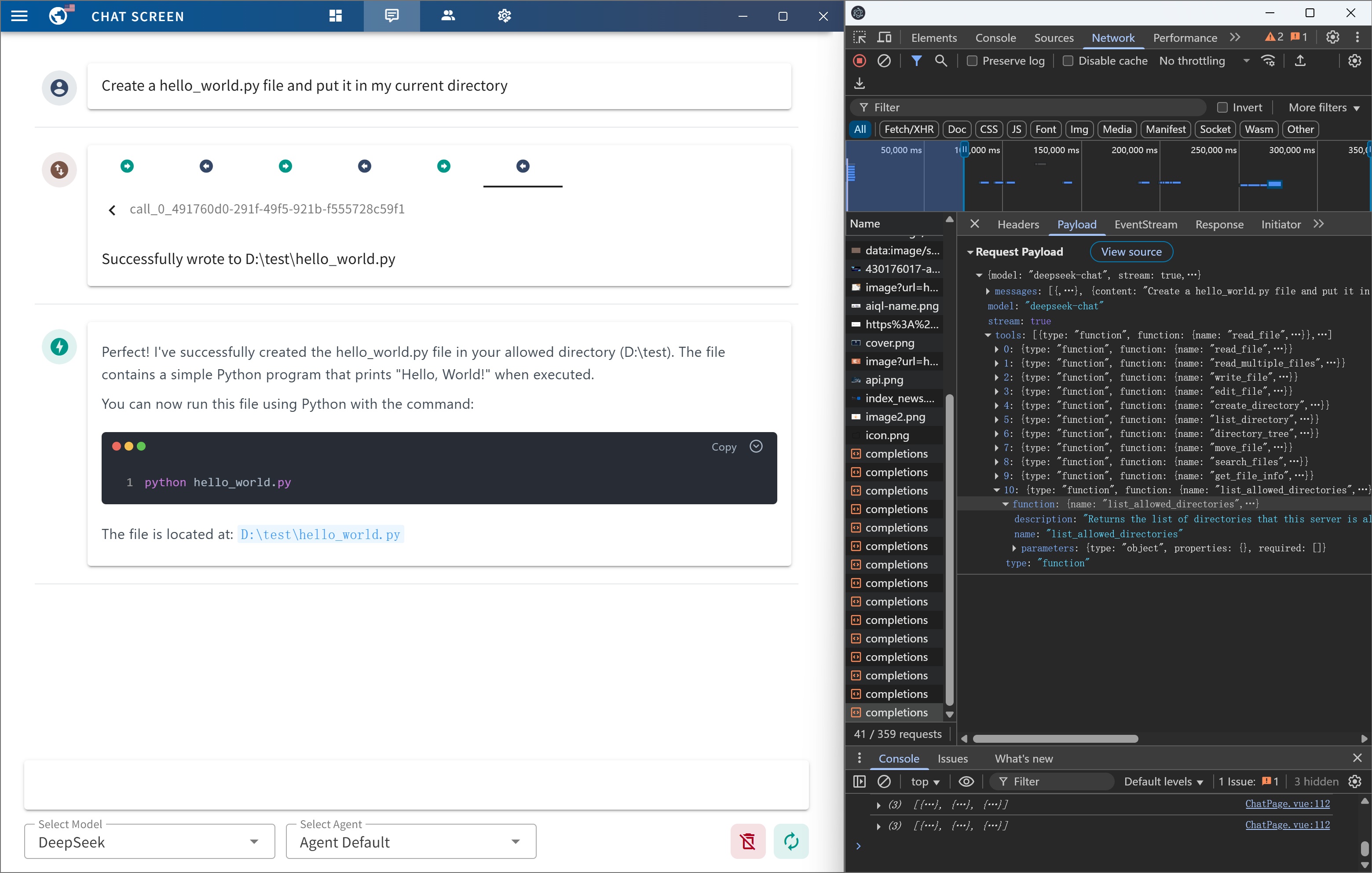
Native devtools
🙏 Credits
Written by @AIQL.com.
Many of the ideas and prose for the statements in this project were based on or inspired by work from the following communities:
You can review the specific technical details and the license. We commend them for their efforts to facilitate collaboration in their projects.






