AnySearch MCP Server
English | 简体中文
Unified real-time search MCP server supporting general web search, vertical domain search, parallel batch search, and full-page URL content extraction.
Features
- General Web Search — open-ended natural language queries
- Vertical Domain Search — structured queries across finance, academic, security, legal, code, and more
- Parallel Batch Search — execute multiple independent queries in one call
- URL Content Extraction — fetch and extract full page content as Markdown
- Anonymous Access — works without an API key (with lower rate limits)
API Key Configuration
An API key is optional but recommended. Without a key, all features still work via anonymous access with lower rate limits.
Register for an API Key (Recommended)
The agent can register the user and obtain an API key in a single call — no verification code, no manual signup. Ask the user for a real email address: it becomes the account username.
bashcurl -s -X POST "https://api.anysearch.com/v1/auth/email/register" \ -H "Content-Type: application/json" \ -d '{"email": "you@example.com"}'
Success response (code: 0) returns the account info and a one-time plaintext API key:
json{ "code": 0, "message": "success", "data": { "username": "you@example.com", "email": "you@example.com", "login_url": "https://www.anysearch.com/login", "api_key": { "id": "key_xxxxxxxx", "key": "as_sk_xxxxxxxxxxxxxxxxxxxxxxxxxxxxxx", "key_prefix": "as_sk_xxxxxx...", "name": "default", "rate_limit": 100, "quota_limit": 0, "expires_at": null, "created_at": "2026-06-23T10:23:00Z" } } }
Quota fields such as rate_limit are account-specific response values; do not treat the example as a fixed plan.
On success the agent MUST:
- Put
data.api_key.keyinto the MCP server config as theAuthorization: Bearer <key>value (and/or setANYSEARCH_API_KEY) — it is shown only once (it can also be retrieved later from the dashboard). - Tell the user their username (= email) and the
login_url.
Errors can be expressed through the HTTP status, application-level code, or message; do not assume every error uses code: -1:
| status / code / message | what to do |
|---|---|
Invalid email address. | ask the user to re-enter the email |
HTTP 409 or email_already_registered | email is taken — tell the user to sign in at login_url; do not retry |
code: 42901, rate_limited, or contains Rate limited | prefer a retry delay from Retry-After, response data, or the message; if none is provided, stop repeated requests and retry later or use anonymous access |
starts with Key creation failed. | account created but key failed — extract the email and URL from the message ("Key creation failed. Your account <email> was created; sign in at <url>.") and tell the user to sign in there to create a key manually |
Internal server error. | retry later or fall back to anonymous |
The email must be real and reachable.
Get an API Key
Alternatively, visit https://anysearch.com/console/api-keys to create a free API key.
Key Priority
| Priority | Source |
|---|---|
| 1 (highest) | --api_key CLI flag / Authorization header |
| 2 | Environment variable ANYSEARCH_API_KEY |
| 3 | .env file (ANYSEARCH_API_KEY=<key>) |
| 4 | Anonymous access (lower rate limits) |
Key Behavior
| Scenario | Behavior |
|---|---|
| No key | Proceed with anonymous access (lower rate limits) |
| Has key | Sent via Authorization: Bearer <key> header, higher rate limits |
| Key exhausted, auto-registered key returned | Agent should ask user for confirmation, then persist the new key |
| Key exhausted, no new key | Inform user and suggest configuring a new API key |
MCP Transport
The production endpoint is:
texthttps://api.anysearch.com/mcp
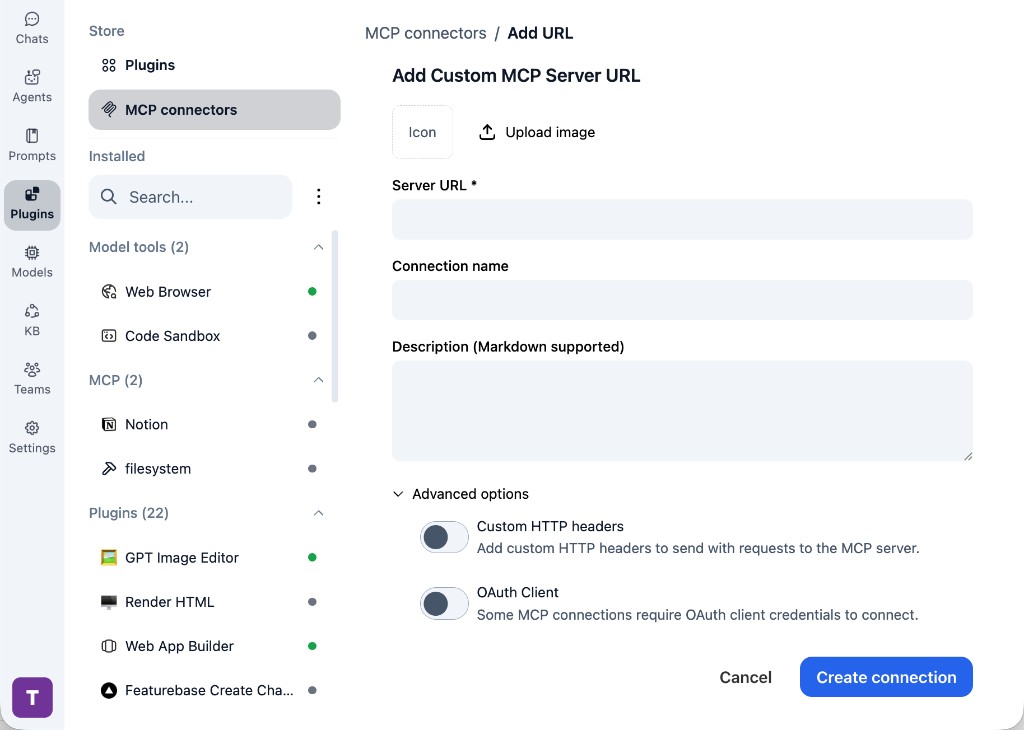
It natively uses Streamable HTTP. Current OpenCode, Claude Code, Cursor, VS Code, Cline, OpenAI Codex, Google Antigravity, DeepSeek Harness, Hermes Agent, and OMP releases can connect to it directly; no SSE or stdio proxy is needed. The configurations below follow each client's current official documentation.
Installation
The API key is optional. Where a client documents environment-variable or secret storage for custom headers, the examples use the recommended authenticated setup. Where it does not, the example stays anonymous and explains how to add authentication only in private user configuration. To use anonymous access elsewhere, remove only the Authorization entry and keep X-Anysearch-Client.
OpenCode
Official docs: MCP servers and configuration locations.
Use ~/.config/opencode/opencode.json for a global configuration or opencode.json in the project root. On Windows, the global path is %USERPROFILE%\.config\opencode\opencode.json.
json{ "$schema": "https://opencode.ai/config.json", "mcp": { "anysearch": { "type": "remote", "url": "https://api.anysearch.com/mcp", "enabled": true, "oauth": false, "headers": { "Authorization": "Bearer {env:ANYSEARCH_API_KEY}", "X-Anysearch-Client": "mcp/1.0.0" } } } }
OpenCode uses {env:NAME} for environment-variable substitution. "oauth": false prevents an unnecessary OAuth discovery flow for this API-key-authenticated server.
After saving, run opencode mcp list and confirm that anysearch is shown as connected.
Claude Code
Official docs: Connect Claude Code to tools via MCP.
For a private, user-wide installation, run:
bashclaude mcp add --transport http anysearch https://api.anysearch.com/mcp --scope user --header 'Authorization: Bearer ${ANYSEARCH_API_KEY}' --header 'X-Anysearch-Client: mcp/1.0.0'
The user scope stores the server in ~/.claude.json and makes it available across all projects on the machine. Single quotes preserve the variable reference so the plaintext key is not written to the config; set ANYSEARCH_API_KEY before starting Claude Code. For anonymous access, omit the Authorization --header option.
For a shareable project configuration, create .mcp.json in the project root:
json{ "mcpServers": { "anysearch": { "type": "http", "url": "https://api.anysearch.com/mcp", "headers": { "Authorization": "Bearer ${ANYSEARCH_API_KEY}", "X-Anysearch-Client": "mcp/1.0.0" } } } }
Claude Code expands ${VAR} and ${VAR:-default} in .mcp.json, including inside url and headers. Set ANYSEARCH_API_KEY before starting Claude Code. Project-scoped servers require approval when first opened interactively.
Verify the connection with:
bashclaude mcp get anysearch claude mcp list
Inside Claude Code, /mcp shows the server status and available tools.
Cursor
Official docs: Model Context Protocol.
Use .cursor/mcp.json for a project or ~/.cursor/mcp.json globally:
json{ "mcpServers": { "anysearch": { "url": "https://api.anysearch.com/mcp", "headers": { "Authorization": "Bearer ${env:ANYSEARCH_API_KEY}", "X-Anysearch-Client": "mcp/1.0.0" } } } }
Cursor automatically recognizes the remote HTTP endpoint and supports ${env:NAME} interpolation in url and headers.
Check the connection under Customize > MCPs or Output > MCP Logs. If Cursor CLI is installed, you can also run:
bashagent mcp list agent mcp list-tools anysearch
VS Code
Official docs: Add and manage MCP servers and MCP configuration reference.
Run MCP: Open User Configuration for a user-wide server, or create .vscode/mcp.json in a workspace. This example uses a password input so the key is prompted for and stored securely instead of being committed:
json{ "inputs": [ { "type": "promptString", "id": "anysearch-api-key", "description": "AnySearch API key", "password": true } ], "servers": { "anysearch": { "type": "http", "url": "https://api.anysearch.com/mcp", "headers": { "Authorization": "Bearer ${input:anysearch-api-key}", "X-Anysearch-Client": "mcp/1.0.0" } } } }
For anonymous access, remove the Authorization entry and the entire inputs array.
Run MCP: List Servers, select anysearch, then choose Start or Show Output to verify the connection. Note that ${input:...} works in local VS Code, but servers requiring interactive input are not forwarded to Agent Host. For configurations shared with Agent Host or other Copilot tools, use a workspace .mcp.json or user ~/.copilot/mcp-config.json and avoid interactive inputs.
Cline
Official docs: MCP.
In the Cline panel, open MCP Servers > Configure > Configure MCP Servers, or add a hosted endpoint from the Remote Servers tab. Use the explicit streamableHttp type; omitting it falls back to legacy SSE behavior.
json{ "mcpServers": { "anysearch": { "type": "streamableHttp", "url": "https://api.anysearch.com/mcp", "headers": { "Authorization": "Bearer ${env:ANYSEARCH_API_KEY}", "X-Anysearch-Client": "mcp/1.0.0" }, "disabled": false, "autoApprove": [] } } }
Cline IDE supports ${env:VAR} in url, headers, and env. Run cline mcp to open the CLI wizard, or cline config mcp --json to list the configuration. The official web docs still name ~/.cline/mcp.json, while the current source defaults to ~/.cline/data/settings/cline_mcp_settings.json; use Configure MCP Servers in the IDE or the CLI wizard to open the effective file instead of relying on a hard-coded path.
The following five entries were checked against first-party configuration documentation on 2026-08-27. This establishes documented client compatibility, not a local end-to-end connection certification.
OpenAI Codex
Official docs: Model Context Protocol.
Use ~/.codex/config.toml globally or .codex/config.toml in a trusted project. The Codex CLI, IDE extension, and desktop app share this configuration:
toml[mcp_servers.anysearch] url = "https://api.anysearch.com/mcp" bearer_token_env_var = "ANYSEARCH_API_KEY" http_headers = { "X-Anysearch-Client" = "mcp/1.0.0" }
Set ANYSEARCH_API_KEY before starting Codex. For anonymous access, remove bearer_token_env_var. Run codex mcp list, or use /mcp inside the Codex TUI, to confirm the server and its tools are available.
Google Antigravity
Official docs: MCP servers in Antigravity.
Use ~/.gemini/config/mcp_config.json globally or .agents/mcp_config.json in a workspace. Remote servers must use serverUrl; the legacy url and httpUrl keys are not supported:
json{ "mcpServers": { "anysearch": { "serverUrl": "https://api.anysearch.com/mcp", "headers": { "X-Anysearch-Client": "mcp/1.0.0" } } } }
Antigravity's official documentation currently shows literal custom-header values but does not document environment-variable interpolation for remote headers. If authentication is required, add "Authorization": "Bearer YOUR_API_KEY" only to the private global file and never commit it to .agents/mcp_config.json. Open MCP Servers > Manage MCP Servers in the IDE, or run /mcp in the CLI, to inspect live status, logs, and tools.
DeepSeek Harness
Official sources: DeepSeek Harness and @deepseek-ai/dsh-mcp-client.
DeepSeek Harness configures MCP through its first-party Cordis plugin rather than a standalone mcp.json. Merge this patch into ~/.dsh/profiles/web/cordis.patch.yml (or the corresponding profile under $DSH_HOME):
yaml- insert: - id: mcp-anysearch name: "@deepseek-ai/dsh-mcp-client" config: serverName: anysearch transport: streamable-http url: "https://api.anysearch.com/mcp" headers: Authorization: !!js '`Bearer ${process.env.ANYSEARCH_API_KEY}`' X-Anysearch-Client: "mcp/1.0.0" failOnStartupError: true
Set ANYSEARCH_API_KEY, then run npx @deepseek-ai/dsh --profile web --dump-config to verify that the profile includes mcp-anysearch before starting it with npx @deepseek-ai/dsh web. The current MCP plugin exposes tools only; MCP resources and prompts are not yet supported. DeepSeek Harness is a developer preview, so recheck the linked plugin documentation when upgrading.
Hermes Agent
Official docs: MCP integration.
Add the server to $HERMES_HOME/config.yaml and store ANYSEARCH_API_KEY in $HERMES_HOME/.env or the process environment. On macOS and Linux, $HERMES_HOME defaults to ~/.hermes; the native Windows installer currently defaults to %LOCALAPPDATA%\hermes:
yamlmcp_servers: anysearch: url: "https://api.anysearch.com/mcp" headers: Authorization: "Bearer ${ANYSEARCH_API_KEY}" X-Anysearch-Client: "mcp/1.0.0"
Verify it with hermes mcp test anysearch and hermes mcp list. After editing the configuration during a session, run /reload-mcp or start a new session.
OMP (Oh My Pi)
Official docs: MCP configuration.
Use .omp/mcp.json in a project or ~/.omp/agent/mcp.json globally:
json{ "$schema": "https://raw.githubusercontent.com/can1357/oh-my-pi/main/packages/coding-agent/src/config/mcp-schema.json", "mcpServers": { "anysearch": { "type": "http", "url": "https://api.anysearch.com/mcp", "headers": { "Authorization": "Bearer ${ANYSEARCH_API_KEY}", "X-Anysearch-Client": "mcp/1.0.0" } } } }
OMP expands ${VAR} and ${VAR:-default} in configuration values. Set ANYSEARCH_API_KEY, then run /mcp reload, /mcp test anysearch, and /mcp list inside OMP.
Client Quick Reference
| Client | Official connection | Configuration location | Direct Streamable HTTP? |
|---|---|---|---|
| OpenCode | Remote MCP config | ~/.config/opencode/opencode.json or project opencode.json | Yes |
| Claude Code | Remote HTTP MCP | User ~/.claude.json or project .mcp.json | Yes |
| Cursor | Remote MCP config | .cursor/mcp.json or ~/.cursor/mcp.json | Yes |
| VS Code | HTTP MCP config | Local user config or .vscode/mcp.json; Agent Host uses .mcp.json / ~/.copilot/mcp-config.json | Yes |
| Cline | Remote Streamable HTTP | Open the effective config through Cline IDE or CLI wizard | Yes |
| OpenAI Codex | Remote MCP config | ~/.codex/config.toml or trusted project .codex/config.toml | Yes |
| Google Antigravity | Remote MCP config using serverUrl | ~/.gemini/config/mcp_config.json or workspace .agents/mcp_config.json | Yes |
| DeepSeek Harness | First-party MCP client plugin | $DSH_HOME/profiles/<name>/cordis.patch.yml | Yes |
| Hermes Agent | Remote HTTP MCP | $HERMES_HOME/config.yaml | Yes |
| OMP (Oh My Pi) | HTTP MCP config | .omp/mcp.json or ~/.omp/agent/mcp.json | Yes |
Available Tools
search
Execute a search query — general or vertical domain.
| Parameter | Type | Required | Description |
|---|---|---|---|
query | string | Yes | Natural language search query. ONE intent per call |
domain | string | No | Vertical domain (e.g. finance, academic, security). Must come from get_sub_domains enum |
sub_domain | string | No | Sub-domain routing key (e.g. finance.us_stock). Must come from get_sub_domains output |
sub_domain_params | object | No | Structured params from get_sub_domains params column. NEVER invent values |
max_results | integer | No | 1–10, default 10 |
get_sub_domains
Query the vertical domain directory. Required before any search that uses a domain — returns valid sub_domains and their parameter schemas.
| Parameter | Type | Required | Description |
|---|---|---|---|
domain | string | One of | Single domain to query |
domains | string[] | One of | Batch up to 5 domains (preferred — covers more ground) |
Returns a Markdown table: sub_domain | description | params
batch_search
Execute 1–5 independent search queries in parallel. Single failure does not block others.
| Parameter | Type | Required | Description |
|---|---|---|---|
queries | object[] | Yes | 1–5 query objects, each with same fields as search |
extract
Fetch full page content from a URL and return as Markdown. Truncated at 50,000 characters. HTML pages only.
| Parameter | Type | Required | Description |
|---|---|---|---|
url | string | Yes | Target URL (http:// or https://) |