Armor Crypto MCP logo

Armor Crypto MCP

Organization
armorwallet

The MCP server for interacting with Blockchain, Swaps, Strategic Planning and more.

Publisherarmorwallet
Repositoryarmor-crypto-mcp
LanguagePython
Forks
30
Stars
179
Available tools
37
Transport typestdio
Categories
LicenseGPL-3.0
Links
  • Connect tools to AI workflows

    Armor Crypto MCP exposes MCP capabilities that can be used by compatible AI clients and agents.

  • 37 available tools

    Browse the callable actions below, including names and descriptions when provided by the server.

  • Ready-to-copy setup

    Use the installation snippets to configure this server in your preferred MCP client.

  • Open source signals

    179 stars and 30 forks from the linked repository.

Armor Crypto MCP

Alpha Test version 0.1.24

A single source for integrating AI Agents with the Crypto ecosystem. This includes Wallet creation and management, swaps, transfers, event-based trades like DCA, stop loss and take profit, and much more. The Armor MCP supports Solana in Alpha and, when in beta, will support more than a dozen blockchains, including Ethereum. Base, Avalanche, Bitcoin, Sui, Berachain, megaETH, Optimism, Ton, BNB, and Arbitrum, among others. Using Armor's MCP you can bring all of crypto into your AI Agent with unified logic and a complete set of tools.
Armor MCP

Features

🧠 AI Native

📙 Wallet Management

🔃 Swaps

🌈 Specialized trades (DCA, Stop Loss etc.)

⛓️ Multi-chain

↔️ Cross-chain transations

🥩 Staking

🤖 Fast intergration to Agentic frameworks

👫 Social Sentiment

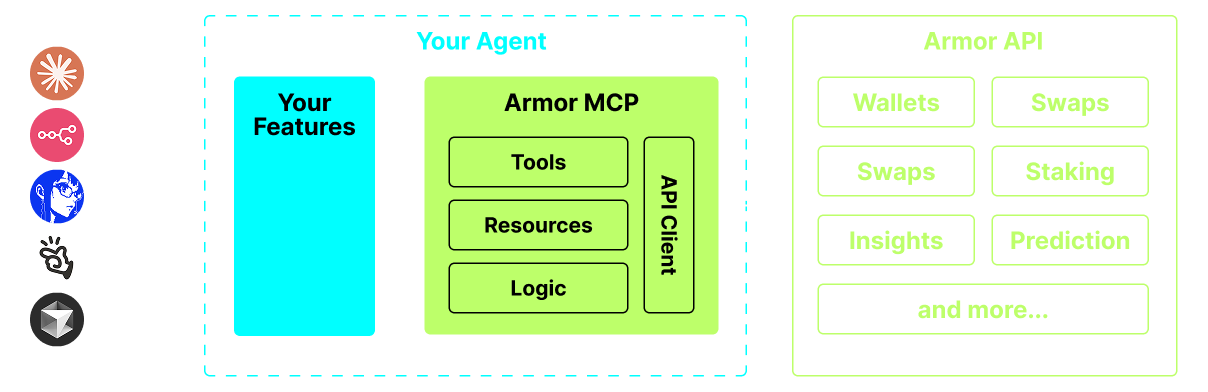
🔮 Prediction Armor MCP Diagram
Requirements

1. Make sure you have python installed

2. Install uv

Linux / Windows

sh
pip install uv

Mac

sh
brew install uv

3. Claude Desktop or your AI Agent will run the MCP

See Usage & Configuration for details.

Alpha Testing

We are currently in pre-alpha, and we are testing the capabilities of various agents and agentic frameworks like Claude Desktop, Cline, Cursor, n8n, etc.

Current Features & Tools

  • Wallet Management
    • Grouping & Organization
    • Archiving
  • Swap & Trades
    • Normal swap
    • DCA (place / list / cancel)
    • Scheduled Orders
    • Limit Orders (place / list / cancel)
  • Staking and Unstaking
  • Token Search and Trending Tokens
  • Statistical Calculator for accurate Analysis
  • Supports Solana blockchain

Coming Soon

  • More Blockchain Support
  • Minting
  • Armor Agents as a Tool (or A2A)

MCP Setup

Currently you need to have the Armor NFT to get an API Key. Get it here

Usage & Configuration

To use the Armor MCP with your agent, you need the following configuration, replace <PUT-YOUR-KEY-HERE> with your API key:

json
{
  "mcpServers": {
    "armor-crypto-mcp": {
      "command": "uvx",
      "args": ["armor-crypto-mcp@latest", "--version"],
      "env": {
        "ARMOR_API_KEY": "<PUT-YOUR-KEY-HERE>"
      }
    }
  }
}

Use in Claude Desktop

  1. Must have Developer Mode enabled
  2. Open Claude Desktop's File Menu top left of the window.
  3. Go to File > Settings
  4. Under Developer, click Edit Configuration
  5. In the config file, insert the armor-wallet-mcp section from above
  6. Make sure to replace the placeholder with your API key
  7. Save the file and start a new Chat in Claude Desktop

Use in Cline

  1. Click on the MCP Servers button in the Cline tab in VSCode on the left panel
  2. Scroll to the bottom of the left panel and click on Configure MCP Servers
  3. In the config file, insert armor-wallet-mcp section from above
  4. Make sure to replace the placeholder with your API key
  5. Save the file, click Done under the MCP Servers tab and start chatting with Cline

Use in n8n

  1. Open the n8n app
  2. Bottom-left of screen click ... next to your username and click Settings
  3. On the left panel, click Community nodes and then Install a Community Node button
  4. In the search field for npm Package Name type in mcp
  5. Install MCP Nodes
  6. Add any MCP node, for example: List Tools
  7. In the MCP Client Parameters tab, click Select Credential and click Create new credential
  8. Under Command enter uvx
  9. Under Arguments enter armor-crypto-mcp
  10. Under Environments enter ARMOR_API_KEY=eyJhbGciOiJIUzI1NiIsIn... paste the full API Key value after the =
  11. Back in the Parameters tab you can choose the MCP Operation for that Node

Using Armor MCP

Once you have setup the Armor MCP here are some prompts you can use to get started

Installation

TypingMind
Prerequisites:

Node.js 18+

{
  "mcpServers": {
    "armorwallet-armor-crypto-mcp": {
      "command": "npx",
      "args": [
        "-y",
        "armor-crypto-mcp"
      ]
    }
  }
}

Available Tools

  • get_armor_mcp_version

    Get the current Armor Wallet version

  • wait_a_moment

    Wait for some short amount of time, no more than 10 seconds

  • get_current_time

    Gets the current time and date

  • calculator

    Safely evaluates a mathematical or statistical expression string using Python syntax.

    Supports arithmetic operations (+, -, *, /, **, %, //), list expressions, and a range of math and statistics functions: abs, round, min, max, len, sum, mean, median, stdev, variance, sin, cos, tan, sqrt, log, exp, floor, ceil, etc.

    Custom variables can be passed via the 'variables' dict, including lists for time series data.

  • get_wallet_token_balance

    Get the balance for a list of wallet/token pairs.

    Expects a WalletTokenPairsContainer, returns a list of WalletTokenBalance.

  • calculate_token_conversion

    Perform token conversion quote between two tokens. Good for quickly calculating market prices.

    Expects a ConversionRequestContainer, returns a list of ConversionResponse.

  • swap_quote

    Retrieve a swap quote. Be sure to add slippage!

    Expects a SwapQuoteRequestContainer, returns a list of SwapQuoteResponse.

  • swap_transaction

    Execute a swap transaction.

    Expects a SwapTransactionRequestContainer, returns a list of SwapTransactionResponse.

  • get_all_wallets

    Retrieve all wallets with balances.

    Returns a list of Wallets and asssets

  • get_all_orders

    Retrieve all limit and stop loss orders.

    Returns a list of orders.

  • search_official_token_address

    Get the official token address and symbol for a token symbol or token address. Try to use this first to get address and symbol of coin. If not found, use search_token_details to get details.

    Expects a TokenDetailsRequestContainer, returns a TokenDetailsResponseContainer.

  • search_token_details

    Search and retrieve details about single token. If only address or symbol is needed, use get_official_token_address first.

    Expects a TokenSearchRequest, returns a list of TokenDetailsResponse.

  • list_groups

    List all wallet groups.

    Returns a list of GroupInfo.

  • list_single_group

    Retrieve details for a single wallet group.

    Expects the group name as a parameter, returns SingleGroupInfo.

  • create_wallet

    Create new wallets.

    Expects a list of wallet names, returns a list of WalletInfo.

  • archive_wallets

    Archive wallets.

    Expects a list of wallet names, returns a list of WalletArchiveOrUnarchiveResponse.

  • unarchive_wallets

    Unarchive wallets.

    Expects a list of wallet names, returns a list of WalletArchiveOrUnarchiveResponse.

  • create_groups

    Create new wallet groups.

    Expects a list of group names, returns a list of CreateGroupResponse.

  • add_wallets_to_group

    Add wallets to a specified group.

    Expects the group name and a list of wallet names, returns a list of AddWalletToGroupResponse.

  • archive_wallet_group

    Archive wallet groups.

    Expects a list of group names, returns a list of GroupArchiveOrUnarchiveResponse.

  • unarchive_wallet_group

    Unarchive wallet groups.

    Expects a list of group names, returns a list of GroupArchiveOrUnarchiveResponse.

  • remove_wallets_from_group

    Remove wallets from a specified group.

    Expects the group name and a list of wallet names, returns a list of RemoveWalletFromGroupResponse.

  • transfer_tokens

    Transfer tokens from one wallet to another.

    Expects a TransferTokensRequestContainer, returns a list of TransferTokenResponse.

  • create_dca_order

    Create a DCA order.

    Expects a DCAOrderRequestContainer, returns a list of DCAOrderResponse.

  • list_dca_orders

    List all DCA orders.

    Returns a list of DCAOrderResponse.

  • cancel_dca_order

    Create a DCA order.

    Note: Make a single or multiple dca_order_requests

  • create_order

    Create a order. Can be a limit or stop loss order

    Expects a CreateOrderRequestContainer, returns a CreateOrderResponseContainer.

  • cancel_order

    Cancel a limit or stop loss order.

    Expects a CancelOrderRequestContainer, returns a CancelOrderResponseContainer.

  • stake_quote

    Retrieve a stake quote.

    Expects a StakeQuoteRequestContainer, returns a SwapQuoteRequestContainer.

  • unstake_quote

    Retrieve an unstake quote.

    Expects a UnstakeQuoteRequestContainer, returns a SwapQuoteRequestContainer.

  • stake_transaction

    Execute a stake transaction.

    Expects a StakeTransactionRequestContainer, returns a SwapTransactionRequestContainer.

  • unstake_transaction

    Execute an unstake transaction.

    Expects a UnstakeTransactionRequestContainer, returns a SwapTransactionRequestContainer.

  • get_top_trending_tokens

    Get the top trending tokens in a particular time frame. Great for comparing market cap or volume.

    Expects a TopTrendingTokensRequest, returns a list of tokens with their details.

  • get_stake_balances

    Get the balance of staked SOL (jupSOL).

    Returns a StakeBalanceResponse.

  • rename_wallets

    Rename wallets.

    Expects a RenameWalletRequestContainer, returns a list.

  • get_token_candle_data

    Get candle data about any token for analysis.

    Expects a CandleStickRequest, returns a list of candle sticks.

  • send_key_to_telegram

    Send the mnemonic or private key to telegram.

Use Armor Crypto MCP MCP with multiple AI models

TypingMind connects MCP tools at the workspace level, so once Armor Crypto MCP is connected, you can use it with different AI models in TypingMind instead of setting it up separately for each model. This MCP runs locally through the TypingMind MCP connector on your device.

Setup guide to use the local connector

Use this when the MCP server needs access to local files, apps, or private resources on your computer.

1

Open the MCP settings

In TypingMind, go to Settings, Advanced Settings, then Model Context Protocol and choose Setup Connector.

  1. Open TypingMind in your browser.
  2. Click the Settings icon.
  3. Go to Advanced Settings.
  4. Open the Model Context Protocol section.
  5. Click Setup Connector and choose This Device.
TypingMind MCP connector setup screen with This Device selected
2

Run the connector command

Choose This Device, copy the command from TypingMind, and run it in Terminal. Keep the process running while you use MCP.

  1. Copy the setup command shown by TypingMind.
  2. Open Terminal on macOS or Windows Terminal on Windows.
  3. Paste and run the command.
  4. Approve the package install if Terminal asks you to proceed.
  5. Keep the Terminal window running while using MCP tools.
3

Add Armor Crypto MCP as a server

When the connector status is Ready, click Edit Servers and paste the MCP server configuration.

  1. Wait until the connector status shows Ready.
  2. Click Edit Servers.
  3. Paste the Armor Crypto MCP MCP server configuration.
  4. Save the server list.
  5. Refresh if you want to confirm the connector is still ready.
TypingMind MCP settings showing active server and Edit Servers button
{
  "mcpServers": {
    "armorwallet-armor-crypto-mcp": {
      "command": "npx",
      "args": [
        "-y",
        "armor-crypto-mcp"
      ]
    }
  }
}
4

Use it across models

Save the server list, open Plugins, enable the Armor Crypto MCP MCP tools, then select any supported AI model in TypingMind and use the tools in chat or assign them to an AI agent.

  1. Open the Plugins page in TypingMind.
  2. Enable the Armor Crypto MCP MCP tools.
  3. Start a chat and choose the AI model you want to use.
  4. Use the MCP tools in chat or assign them to an AI agent.
  5. Switch to another AI model whenever needed without reconnecting MCP.
TypingMind chat using enabled MCP tools with a selected AI model
Can you use Armor Crypto MCP to help me with this task?
Armor Crypto MCP
Sure. I read it.
Here is what I found using Armor Crypto MCP.

Frequently asked questions

What is the Armor Crypto MCP MCP server used for?

Armor Crypto MCP is an MCP server that lets compatible AI clients connect to external tools and context. In TypingMind, you can add this MCP server once and make its tools available in your AI workspace.

Can I use Armor Crypto MCP MCP with multiple AI models in TypingMind?

Yes. TypingMind connects MCP tools at the workspace level, so you can use Armor Crypto MCP with different AI models such as Claude, ChatGPT, Gemini, or other models you have configured in TypingMind without setting up the MCP server separately for each model.

Why use Armor Crypto MCP MCP with TypingMind?

TypingMind is one of the best frontends for LLM chat because it brings multiple AI models, prompts, plugins, AI agents, API keys, and MCP tools into one workspace. With Armor Crypto MCP connected, you can use its MCP tools across your preferred models while keeping your chat workflow organized in TypingMind.

How do I connect Armor Crypto MCP MCP to TypingMind?

Armor Crypto MCP runs through the TypingMind local MCP connector. This is best when the MCP server needs access to local files, desktop apps, command-line tools, or private resources on your computer.

What tools does Armor Crypto MCP MCP provide in TypingMind?

Armor Crypto MCP exposes 37 MCP tools that can be enabled from the TypingMind Plugins page and used in chat or assigned to AI agents.

Do I need to share my API keys with TypingMind to use Armor Crypto MCP MCP?

No. TypingMind is local-first and lets you keep your model providers, API keys, prompts, and MCP configuration under your control. If Armor Crypto MCP requires authentication, add the required headers, OAuth settings, or local configuration for that MCP server when you create the connection.

login_prompt

A sample prompt to ask the user for their access token after providing an email.

Related MCP Servers

View all

Set up your own AI workspace now

Get notified about new features and future giveaways by subscribing to our newsletter 👇


