bb-browser logo

bb-browser

OrganizationPopular
epiral

Your browser is the API. CLI + MCP server for AI agents to control Chrome with your login state.

Publisherepiral
Repositorybb-browser
LanguageTypeScript
Forks
605
Stars
6.2K
Available tools
0
Transport typestdio, streamable-http
Categories
LicenseMIT
Links
  • Connect tools to AI workflows

    bb-browser exposes MCP capabilities that can be used by compatible AI clients and agents.

  • 0 available tools

    Browse the callable actions below, including names and descriptions when provided by the server.

  • Ready-to-copy setup

    Use the installation snippets to configure this server in your preferred MCP client.

  • Open source signals

    6.2K stars and 605 forks from the linked repository.

bb-browser

BadBoy Browser

Your browser is the API. No keys. No bots. No scrapers.

npm Node.js License

English · 中文


You're already logged into Twitter, Reddit, YouTube, Zhihu, Bilibili, LinkedIn, GitHub — bb-browser lets AI agents use that directly.

bash
bb-browser site twitter/search "AI agent"       # search tweets
bb-browser site zhihu/hot                        # trending on Zhihu
bb-browser site arxiv/search "transformer"       # search papers
bb-browser site eastmoney/stock "茅台"            # real-time stock quote
bb-browser site boss/search "AI engineer"        # search jobs
bb-browser site wikipedia/summary "Python"       # Wikipedia summary
bb-browser site youtube/transcript VIDEO_ID      # full transcript
bb-browser site stackoverflow/search "async"     # search SO questions

103 commands across 36 platforms. All using your real browser's login state. Full list →

The idea

The internet was built for browsers. AI agents have been trying to access it through APIs — but 99% of websites don't offer one.

bb-browser flips this: instead of forcing websites to provide machine interfaces, let machines use the human interface directly. The adapter runs eval inside your browser tab, calls fetch() with your cookies, or invokes the page's own webpack modules. The website thinks it's you. Because it is you.

Playwright / SeleniumScraping libsbb-browser
BrowserHeadless, isolatedNo browserYour real Chrome
Login stateNone, must re-loginCookie extractionAlready there
Anti-botDetected easilyCat-and-mouseInvisible — it IS the user
Complex authCan't replicateReverse engineerPage handles it itself

Quick Start

Install

bash
npm install -g bb-browser

Use

bash
bb-browser site update        # pull community adapters
bb-browser site recommend     # see which adapters match your browsing habits
bb-browser site zhihu/hot     # go

OpenClaw (no extension needed)

If you use OpenClaw, bb-browser runs directly through OpenClaw's built-in browser — no Chrome extension or daemon required:

bash
bb-browser site reddit/hot --openclaw
bb-browser site xueqiu/hot-stock 5 --openclaw --jq '.items[] | {name, changePercent}'

Skill on ClawHub: bb-browser-openclaw

MCP (Claude Code / Cursor)

json
{
  "mcpServers": {
    "bb-browser": {
      "command": "npx",
      "args": ["-y", "bb-browser", "--mcp"]
    }
  }
}

36 platforms, 103 commands

Community-driven via bb-sites. One JS file per command.

CategoryPlatformsCommands
SearchGoogle, Baidu, Bing, DuckDuckGo, Sogou WeChatsearch
SocialTwitter/X, Reddit, Weibo, Xiaohongshu, Jike, LinkedIn, Hupusearch, feed, thread, user, notifications, hot
NewsBBC, Reuters, 36kr, Toutiao, Eastmoneyheadlines, search, newsflash, hot
DevGitHub, StackOverflow, HackerNews, CSDN, cnblogs, V2EX, Dev.to, npm, PyPI, arXivsearch, issues, repo, top, thread, package
VideoYouTube, Bilibilisearch, video, transcript, popular, comments, feed
EntertainmentDouban, IMDb, Genius, Qidianmovie, search, top250
FinanceXueqiu, Eastmoney, Yahoo Financestock, hot stocks, feed, watchlist, search
JobsBOSS Zhipin, LinkedInsearch, detail, profile
KnowledgeWikipedia, Zhihu, Open Librarysearch, summary, hot, question
ShoppingSMZDMsearch deals
ToolsYoudao, GSMArena, Product Hunt, Ctriptranslate, phone specs, trending products

10 minutes to add any website

bash
bb-browser guide    # full tutorial

Tell your AI agent: "turn XX website into a CLI". It reads the guide, reverse-engineers the API with network --with-body, writes the adapter, tests it, and submits a PR. All autonomously.

Three tiers of adapter complexity:

TierAuth methodExampleTime
1Cookie (fetch directly)Reddit, GitHub, V2EX~1 min
2Bearer + CSRF tokenTwitter, Zhihu~3 min
3Webpack injection / Pinia storeTwitter search, Xiaohongshu~10 min

We tested this: 20 AI agents ran in parallel, each independently reverse-engineered a website and produced a working adapter. The marginal cost of adding a new website to the agent-accessible internet is approaching zero.

What this means for AI agents

Without bb-browser, an AI agent's world is: files + terminal + a few APIs with keys.

With bb-browser: files + terminal + the entire internet.

An agent can now, in under a minute:

bash
# Cross-platform research on any topic
bb-browser site arxiv/search "retrieval augmented generation"
bb-browser site twitter/search "RAG"
bb-browser site github search rag-framework
bb-browser site stackoverflow/search "RAG implementation"
bb-browser site zhihu/search "RAG"
bb-browser site 36kr/newsflash

Six platforms, six dimensions, structured JSON. Faster and broader than any human researcher.

Also a full browser automation tool

bash
bb-browser open https://example.com
bb-browser snapshot -i                # accessibility tree
bb-browser click @3                   # click element
bb-browser fill @5 "hello"            # fill input
bb-browser eval "document.title"      # run JS
bb-browser fetch URL --json           # authenticated fetch
bb-browser network requests --with-body --json  # capture traffic
bb-browser screenshot                 # take screenshot

All commands support --json output, --jq <expr> for inline filtering, and --tab <id> for concurrent multi-tab operations.

bash
bb-browser site xueqiu/hot-stock 5 --jq '.items[] | {name, changePercent}'
# {"name":"云天化","changePercent":"2.08%"}
# {"name":"东芯股份","changePercent":"-7.60%"}

bb-browser site info xueqiu/stock   # view adapter args, example, domain

Daemon configuration

The daemon binds to 127.0.0.1:19824 by default. You can customize the host with --host:

bash
bb-browser daemon --host 127.0.0.1    # IPv4 only (fix macOS IPv6 issues)
bb-browser daemon --host 0.0.0.0      # listen on all interfaces (for Tailscale / ZeroTier remote access)

Architecture

AI Agent (Claude Code, Codex, Cursor, etc.)
       │ CLI or MCP (stdio)
       ▼
bb-browser CLI ──HTTP──▶ Daemon ──CDP WebSocket──▶ Your Real Browser
                           │
                    ┌──────┴──────┐
                    │ Per-tab     │
                    │ event cache │
                    │ (network,   │
                    │  console,   │
                    │  errors)    │
                    └─────────────┘

License

MIT

Installation

TypingMind
{
  "mcpServers": {
    "bb-browser": {
      "command": "npx",
      "args": [
        "-y",
        "bb-browser",
        "--mcp"
      ]
    }
  }
}

Use bb-browser MCP with multiple AI models

TypingMind connects MCP tools at the workspace level, so once bb-browser is connected, you can use it with different AI models in TypingMind instead of setting it up separately for each model. You can run MCP locally on your device or connect to a remote MCP server URL.

Option 1: Use the local connector

Use this when the MCP server needs access to local files, apps, or private resources on your computer.

1

Open the MCP settings

In TypingMind, go to Settings, Advanced Settings, then Model Context Protocol and choose Setup Connector.

  1. Open TypingMind in your browser.
  2. Click the Settings icon.
  3. Go to Advanced Settings.
  4. Open the Model Context Protocol section.
  5. Click Setup Connector and choose This Device.
TypingMind MCP connector setup screen with This Device selected
2

Run the connector command

Choose This Device, copy the command from TypingMind, and run it in Terminal. Keep the process running while you use MCP.

  1. Copy the setup command shown by TypingMind.
  2. Open Terminal on macOS or Windows Terminal on Windows.
  3. Paste and run the command.
  4. Approve the package install if Terminal asks you to proceed.
  5. Keep the Terminal window running while using MCP tools.
3

Add bb-browser as a server

When the connector status is Ready, click Edit Servers and paste the MCP server configuration.

  1. Wait until the connector status shows Ready.
  2. Click Edit Servers.
  3. Paste the bb-browser MCP server configuration.
  4. Save the server list.
  5. Refresh if you want to confirm the connector is still ready.
TypingMind MCP settings showing active server and Edit Servers button
{
  "mcpServers": {
    "bb-browser": {
      "command": "npx",
      "args": [
        "-y",
        "@pinix/browser"
      ]
    }
  }
}
4

Use it across models

Save the server list, open Plugins, enable the bb-browser MCP tools, then select any supported AI model in TypingMind and use the tools in chat or assign them to an AI agent.

  1. Open the Plugins page in TypingMind.
  2. Enable the bb-browser MCP tools.
  3. Start a chat and choose the AI model you want to use.
  4. Use the MCP tools in chat or assign them to an AI agent.
  5. Switch to another AI model whenever needed without reconnecting MCP.
TypingMind chat using enabled MCP tools with a selected AI model
Can you use bb-browser to help me with this task?
bb-browser
Sure. I read it.
Here is what I found using bb-browser.

Option 2: Add an MCP server URL

Use this when bb-browser is already hosted remotely or your team wants one shared connector that multiple users can access.

1

Open MCP connectors

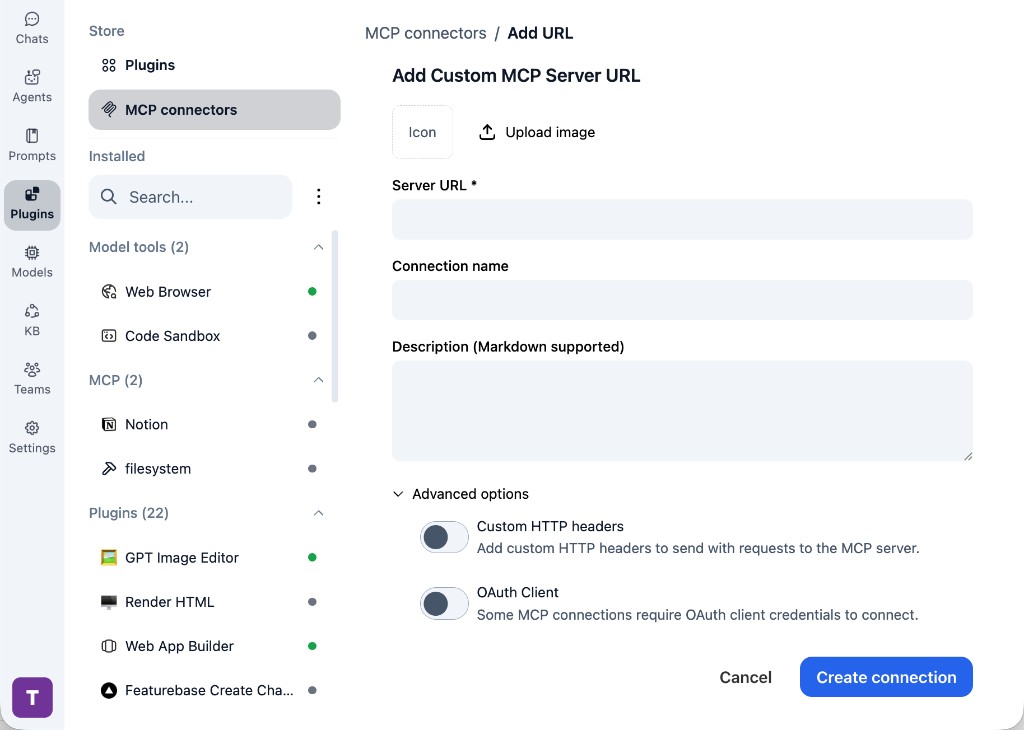
In TypingMind, go to Plugins, open MCP connectors, then choose Add URL.

  1. Open TypingMind in your browser.
  2. Go to Plugins.
  3. Open MCP connectors.
  4. Click Add URL.
TypingMind Add Custom MCP Server URL form
2

Paste the server URL

Enter the MCP server URL from the provider in the Server URL field. Add a connection name, description, icon, custom HTTP headers, or OAuth client settings if the server requires them.

  1. Paste the MCP server URL from the provider into the Server URL field.
  2. Enter a connection name for bb-browser.
  3. Add a description and icon if you want it to be easier to identify.
  4. Add custom HTTP headers or OAuth client details if the server requires authentication.
3

Create the connection

Click Create connection, then return to the Plugins list and confirm the new MCP connection is active.

  1. Click Create connection.
  2. Return to the MCP connectors list.
  3. Confirm the bb-browser connection appears as active.
  4. Refresh the plugin list if the connection does not appear immediately.
4

Switch models without reconnecting

Start a chat with your preferred model, enable the bb-browser tools from Plugins, and switch to another model whenever needed. The MCP connection stays available to the TypingMind workspace.

  1. Start a new chat in TypingMind.
  2. Select the AI model you want to use.
  3. Enable the bb-browser tools from Plugins.
  4. Ask the model to use the tool when needed.
  5. Switch to another AI model and reuse the same MCP connection.
TypingMind chat using enabled MCP tools with a selected AI model
Can you use bb-browser to help me with this task?
bb-browser
Sure. I read it.
Here is what I found using bb-browser.

Frequently asked questions

What is the bb-browser MCP server used for?

bb-browser is an MCP server that lets compatible AI clients connect to external tools and context. In TypingMind, you can add this MCP server once and make its tools available in your AI workspace.

Can I use bb-browser MCP with multiple AI models in TypingMind?

Yes. TypingMind connects MCP tools at the workspace level, so you can use bb-browser with different AI models such as Claude, ChatGPT, Gemini, or other models you have configured in TypingMind without setting up the MCP server separately for each model.

Why use bb-browser MCP with TypingMind?

TypingMind is one of the best frontends for LLM chat because it brings multiple AI models, prompts, plugins, AI agents, API keys, and MCP tools into one workspace. With bb-browser connected, you can use its MCP tools across your preferred models while keeping your chat workflow organized in TypingMind.

How do I connect bb-browser MCP to TypingMind?

bb-browser can be connected in TypingMind with the local MCP connector or by adding a remote MCP server URL. Use the local connector when the server needs access to files, apps, or private resources on your device, and use a server URL when the MCP server is hosted remotely.

What tools does bb-browser MCP provide in TypingMind?

bb-browser exposes MCP capabilities that can be enabled from the TypingMind Plugins page and used in chat or assigned to AI agents.

Do I need to share my API keys with TypingMind to use bb-browser MCP?

No. TypingMind is local-first and lets you keep your model providers, API keys, prompts, and MCP configuration under your control. If bb-browser requires authentication, add the required headers, OAuth settings, or local configuration for that MCP server when you create the connection.

Related MCP Servers

View all

Set up your own AI workspace now

Get notified about new features and future giveaways by subscribing to our newsletter 👇