


Inbox Zero logo

Inbox Zero

CommunityPopular
elie222

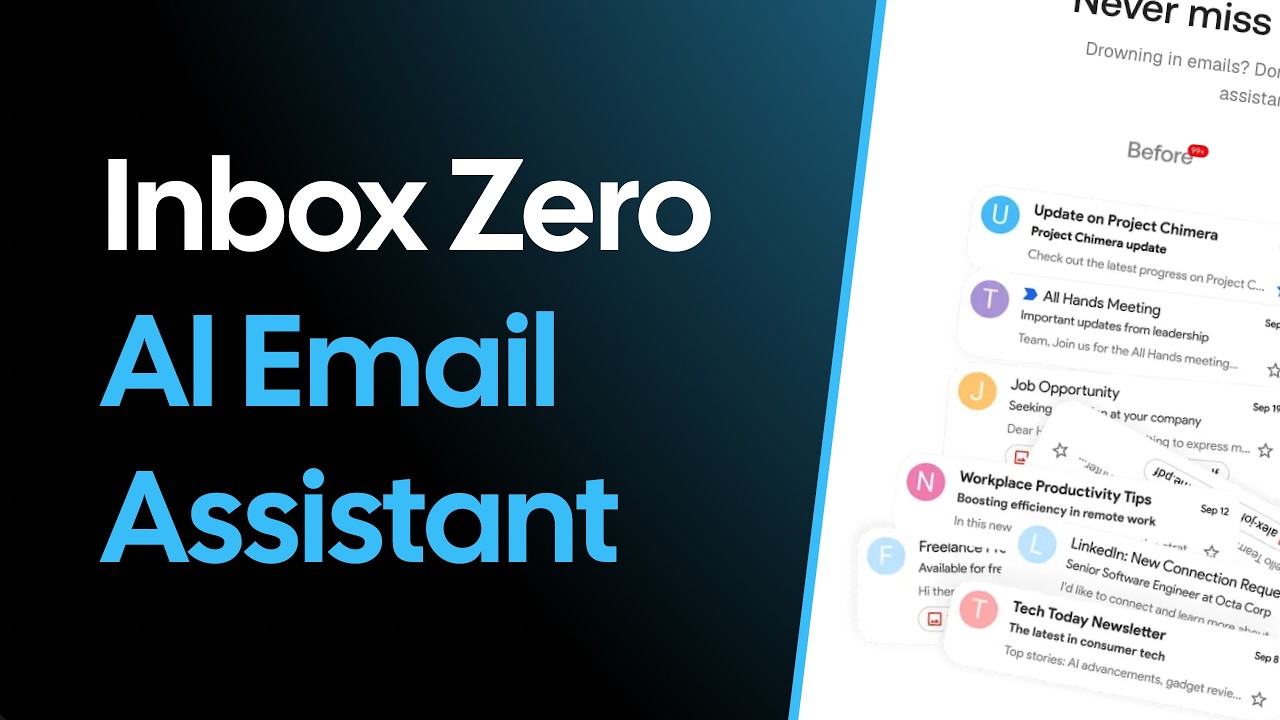
The world's best AI personal assistant for email. Open source app to help you reach inbox zero fast.

Publisherelie222
Repositoryinbox-zero
LanguageTypeScript
Forks
1.5K
Stars
12.3K
Available tools
0
Transport typestdio
Categories
Links
  • Connect tools to AI workflows

    Inbox Zero exposes MCP capabilities that can be used by compatible AI clients and agents.

  • 0 available tools

    Browse the callable actions below, including names and descriptions when provided by the server.

  • Ready-to-copy setup

    Use the installation snippets to configure this server in your preferred MCP client.

  • Open source signals

    12.3K stars and 1.5K forks from the linked repository.

Stars Forks

Sponsor

Vercel OSS Program

Mission

To help you spend less time in your inbox, so you can focus on what matters most.

Features

  • AI Personal Assistant: Organizes your inbox and pre-drafts replies in your tone and style.
  • AI Rules for email: Explain in plain English how your AI should handle your inbox.
  • Reply Zero: Track emails to reply to and those awaiting responses.
  • Bulk Unsubscriber: One-click unsubscribe and archive emails you never read.
  • Bulk Archiver: Clean up your inbox by bulk archiving old emails.
  • Cold Email Blocker: Auto‑block cold emails.
  • Email Analytics: Track your activity and trends over time.
  • Meeting Briefs: Get personalized briefings before every meeting, pulling context from your email and calendar.
  • Smart Filing: Automatically save email attachments to Google Drive or OneDrive.
  • Slack & Telegram Integration: Chat with your AI assistant from Slack or Telegram to manage your inbox without leaving the apps you already use.

Learn more in our docs.

Feature Screenshots

AI AssistantReply Zero
Gmail ClientBulk Unsubscriber
Gmail clientBulk Unsubscriber

Demo Video

Inbox Zero demo

Built with

Star History

Star History Chart

Feature Requests

To request a feature open a GitHub issue, or join our Discord.

Getting Started

We offer a hosted version of Inbox Zero at getinboxzero.com.

Self-Hosting

The fastest way to self-host Inbox Zero is with the CLI:

Prerequisites: Docker and Node.js v24+

bash
npx @inbox-zero/cli setup      # One-time setup wizard
npx @inbox-zero/cli start      # Start containers

Open http://localhost:3000

For complete self-hosting instructions, production deployment, OAuth setup, and configuration options, see our Self-Hosting Docs.

Local Development

Prerequisites: Docker, Node.js v24+, and pnpm v10+

bash
git clone https://github.com/elie222/inbox-zero.git
cd inbox-zero
docker compose -f docker-compose.dev.yml up -d   # Postgres + Redis
pnpm install
npm run setup                                     # Interactive env setup
cd apps/web && pnpm prisma migrate dev && cd ../..
pnpm dev

Open http://localhost:3000

After pnpm install, if you want to use the local Google emulator, start it with:

bash
docker compose -f docker-compose.dev.yml --profile google-emulator up -d

Then point apps/web/.env at it with:

bash
GOOGLE_BASE_URL=http://localhost:4002
GOOGLE_CLIENT_ID=emulate-google-client.apps.googleusercontent.com
GOOGLE_CLIENT_SECRET=emulate-google-secret

If you want to use the local Microsoft emulator, start it with:

bash
docker compose -f docker-compose.dev.yml --profile microsoft-emulator up -d

Then point apps/web/.env at it with:

bash
MICROSOFT_BASE_URL=http://localhost:4003
MICROSOFT_CLIENT_ID=emulate-microsoft-client-id
MICROSOFT_CLIENT_SECRET=emulate-microsoft-secret

See the Contributing Guide for more details including devcontainer setup.

Contributing

View open tasks in GitHub Issues and join our Discord to discuss what's being worked on.

Docker images are automatically built on every push to main and tagged with the commit SHA (e.g., elie222/inbox-zero:abc1234). The latest tag always points to the most recent main build. Formal releases use version tags (e.g., v2.26.0).


Use Inbox Zero MCP with multiple AI models

TypingMind connects MCP tools at the workspace level, so once Inbox Zero is connected, you can use it with different AI models in TypingMind instead of setting it up separately for each model. This MCP runs locally through the TypingMind MCP connector on your device.

Setup guide to use the local connector

Use this when the MCP server needs access to local files, apps, or private resources on your computer.

1

Open the MCP settings

In TypingMind, go to Settings, Advanced Settings, then Model Context Protocol and choose Setup Connector.

  1. Open TypingMind in your browser.
  2. Click the Settings icon.
  3. Go to Advanced Settings.
  4. Open the Model Context Protocol section.
  5. Click Setup Connector and choose This Device.
TypingMind MCP connector setup screen with This Device selected
2

Run the connector command

Choose This Device, copy the command from TypingMind, and run it in Terminal. Keep the process running while you use MCP.

  1. Copy the setup command shown by TypingMind.
  2. Open Terminal on macOS or Windows Terminal on Windows.
  3. Paste and run the command.
  4. Approve the package install if Terminal asks you to proceed.
  5. Keep the Terminal window running while using MCP tools.
3

Add Inbox Zero as a server

When the connector status is Ready, click Edit Servers and paste the MCP server configuration.

  1. Wait until the connector status shows Ready.
  2. Click Edit Servers.
  3. Paste the Inbox Zero MCP server configuration.
  4. Save the server list.
  5. Refresh if you want to confirm the connector is still ready.
TypingMind MCP settings showing active server and Edit Servers button
{
  "mcpServers": {
    "elie222-mcp-server": {
      "command": "npx",
      "args": [
        "-y",
        "<mcp-server-package>"
      ]
    }
  }
}
4

Use it across models

Save the server list, open Plugins, enable the Inbox Zero MCP tools, then select any supported AI model in TypingMind and use the tools in chat or assign them to an AI agent.

  1. Open the Plugins page in TypingMind.
  2. Enable the Inbox Zero MCP tools.
  3. Start a chat and choose the AI model you want to use.
  4. Use the MCP tools in chat or assign them to an AI agent.
  5. Switch to another AI model whenever needed without reconnecting MCP.
TypingMind chat using enabled MCP tools with a selected AI model
Can you use Inbox Zero to help me with this task?
Inbox Zero
Sure. I read it.
Here is what I found using Inbox Zero.

Frequently asked questions

What is the Inbox Zero MCP server used for?

Inbox Zero is an MCP server that lets compatible AI clients connect to external tools and context. In TypingMind, you can add this MCP server once and make its tools available in your AI workspace.

Can I use Inbox Zero MCP with multiple AI models in TypingMind?

Yes. TypingMind connects MCP tools at the workspace level, so you can use Inbox Zero with different AI models such as Claude, ChatGPT, Gemini, or other models you have configured in TypingMind without setting up the MCP server separately for each model.

Why use Inbox Zero MCP with TypingMind?

TypingMind is one of the best frontends for LLM chat because it brings multiple AI models, prompts, plugins, AI agents, API keys, and MCP tools into one workspace. With Inbox Zero connected, you can use its MCP tools across your preferred models while keeping your chat workflow organized in TypingMind.

How do I connect Inbox Zero MCP to TypingMind?

Inbox Zero runs through the TypingMind local MCP connector. This is best when the MCP server needs access to local files, desktop apps, command-line tools, or private resources on your computer.

What tools does Inbox Zero MCP provide in TypingMind?

Inbox Zero exposes MCP capabilities that can be enabled from the TypingMind Plugins page and used in chat or assigned to AI agents.

Do I need to share my API keys with TypingMind to use Inbox Zero MCP?

No. TypingMind is local-first and lets you keep your model providers, API keys, prompts, and MCP configuration under your control. If Inbox Zero requires authentication, add the required headers, OAuth settings, or local configuration for that MCP server when you create the connection.

Related MCP Servers

View all

Set up your own AI workspace now

Get notified about new features and future giveaways by subscribing to our newsletter 👇