Gemini Search MCP logo

Gemini Search MCP

Community
Sophomoresty

Free MCP server for web search powered by Google AI Mode (Gemini). Unlimited, no API key.

PublisherSophomoresty
Repositorygemini-search-mcp
LanguagePython
Forks
30
Stars
181
Available tools
0
Transport typestdio, streamable-http
Categories
Links
  • Connect tools to AI workflows

    Gemini Search MCP exposes MCP capabilities that can be used by compatible AI clients and agents.

  • 0 available tools

    Browse the callable actions below, including names and descriptions when provided by the server.

  • Ready-to-copy setup

    Use the installation snippets to configure this server in your preferred MCP client.

  • Open source signals

    181 stars and 30 forks from the linked repository.

gemini-search-mcp

What is this

An MCP server that gives any AI agent (Claude, Cursor, Windsurf, etc.) the ability to search the web in real-time using Google's AI Mode — the same Gemini-powered search that lives in the "AI Mode" tab on Google Search.

Think of it as a free, unlimited alternative to Grok MCP / Tavily / SerpAPI, backed by Google's search index.

Features

  • Free: No API key, no subscription, no quota
  • Unlimited: 60+ requests/min with zero rate limiting
  • Google quality: Powered by Gemini + Google Search (grounded in real web results)
  • MCP native: Works with Claude Desktop, Claude Code, Cursor, Windsurf, Cline
  • Also ships OpenAI API: /v1/chat/completions for non-MCP clients
  • Fast: ~1.5s average response time

Quick Start

bash
pip install -e .

# Optional: install the undetected-chromedriver backend for CAPTCHA probes.
pip install -e '.[undetected]'

MCP Server (for AI agents)

bash
gemini-search-mcp

OpenAI-compatible API

bash
gemini-search --port 8080

MCP Integration

Claude Code

bash
claude mcp add gemini-search -- gemini-search-mcp

Claude Desktop

Add to claude_desktop_config.json:

json
{
  "mcpServers": {
    "gemini-search": {
      "command": "gemini-search-mcp",
      "args": [],
      "env": {
        "CDP_URL": "http://127.0.0.1:9222"
      }
    }
  }
}

Cursor / Windsurf

Same pattern — point to gemini-search-mcp as an stdio MCP server.

MCP Tools

ToolDescription
web_search(query)Search the web and get a synthesized answer grounded in real-time results
ask(prompt)General question — AI Mode auto-decides whether to search the web

Examples

web_search("latest AI regulation news 2026")
→ "The EU AI Act enforcement began on June 1, 2026, requiring..."

web_search("Bitcoin price today")
→ "As of June 30, 2026, Bitcoin is trading at $59,687 USD..."

ask("what is 1847 * 293")
→ "541171"

OpenAI API Usage

bash
curl http://localhost:8080/v1/chat/completions \
  -H "Content-Type: application/json" \
  -d '{"model":"gemini-search","messages":[{"role":"user","content":"What happened in the news today?"}]}'
FieldValue
Base URLhttp://localhost:8080/v1
API Keyanything
Modelgemini-search

Environment Variables

VariableDefaultDescription
CDP_URL(none)Chrome DevTools URL. If set, connects to existing Chrome instead of launching one
BROWSER_CHANNELchromeBrowser to use: chrome, msedge, chromium
HEADLESS1Set to 0 to show browser window
GEMINI_SEARCH_USER_DATA_DIR(none)Persistent Chrome profile directory. Reuses cookies across runs and is not deleted on shutdown
GEMINI_SEARCH_CDP_PORT19250CDP port used for self-launched Chrome
GEMINI_SEARCH_BROWSER_BACKENDsubprocessBrowser launcher: subprocess or undetected
GEMINI_SEARCH_PROXY_SERVER(none)Chrome proxy server, e.g. socks5://127.0.0.1:7897
GEMINI_SEARCH_CHROMEDRIVER(none)Chromedriver executable used by the undetected backend

Persistent Chrome profile / CAPTCHA priming

If Google shows /sorry/ CAPTCHA for a fresh temporary profile, prime a persistent profile once in a visible Chrome window, then reuse the same directory in headless mode:

bash
# 1) Visible first run: solve CAPTCHA manually if Google asks.
gemini-search --no-headless --user-data-dir "$HOME/.local/share/gemini-search-mcp/chrome-profile"

# 2) Later runs: reuse the same cookies headlessly.
GEMINI_SEARCH_USER_DATA_DIR="$HOME/.local/share/gemini-search-mcp/chrome-profile" gemini-search

For Windows-side validation from WSL, run the probe with Windows Python through PowerShell so it launches Windows Chrome:

powershell
$profile = Join-Path $env:TEMP 'gemini-search-mcp-persistent-profile'
python .\scripts\windows_chrome_profile_probe.py `
  --profile-dir $profile `
  --mode two-phase `
  --out .\headless-reuse-result.json

Success evidence is ok=true and stages.headless_reuse.captcha=false in the JSON output.

undetected-chromedriver CAPTCHA probe

When a normal Chrome subprocess gets a Google /sorry/ CAPTCHA, install the optional backend and run the reusable probe against google.com.hk:

bash
pip install -e '.[undetected]'
python scripts/uc_google_probe.py \
  --proxy socks5://127.0.0.1:7897 \
  --out-json uc-probe.json

Use the backend only when the probe reports ok=true, captcha=false, and successful_for_engine_integration=true.

bash
gemini-search \
  --browser-backend undetected \
  --proxy-server socks5://127.0.0.1:7897 \
  --chromedriver-path /path/to/chromedriver \
  --no-headless

Observed on Windows Chrome for Testing 148 through Clash: headed UC passed (captcha=false and AI Mode tokens present), while headless UC hit Google /sorry/.

How It Works

Google rate-limits by TLS fingerprint quality — not by IP. Automated HTTP clients (curl, requests, httpx) get throttled after a few requests. But a real Chrome browser's fetch() calls are trusted unconditionally.

This tool runs a single real Chrome tab and executes all queries as fetch() inside it over CDP, giving every request an authentic Chrome TLS/HTTP2 fingerprint. Google sees normal browser traffic and applies no rate limits. The optional undetected backend still uses the same CDP query path after launch.

Agent calls web_search("query")
  → Chrome Runtime.evaluate(fetch)
    → Google Search AI Mode (token extraction + folwr endpoint)
      → Parse answer from HTML response
        → Return to agent

Comparison

gemini-search-mcpGrok MCPTavily
CostFreexAI API key ($)API key ($)
Rate limitNoneAPI quotaAPI quota
Search backendGoogle SearchGrok + webProprietary
Answer qualityGemini synthesizedGrok synthesizedExtracted snippets
SetupChrome + CDPAPI keyAPI key

Docker

bash
docker compose up -d

Requirements

  • Python 3.10+
  • Chrome, Edge, or Chromium
  • Runtime dependencies from pyproject.toml
  • Optional: undetected-chromedriver and selenium via pip install -e '.[undetected]'

Limitations

  • Requires Chrome/Edge/Chromium installed
  • No conversation memory between requests
  • Answer extraction relies on Google's DOM structure (may break on updates)
  • Streaming is chunked, not per-token

Acknowledgments

License

MIT

Installation

TypingMind
{
  "mcpServers": {
    "gemini-search-mcp": {
      "command": "docker",
      "args": [
        "compose",
        "up",
        "-d"
      ]
    }
  }
}

Use Gemini Search MCP MCP with multiple AI models

TypingMind connects MCP tools at the workspace level, so once Gemini Search MCP is connected, you can use it with different AI models in TypingMind instead of setting it up separately for each model. You can run MCP locally on your device or connect to a remote MCP server URL.

Option 1: Use the local connector

Use this when the MCP server needs access to local files, apps, or private resources on your computer.

1

Open the MCP settings

In TypingMind, go to Settings, Advanced Settings, then Model Context Protocol and choose Setup Connector.

  1. Open TypingMind in your browser.
  2. Click the Settings icon.
  3. Go to Advanced Settings.
  4. Open the Model Context Protocol section.
  5. Click Setup Connector and choose This Device.
TypingMind MCP connector setup screen with This Device selected
2

Run the connector command

Choose This Device, copy the command from TypingMind, and run it in Terminal. Keep the process running while you use MCP.

  1. Copy the setup command shown by TypingMind.
  2. Open Terminal on macOS or Windows Terminal on Windows.
  3. Paste and run the command.
  4. Approve the package install if Terminal asks you to proceed.
  5. Keep the Terminal window running while using MCP tools.
3

Add Gemini Search MCP as a server

When the connector status is Ready, click Edit Servers and paste the MCP server configuration.

  1. Wait until the connector status shows Ready.
  2. Click Edit Servers.
  3. Paste the Gemini Search MCP MCP server configuration.
  4. Save the server list.
  5. Refresh if you want to confirm the connector is still ready.
TypingMind MCP settings showing active server and Edit Servers button
{
  "mcpServers": {
    "gemini-search-mcp": {
      "command": "npx",
      "args": [
        "-y",
        "<mcp-server-package>"
      ]
    }
  }
}
4

Use it across models

Save the server list, open Plugins, enable the Gemini Search MCP MCP tools, then select any supported AI model in TypingMind and use the tools in chat or assign them to an AI agent.

  1. Open the Plugins page in TypingMind.
  2. Enable the Gemini Search MCP MCP tools.
  3. Start a chat and choose the AI model you want to use.
  4. Use the MCP tools in chat or assign them to an AI agent.
  5. Switch to another AI model whenever needed without reconnecting MCP.
TypingMind chat using enabled MCP tools with a selected AI model
Can you use Gemini Search MCP to help me with this task?
Gemini Search MCP
Sure. I read it.
Here is what I found using Gemini Search MCP.

Option 2: Add an MCP server URL

Use this when Gemini Search MCP is already hosted remotely or your team wants one shared connector that multiple users can access.

1

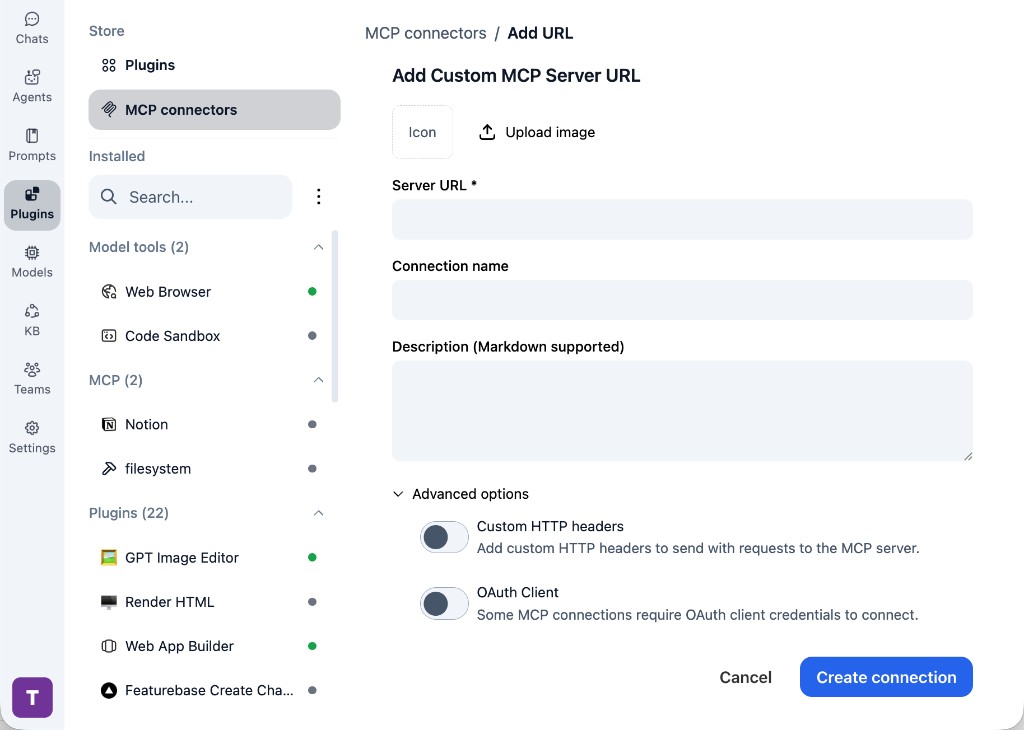
Open MCP connectors

In TypingMind, go to Plugins, open MCP connectors, then choose Add URL.

  1. Open TypingMind in your browser.
  2. Go to Plugins.
  3. Open MCP connectors.
  4. Click Add URL.
TypingMind Add Custom MCP Server URL form
2

Paste the server URL

Enter the MCP server URL from the provider in the Server URL field. Add a connection name, description, icon, custom HTTP headers, or OAuth client settings if the server requires them.

  1. Paste the MCP server URL from the provider into the Server URL field.
  2. Enter a connection name for Gemini Search MCP.
  3. Add a description and icon if you want it to be easier to identify.
  4. Add custom HTTP headers or OAuth client details if the server requires authentication.
3

Create the connection

Click Create connection, then return to the Plugins list and confirm the new MCP connection is active.

  1. Click Create connection.
  2. Return to the MCP connectors list.
  3. Confirm the Gemini Search MCP connection appears as active.
  4. Refresh the plugin list if the connection does not appear immediately.
4

Switch models without reconnecting

Start a chat with your preferred model, enable the Gemini Search MCP tools from Plugins, and switch to another model whenever needed. The MCP connection stays available to the TypingMind workspace.

  1. Start a new chat in TypingMind.
  2. Select the AI model you want to use.
  3. Enable the Gemini Search MCP tools from Plugins.
  4. Ask the model to use the tool when needed.
  5. Switch to another AI model and reuse the same MCP connection.
TypingMind chat using enabled MCP tools with a selected AI model
Can you use Gemini Search MCP to help me with this task?
Gemini Search MCP
Sure. I read it.
Here is what I found using Gemini Search MCP.

Frequently asked questions

What is the Gemini Search MCP MCP server used for?

Gemini Search MCP is an MCP server that lets compatible AI clients connect to external tools and context. In TypingMind, you can add this MCP server once and make its tools available in your AI workspace.

Can I use Gemini Search MCP MCP with multiple AI models in TypingMind?

Yes. TypingMind connects MCP tools at the workspace level, so you can use Gemini Search MCP with different AI models such as Claude, ChatGPT, Gemini, or other models you have configured in TypingMind without setting up the MCP server separately for each model.

Why use Gemini Search MCP MCP with TypingMind?

TypingMind is one of the best frontends for LLM chat because it brings multiple AI models, prompts, plugins, AI agents, API keys, and MCP tools into one workspace. With Gemini Search MCP connected, you can use its MCP tools across your preferred models while keeping your chat workflow organized in TypingMind.

How do I connect Gemini Search MCP MCP to TypingMind?

Gemini Search MCP can be connected in TypingMind with the local MCP connector or by adding a remote MCP server URL. Use the local connector when the server needs access to files, apps, or private resources on your device, and use a server URL when the MCP server is hosted remotely.

What tools does Gemini Search MCP MCP provide in TypingMind?

Gemini Search MCP exposes MCP capabilities that can be enabled from the TypingMind Plugins page and used in chat or assigned to AI agents.

Do I need to share my API keys with TypingMind to use Gemini Search MCP MCP?

No. TypingMind is local-first and lets you keep your model providers, API keys, prompts, and MCP configuration under your control. If Gemini Search MCP requires authentication, add the required headers, OAuth settings, or local configuration for that MCP server when you create the connection.

Related MCP Servers

View all

Set up your own AI workspace now

Get notified about new features and future giveaways by subscribing to our newsletter 👇