
engram
/ˈen.ɡræm/— neuroscience: the physical trace of a memory in the brain.
Your AI coding agent forgets everything when the session ends. Engram gives it a brain.
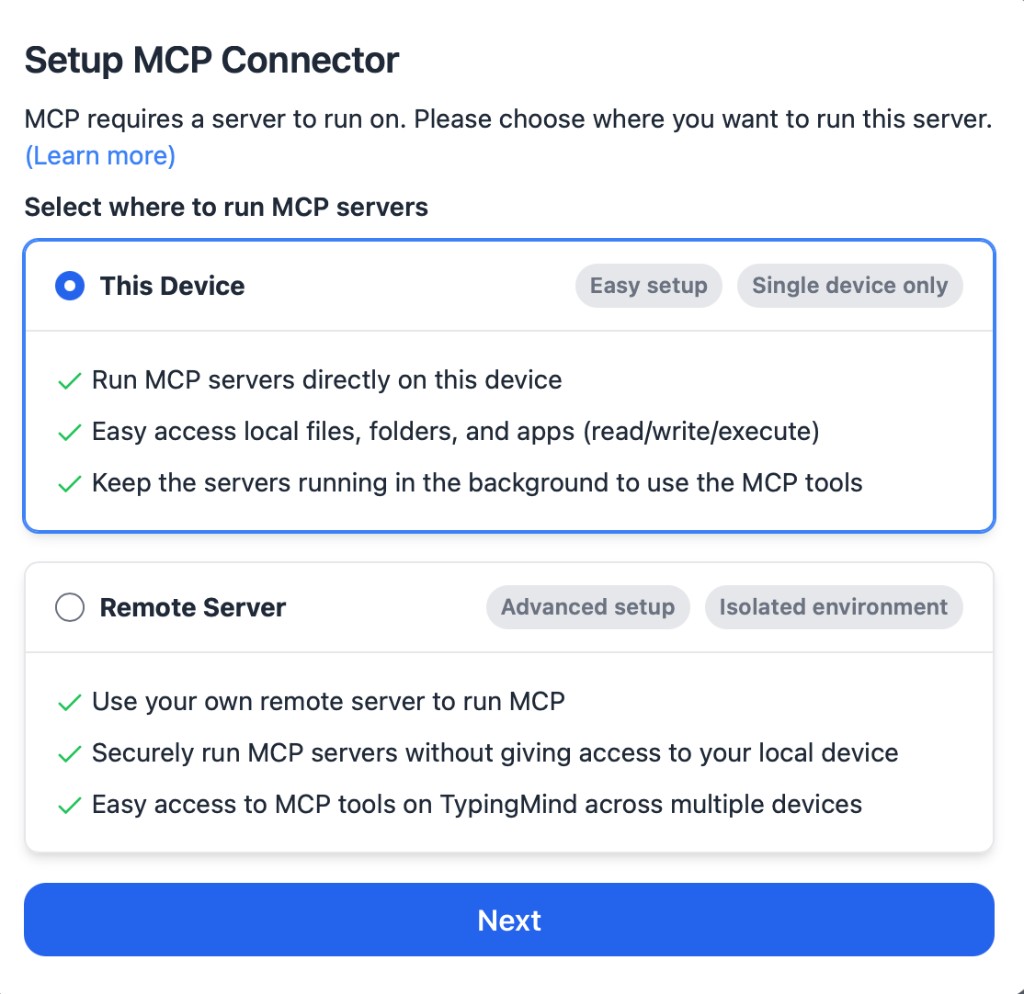
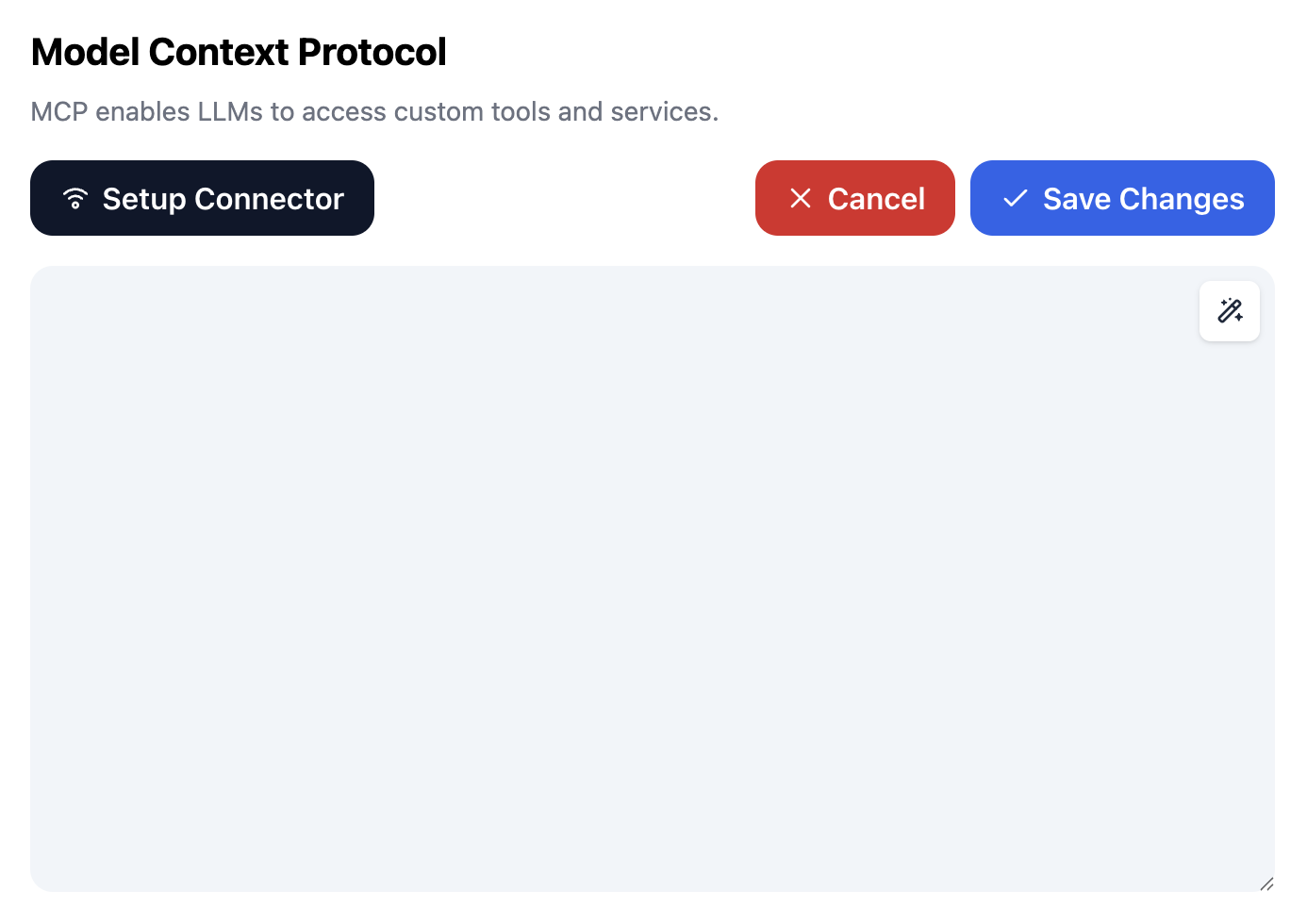
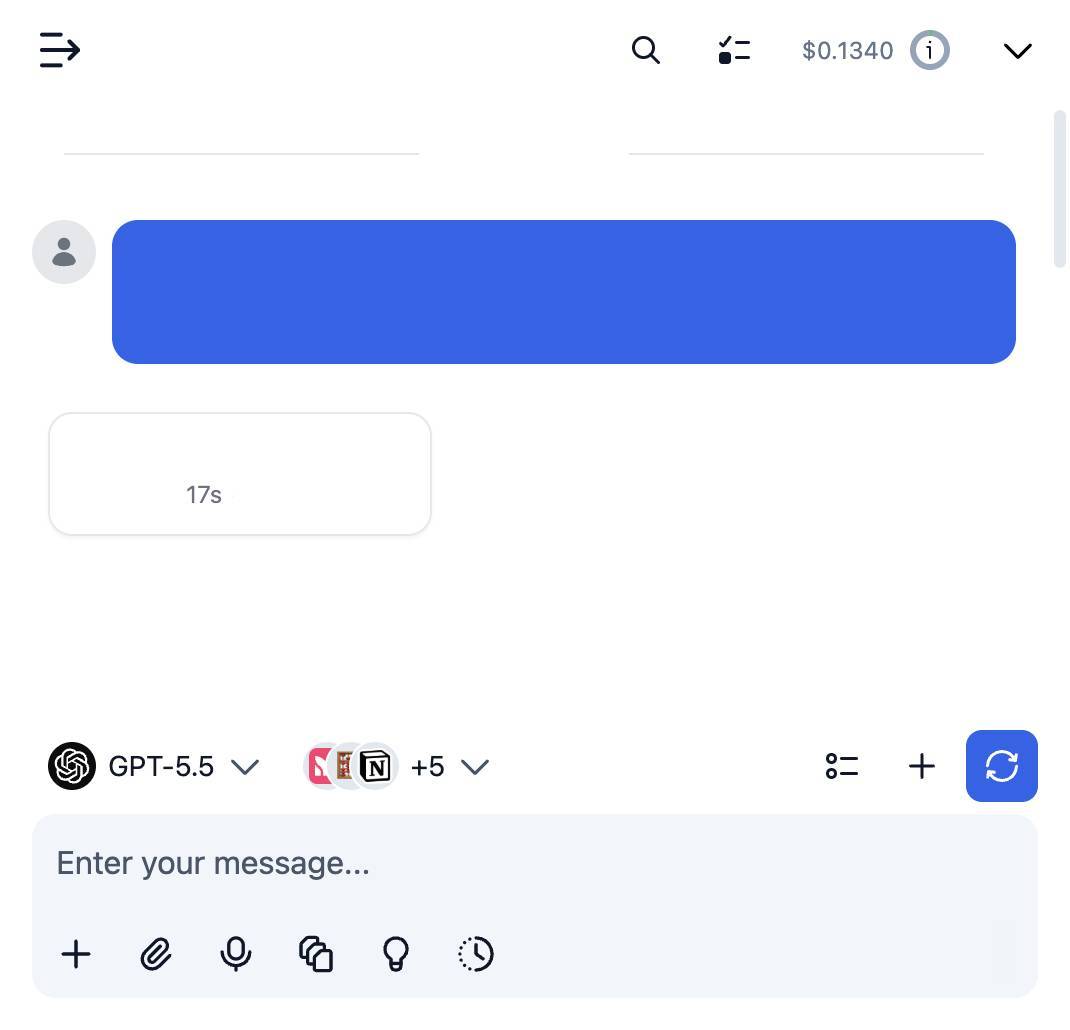
A Go binary with SQLite + FTS5 full-text search, exposed through CLI, HTTP API, MCP, and an interactive TUI. It works with any MCP-compatible agent, including Claude Code, OpenCode, Gemini CLI, Codex, VS Code (Copilot), Antigravity, Cursor, and Windsurf.
No Node.js, Python, or Docker is required: one binary, one SQLite file.
Agent (Claude Code / OpenCode / Gemini CLI / Codex / VS Code / Antigravity / ...) ↓ MCP stdio Engram (single Go binary) ↓ SQLite + FTS5 (~/.engram/engram.db)
For agents
Treat Engram as a curated project memory, not a transcript sink. Use this operating contract throughout the session.
- Orient before writing. Start with
mem_current_projectto confirm the resolved project and its source. At the start of related work, usemem_contextandmem_searchto recover the relevant history. - Search before repeating. Before revisiting a decision, bug, convention, or request that may already be known, search with focused terms. Search results are previews, not the complete record.
- Retrieve progressively. Use
mem_searchfor candidates,mem_timelinewhen surrounding session context matters, andmem_get_observationbefore relying on a full observation. - Save significant knowledge deliberately. Save completed bug fixes, decisions, discoveries, configuration changes, patterns, and durable user constraints with
mem_save. Do not capture raw tool output or every conversational turn. - Keep evolving knowledge stable. Give an evolving topic a stable
topic_keysuch asarchitecture/auth-model; reuse it to update that topic rather than creating competing memories. Usemem_suggest_topic_keywhen the key is unclear. - Leave a handoff. Before ending a session, save a
mem_session_summarywith the goal, instructions, discoveries, accomplished work, next steps, and relevant files. - Recover after compaction. Persist the compacted handoff with
mem_session_summaryfirst. Then callmem_contextto recover recent session history before continuing.
A useful memory is structured
markdown**What**: Added retry-safe upload handling. **Why**: Retries could create duplicate records. **Where**: internal/upload/handler.go **Learned**: Reuse the request id as the idempotency key.
Use a short, searchable title and a fitting type with that content. The full Memory Protocol defines the durable-save rules and session-summary shape.
Choose MCP tools by intent
Tool availability can vary by MCP profile. Start with the intent, then use your client's tool discovery mechanism (such as ToolSearch) only when a deferred tool is needed.
| Intent | Start with |
|---|---|
| Confirm the project and recover recent work | mem_current_project, mem_context |
| Find prior knowledge without repeating work | mem_search |
| Inspect a result in enough detail | mem_timeline, mem_get_observation |
| Save or refine durable knowledge | mem_save, mem_update, mem_suggest_topic_key |
| Preserve the user's request | mem_save_prompt |
| Hand off or close a session | mem_session_summary, mem_session_start, mem_session_end |
| Review stale knowledge or memory relationships | mem_review, mem_judge, mem_compare |
| Diagnose project or store state | mem_doctor |
For parameters and the complete, current tool reference, see the full documentation.
Quick start
Install
For production use and security support, install the latest stable release from GitHub Releases. Release candidates are prerelease validation and feedback builds; choose one only when you accept prerelease risk. See the Release Policy before upgrading.
Homebrew remains on the stable v1.20.0 line:
bashbrew install gentleman-programming/tap/engram
For Windows, Linux, source builds, and all installation methods, see Installation.
Set up your agent
Run the setup command for the agent you use, then restart that agent. engram setup writes the applicable MCP and integration configuration; it does not require you to start a server for the usual stdio-only setup.
| Agent | Setup |
|---|---|
| Claude Code | claude plugin marketplace add Gentleman-Programming/engram && claude plugin install engram |
| Pi | engram setup pi |
| OpenCode | engram setup opencode |
| Gemini CLI | engram setup gemini-cli |
| Codex | engram setup codex |
| Antigravity CLI | engram setup antigravity-cli |
| Windsurf | engram setup windsurf |
| Qwen Code | engram setup qwen |
| Kiro | engram setup kiro |
| Cursor | engram setup cursor |
| VS Code (Copilot) | engram setup vscode-copilot |
| Kilo Code | engram setup kilocode |
| Kimi Code | engram setup kimi |
| CommandCode | engram setup commandcode |
| Another MCP-compatible agent | Manual MCP setup |
See Agent Setup for per-agent configuration, plugin behavior, manual MCP setup, compaction resilience, and troubleshooting. Pi users can also find the package at gentle-engram.
Local first, portable when needed
Engram keeps memory local by default. The local SQLite database is authoritative; Git Sync exports portable compressed chunks for sharing across machines, and Engram Cloud is optional, project-scoped replication/shared access with browser visibility.
| Need | Start here |
|---|---|
| Local memory and the runtime model | Architecture |
| Share memory with Git | Git Sync reference |
| Use optional Cloud replication | Engram Cloud |
| Diagnose or recover Cloud operations | Cloud troubleshooting |
For an existing local database, use the guided upgrade sequence. If the dry run reports changes, apply them before bootstrap; otherwise continue directly to bootstrap.
bashengram cloud upgrade doctor --project <project> engram cloud upgrade repair --project <project> --dry-run engram cloud upgrade repair --project <project> --apply # only when the dry run reports changes engram cloud upgrade bootstrap --project <project> engram cloud upgrade status --project <project>
See the Cloud upgrade reference for apply, rollback, and recovery details.
Project-aware reads
Project-aware reads use the canonical current project when no selector is supplied: an explicit project, then ENGRAM_PROJECT, then cwd detection. Use --all in the CLI or all_projects=true in HTTP for an intentional global read; do not combine either with an explicit project. engram context retains its positional project as an alias for --project. GET /sync/status supports one resolved project and rejects all_projects=true because its provider cannot aggregate status.
Terminal UI
bashengram tui
Navigate with j/k, use Enter to drill in, c to copy content to the clipboard, / to search, and Esc to go back. The TUI uses the Catppuccin Mocha theme.
Documentation
| Doc | Description |
|---|---|
| Installation | Platform support and all installation methods |
| Release Policy | Stable, RC, security-support, upgrade, and rollback guidance |
| Agent Setup | Per-agent configuration and compaction resilience |
| Intended Usage | The human mental model for using Engram |
| Architecture | Memory model, tool behavior, and project structure |
| Codebase Guide | Repository structure, flows, and implementation landmarks |
| Plugins | OpenCode and Claude Code plugin details |
| Team Usage | Shared-memory conventions |
| Engram Cloud | Cloud quickstart, deployment, and technical links |
| Doctor | Operational diagnosis and repair workflows |
| Binary self-testing | Isolated reliability and performance checks for released binaries |
| Beta Testing | Isolated beta testing flows and cleanup guidance |
| Comparison | Engram compared with claude-mem |
| Obsidian Brain | Export memories as an Obsidian knowledge graph (beta) |
| Full Docs | Complete CLI, environment, API, and operational reference |
Dashboard contributors: if you modify
.templfiles ininternal/cloud/dashboard/, runmake templto regenerate before committing. See Dashboard templ regeneration.
Contributing
Every change starts with an approved issue. See Contributing for the issue-first workflow, labels, review requirements, and contributor standards.
Trademark notice: The Engram names and logos are trademarks of Alan Buscaglia. The MIT License applies to the code; it does not permit implying endorsement or official affiliation. See TRADEMARKS.md.
License
MIT
Inspired by claude-mem — but agent-agnostic, simpler, and built different.