
Octagon: MCP for Public & Prediction Markets Intelligence
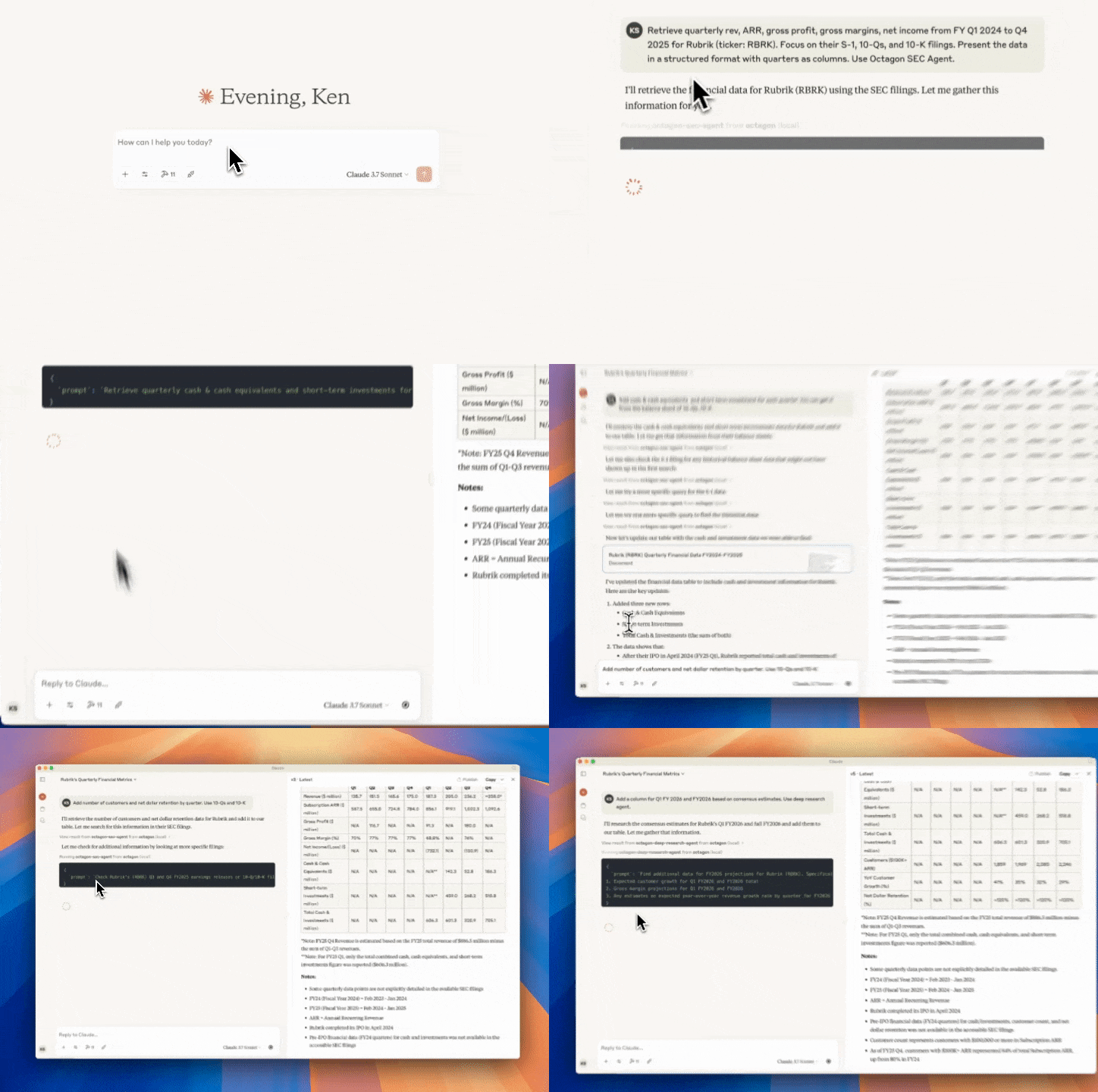
 The Octagon MCP server provides specialized AI-powered financial research and analysis by integrating with the Octagon Market Intelligence API, enabling users to analyze and extract insights from public filings, earnings calls, financial metrics, stocks & crypto data, stock news, and prediction markets news & research within Claude Desktop and other popular MCP clients.
Tools
✅ octagon-agent orchestrates broad market intelligence analysis
- Public market insights: SEC filings (10-K, 10-Q, 20-F, 8-K, S-1, 13-F, DEF 14A), earnings call transcripts
- Stocks & crypto market data: stock trading, crypto trading data, news, press release, ownerships and holdings
✅ octagon-deep-research-agent for comprehensive deep research
- Multi-source synthesis for investment research questions
- Best for up-to-date, cross-source thematic analysis
✅ Prediction market research tooling
octagon-prediction-markets-agentfor updated research reports on each prediction marketsprediction_markets_historyfor structured historical market data retrieval
✅ Live Octagon documentation access
octagon-docs-search,octagon-docs-read,octagon-docs-list, andoctagon-docs-refresh- MCP resources for
octagon-docs://catalog,octagon-docs://status, andoctagon-docs://page/{target}
Get Your Octagon API Key
To use Octagon MCP, you need to:
- Sign up for a free account at Octagon
- After logging in, from left menu, navigate to API Keys
- Generate a new API key
- Use this API key in your configuration as the
OCTAGON_API_KEYvalue
Prerequisites
Before installing or running Octagon MCP, you need to have npx (which comes with Node.js and npm) installed on your system.
Mac (macOS)
-
Install Homebrew (if you don't have it):
bash/bin/bash -c "$(curl -fsSL https://raw.githubusercontent.com/Homebrew/install/HEAD/install.sh)" -
Install Node.js (includes npm and npx):
bashbrew install nodeThis will install the latest version of Node.js, npm, and npx.
-
Verify installation:
bashnode -v npm -v npx -v
Windows
- Download the Node.js installer:
- Go to https://nodejs.org/ and download the LTS version for Windows.
- Run the installer and follow the prompts. This will install Node.js, npm, and npx.
- Verify installation:
Open Command Prompt and run:
cmd
node -v npm -v npx -v
If you see version numbers for all three, you are ready to proceed with the installation steps below.
Installation
Running on Claude Desktop
To configure Octagon MCP for Claude Desktop:
- Open Claude Desktop
- Go to Settings > Developer > Edit Config
- Add the following to your
claude_desktop_config.json(Replaceyour-octagon-api-keywith your Octagon API key):
json{ "mcpServers": { "octagon-mcp-server": { "command": "npx", "args": ["-y", "octagon-mcp@latest"], "env": { "OCTAGON_API_KEY": "YOUR_API_KEY_HERE" } } } }
- Restart Claude for the changes to take effect
Running on Cursor
Configuring Cursor Desktop 🖥️ Note: Requires Cursor version 0.45.6+
To configure Octagon MCP in Cursor:
- Open Cursor Settings
- Go to Features > MCP Servers
- Click "+ Add New MCP Server"
- Enter the following:
- Name: "octagon-mcp" (or your preferred name)
- Type: "command"
- Command:
env OCTAGON_API_KEY=your-octagon-api-key npx -y octagon-mcp
If you are using Windows and are running into issues, try
cmd /c "set OCTAGON_API_KEY=your-octagon-api-key && npx -y octagon-mcp"
Replace your-octagon-api-key with your Octagon API key.
After adding, refresh the MCP server list to see the new tools. The Composer Agent will automatically use Octagon MCP when appropriate, but you can explicitly request it by describing your investment research needs. Access the Composer via Command+L (Mac), select "Agent" next to the submit button, and enter your query.
Running with npx
bashenv OCTAGON_API_KEY=your_octagon_api_key npx -y octagon-mcp
Manual Installation
bashnpm install -g octagon-mcp
Documentation
For comprehensive documentation on using Octagon agents, please visit our official documentation at: https://octagonai.co/docs/
The documentation includes:
- Detailed API references
- Agent-specific query guidelines
- Examples and use cases
- Best practices for investment research
For the latest hosted MCP client setup guide, see:
This MCP server also exposes the live docs corpus directly to MCP clients. Documentation access is fetched from the public Octagon docs LLM entry point at https://octagonai.co/docs/llms.txt; it does not use or transmit OCTAGON_API_KEY.
Available Tools
The MCP server currently exposes the following tools:
Documentation Tools
These tools expose live Octagon docs inside the MCP session. They work even before OCTAGON_API_KEY is configured, which makes them useful for setup, troubleshooting, and discovering the right Octagon agent or API workflow.
octagon-docs-list
Lists live docs sections and pages from the Octagon docs corpus.
Parameters
section(string, optional): filter by docs section.source(docs,site, orall, optional): defaults to the docs corpus.limit(number, optional): maximum entries to return.
octagon-docs-search
Searches the Octagon API, agent, MCP, and plugin docs with source URLs and optional snippets.
Parameters
query(string, required): search query.section(string, optional): filter by docs section.source(docs,site, orall, optional): defaults to the docs corpus.limit(number, optional): maximum results to return.includeSnippets(boolean, optional): include matched snippets in results.
Example:
textSearch Octagon docs for Claude plugin connector setup.
octagon-docs-read
Reads one docs page or section as Markdown by title, URL, path, or catalog id.
Parameters
target(string, required): docs title, URL, path, or catalog id.source(docs,site, orall, optional): defaults to the docs corpus.maxChars(number, optional): maximum Markdown characters to return.preferCachedContent(boolean, optional): use the indexed docs corpus when available.
Example:
textRead the Octagon MCP server guide.
octagon-docs-refresh
Refreshes the in-memory docs catalog from the live LLM-friendly docs endpoints.
Parameters
includeSite(boolean, optional): also refresh the broaderhttps://octagonai.co/llms.txtsite index.
Documentation Resources
Clients that support MCP resources can also browse:
octagon-docs://catalog: normalized live docs catalog.octagon-docs://status: cache state, source endpoints, and refresh metadata.octagon-docs://page/{target}: one docs page or section as Markdown.
octagon-agent
Orchestrates public and private market intelligence analysis.
Parameters
prompt(string, required): natural language research request.conversation(string, optional): existing Octagon conversation ID to continue a prioroctagon-agentthread. Omit this on the first turn.newConversation(boolean, optional): iftrue, starts a fresh Octagon thread for the active session/thread anchor. Recommended for the first turn of a brand new visible chat in top-layer hosts such as Claude Desktop.
Threaded usage
octagon-agent is the only MCP tool that forwards Octagon conversation threading. It is a stateful tool and expects session continuity. The MCP resolves session/thread state in this order:
- stored conversation for MCP transport session identity, when the transport actually provides it
- stored conversation for the server-managed default
stdiosession - explicit
conversationcan still override the active session conversation for that call
This package currently runs as a stdio MCP server. In stdio mode, the server automatically establishes a process-local session for continuity across calls. Most local hosts such as Claude Desktop or Cursor can therefore use octagon-agent without supplying any extra threading fields for basic follow-up behavior.
When a top-layer host knows a call is the first turn of a new visible chat, it should pass newConversation: true. That explicitly clears any stored Octagon thread for the active MCP session anchor before the call, which prevents stale continuity when a stdio host reuses the same long-lived MCP process across multiple visible chats.
This means you can use any of these patterns:
- First call: send only
prompt - Let the MCP host preserve transport session continuity or rely on the default stdio session
- Second call: either
- send the new
promptin the same MCP session, or - keep using the same stdio MCP process, or
- explicitly pass the previous
conversation
- send the new
Transport session identity is the canonical continuity primitive for standards-compliant stateful MCP transports. For local stdio usage, the server-managed process session provides default continuity.
Session identity and Octagon conversation identity are different concepts:
- MCP session identity controls server-side continuity across tool calls
- Octagon
conversationcontrols the active Octagon thread inside that session
The MCP result keeps the answer in content, and also returns structured metadata for orchestrators in structuredContent:
json{ "model": "octagon-agent", "text": "Which stock would you like the latest price for?", "conversation": "conv_123", "responseId": "resp_123", "followUp": { "required": true, "inputTemplate": "<ticker or company name>", "instructions": "Reply with just the missing detail and reuse the conversation value from this response." } }
Explicit carry-forward example:
json{ "prompt": "AAPL", "conversation": "conv_123" }
New visible chat example:
json{ "prompt": "Analyze Apple", "newConversation": true }
Explicit refresh example:
json{ "prompt": "Start a fresh Octagon thread for this chat", "newConversation": true }
Stateful tool policy
octagon-agent: stateful, uses a usable continuity anchor. Instdiohosts, that defaults to the server-managed process session unless you provide explicitconversation- other MCP tools: stateless and may run without session continuity
Example:
textCompare NVIDIA and AMD on latest quarterly revenue growth, margins, and management commentary.
More examples:
- "What were Amazon's revenue and net income figures in Q4 2023?"
- "Analyze Tesla's R&D spending trends over the last 3 years."
- "What guidance did NVIDIA's CEO provide regarding AI chip demand in their latest earnings call?"
- "Compare the price-to-earnings, price-to-sales, and EV/EBITDA ratios for the top 5 semiconductor companies."
- "What was Anthropic's latest funding round size, valuation, and key investors?"
- "How many investments did Andreessen Horowitz make in AI startups in the last 12 months?"
- "What are the latest news articles for NVIDIA stock from the past week?"
octagon-deep-research-agent
Performs comprehensive multi-source deep research and synthesis.
Parameters
prompt(string, required): natural language research request.
Example:
textResearch the impact of lower interest rates on late-stage private software valuations over the next 12 months.
More examples:
- "Extract all data fields from zillow.com/san-francisco-ca/"
- "Research the financial impact of Apple's privacy changes on digital advertising companies' revenue and margins"
- "Retrieve historical Bitcoin price data from 2023 and analyze the price volatility trends"
- "Analyze the competitive dynamics in the EV charging infrastructure market"
octagon-prediction-markets-agent
Generates research reports for Kalshi prediction market events.
Parameters
prompt(string, required): natural language research request.cache(boolean, optional): controls agent variant routing.- omitted:
prediction-markets-agent false:prediction-markets-agent:refreshtrue:prediction-markets-agent:cache
- omitted:
Example:
textGenerate a report for the Kalshi market https://kalshi.com/markets/kxbtcy/btc-price-range-eoy/kxbtcy-27jan0100
prediction_markets_history
Fetches historical data for a prediction market event ticker with optional pagination and time filters.
Parameters
event_ticker(string, required)limit(number, optional)cursor(string, optional)captured_from(string, optional)captured_to(string, optional)include_analysis(boolean, optional; when true, requests analysis columns)
Example:
textFetch historical data for the Kalshi event https://kalshi.com/markets/kxbtcy/btc-price-range-eoy/kxbtcy-27jan0100
Troubleshooting
- API Key Issues: Ensure your Octagon API key is correctly set in the environment or config file.
- Connection Issues: Make sure the connectivity to the Octagon API is working properly.
- Rate Limiting: If you encounter rate limiting errors, reduce the frequency of your requests.
License
MIT
Individual Specialized MCP Servers
While this server provides comprehensive market intelligence combining all our specialized agents, you can also use our individual MCP servers for specific use cases:
Research Tools
- Octagon Deep Research MCP - Comprehensive research and web scraping capabilities
⭐ Star this repo if you find it helpful!





