pgconsole logo

pgconsole

Organization
pgplex

Minimal Postgres editor for speed, collaboration, and AI

Publisherpgplex
Repositorypgconsole
LanguageTypeScript
Forks
10
Stars
149
Available tools
0
Transport typestdio
Categories
LicenseApache-2.0
Links
  • Connect tools to AI workflows

    pgconsole exposes MCP capabilities that can be used by compatible AI clients and agents.

  • 0 available tools

    Browse the callable actions below, including names and descriptions when provided by the server.

  • Ready-to-copy setup

    Use the installation snippets to configure this server in your preferred MCP client.

  • Open source signals

    149 stars and 10 forks from the linked repository.

[!NOTE] pgplex: The Postgres Toolchain for Humans and Agents - pgconsole · pgschema · pgtui · pgparser

Brought to you by Bytebase, open-source database governance platform.
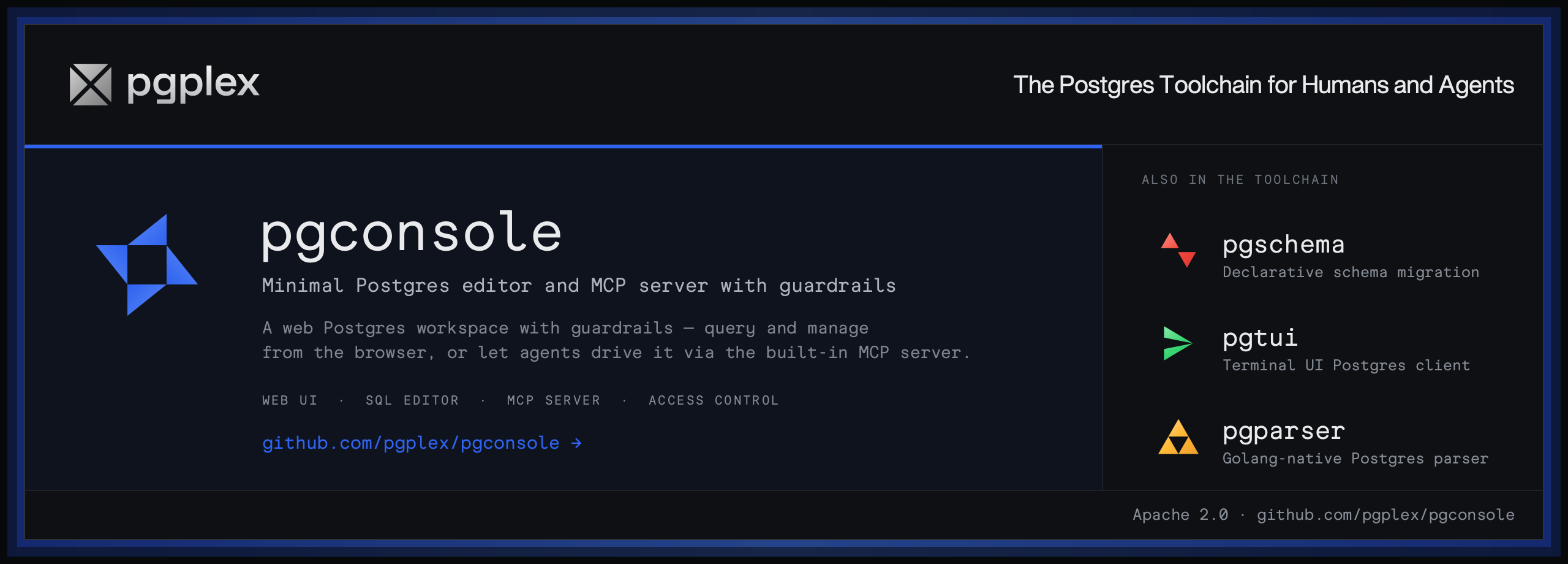
pgconsole is a web-based PostgreSQL editor. Single binary, single config file, no database required. Connect your team to PostgreSQL with access control and audit logging built in.

Installation

Visit https://docs.pgconsole.com/getting-started/quickstart

Prerequisites

  • Node.js 20+

npm

bash
npm install -g @pgplex/pgconsole
pgconsole --config pgconsole.toml

npx

bash
npx @pgplex/pgconsole --config pgconsole.toml

Docker

bash
docker run -p 9876:9876 -v /path/to/pgconsole.toml:/etc/pgconsole.toml pgplex/pgconsole

Run without --config to start in demo mode with a bundled sample database.

Features

SQL Editor

A full-featured SQL workspace for writing, running, editing, and inspecting PostgreSQL, with parser-powered intelligence in the editor.

  • Autocomplete — context-aware suggestions for tables, columns, joins, and CTEs
  • Formatting — pretty-print or collapse SQL to one line
  • Error detection — red underlines with hover tooltips
  • Code folding — collapse SELECT, WITH, and other blocks
  • Function signature help — parameter hints as you type
  • Result grid & inline editing — virtual-scrolling query results with staged edits, generated SQL previews, and optional AI risk assessment before execution
  • Schema browser — inspect tables, views, materialized views, functions, and procedures with metadata, indexes, constraints, triggers, and grants

AI Assistant

Generate, explain, fix, and rewrite SQL with an AI assistant that understands your schema context. Supports OpenAI, Anthropic, and Google providers.

  • Text-to-SQL — describe a query in natural language, get SQL back
  • Explain SQL — get plain-language explanations of any query
  • Fix SQL — AI-powered error correction from inline linting
  • Rewrite SQL — optimize queries for performance or readability
  • Risk assessment — analyze staged changes for potential risks before execution

MCP Server

Expose your Postgres connections to external AI agents (Claude, Cursor, IDEs, CI bots) over the Model Context Protocol — without handing out raw database credentials. Agents connect to a remote MCP endpoint and inherit the same IAM, permission, and audit controls as human users.

  • Remote & token-authenticated — a Streamable HTTP endpoint at /mcp; each agent authenticates with Authorization: Bearer <token>
  • Two agent kinds — a pure service account (authorized by agent:<id> IAM rules) or a delegated agent that acts on behalf of a user, optionally capped to fewer permissions or connections
  • Permission-shaped tools — every agent can list_connections; catalog tools (list_objects, describe_table) appear once it has an accessible connection, and execution tools unlock per grant: explain_query (explain), query (read), write_data (write), run_ddl (ddl)
  • Same governance as the UI — every statement runs through per-statement SQL permission detection, default-deny IAM, and the audit log
toml
# A standalone agent, authorized via [[iam]] just like a user
[[agents]]
id = "ci-bot"
name = "CI Pipeline"
token = "generate-a-long-random-secret"   # openssl rand -hex 32

[[iam]]
connection = "staging"
permissions = ["read", "ddl"]
members = ["agent:ci-bot"]

Database Access Control

Fine-grained IAM controls who can read, write, or administer each connection. Permissions are enforced at the application layer — no database roles needed.

  • Default deny — users have no access unless a rule explicitly grants it
  • Connection-scoped — permissions are granted per connection, not globally
  • Disjoint permissions — read, write, ddl, admin, explain, execute, export are independent

Audit Log

Every query and login is recorded as structured JSON to stdout. Filter and forward to your log infrastructure.

json
{
  "type": "audit",
  "ts": "2024-01-15T10:32:15.456Z",
  "action": "sql.execute",
  "actor": "alice@example.com",
  "connection": "prod-db",
  "sql": "SELECT * FROM users WHERE active = true",
  "duration_ms": 45,
  "row_count": 150
}

Single-File Configuration

Everything lives in pgconsole.toml — connections, users, groups, access rules, AI providers. No database required.

toml
[[connections]]
id = "production"
name = "Production"
host = "db.example.com"
port = 5432
database = "myapp"
username = "readonly"
password = "..."

[[iam]]
connection = "production"
permissions = ["read", "explain", "export"]
members = ["*"]

[[iam]]
connection = "production"
permissions = ["*"]
members = ["group:dba"]

[[ai.providers]]
id = "claude"
vendor = "anthropic"
model = "claude-sonnet-4-20250514"
api_key = "sk-ant-..."

Getting Help

Development

[!NOTE] For external contributors: If you want to request a feature, please create a GitHub issue to discuss first instead of creating a PR directly.

bash
git clone https://github.com/pgplex/pgconsole.git
cd pgconsole
pnpm install
pnpm dev        # Start dev server (frontend + backend)
pnpm build      # Production build
pnpm test       # Run all tests

Sponsor

Bytebase - open source, web-based database DevSecOps platform.

Use pgconsole MCP with multiple AI models

TypingMind connects MCP tools at the workspace level, so once pgconsole is connected, you can use it with different AI models in TypingMind instead of setting it up separately for each model. This MCP runs locally through the TypingMind MCP connector on your device.

Setup guide to use the local connector

Use this when the MCP server needs access to local files, apps, or private resources on your computer.

1

Open the MCP settings

In TypingMind, go to Settings, Advanced Settings, then Model Context Protocol and choose Setup Connector.

  1. Open TypingMind in your browser.
  2. Click the Settings icon.
  3. Go to Advanced Settings.
  4. Open the Model Context Protocol section.
  5. Click Setup Connector and choose This Device.
TypingMind MCP connector setup screen with This Device selected
2

Run the connector command

Choose This Device, copy the command from TypingMind, and run it in Terminal. Keep the process running while you use MCP.

  1. Copy the setup command shown by TypingMind.
  2. Open Terminal on macOS or Windows Terminal on Windows.
  3. Paste and run the command.
  4. Approve the package install if Terminal asks you to proceed.
  5. Keep the Terminal window running while using MCP tools.
3

Add pgconsole as a server

When the connector status is Ready, click Edit Servers and paste the MCP server configuration.

  1. Wait until the connector status shows Ready.
  2. Click Edit Servers.
  3. Paste the pgconsole MCP server configuration.
  4. Save the server list.
  5. Refresh if you want to confirm the connector is still ready.
TypingMind MCP settings showing active server and Edit Servers button
{
  "mcpServers": {
    "pgconsole": {
      "command": "npx",
      "args": [
        "-y",
        "<mcp-server-package>"
      ]
    }
  }
}
4

Use it across models

Save the server list, open Plugins, enable the pgconsole MCP tools, then select any supported AI model in TypingMind and use the tools in chat or assign them to an AI agent.

  1. Open the Plugins page in TypingMind.
  2. Enable the pgconsole MCP tools.
  3. Start a chat and choose the AI model you want to use.
  4. Use the MCP tools in chat or assign them to an AI agent.
  5. Switch to another AI model whenever needed without reconnecting MCP.
TypingMind chat using enabled MCP tools with a selected AI model
Can you use pgconsole to help me with this task?
pgconsole
Sure. I read it.
Here is what I found using pgconsole.

Frequently asked questions

What is the pgconsole MCP server used for?

pgconsole is an MCP server that lets compatible AI clients connect to external tools and context. In TypingMind, you can add this MCP server once and make its tools available in your AI workspace.

Can I use pgconsole MCP with multiple AI models in TypingMind?

Yes. TypingMind connects MCP tools at the workspace level, so you can use pgconsole with different AI models such as Claude, ChatGPT, Gemini, or other models you have configured in TypingMind without setting up the MCP server separately for each model.

Why use pgconsole MCP with TypingMind?

TypingMind is one of the best frontends for LLM chat because it brings multiple AI models, prompts, plugins, AI agents, API keys, and MCP tools into one workspace. With pgconsole connected, you can use its MCP tools across your preferred models while keeping your chat workflow organized in TypingMind.

How do I connect pgconsole MCP to TypingMind?

pgconsole runs through the TypingMind local MCP connector. This is best when the MCP server needs access to local files, desktop apps, command-line tools, or private resources on your computer.

What tools does pgconsole MCP provide in TypingMind?

pgconsole exposes MCP capabilities that can be enabled from the TypingMind Plugins page and used in chat or assigned to AI agents.

Do I need to share my API keys with TypingMind to use pgconsole MCP?

No. TypingMind is local-first and lets you keep your model providers, API keys, prompts, and MCP configuration under your control. If pgconsole requires authentication, add the required headers, OAuth settings, or local configuration for that MCP server when you create the connection.

Related MCP Servers

View all

Set up your own AI workspace now

Get notified about new features and future giveaways by subscribing to our newsletter 👇


