
Qanat is a data platform for quant factors. Give it any source that has a timestamp. It processes the data, stores it, and serves it to your agent over MCP.
You write one YAML file saying where the data comes from and what to do with it. Qanat runs that, replays it over history one date at a time, and prices what the portfolio held after fees. Connect it to your agent and ask.
It is built for people who rebalance daily or weekly. You cannot beat a hedge fund on speed, and over that horizon you do not need to.
Install
Python 3.10 or newer.
bashuv tool install qanat-fdtl # or: pip install qanat-fdtl qanat init my-alpha --demo && cd my-alpha
--demo builds four strategies and prices them in about fifteen seconds, so there is something
real to look at. The data is synthetic, so it needs no key and no network. Leave it off for an
empty project.
Qanat makes no network calls of its own. The only ones are what your sources do.
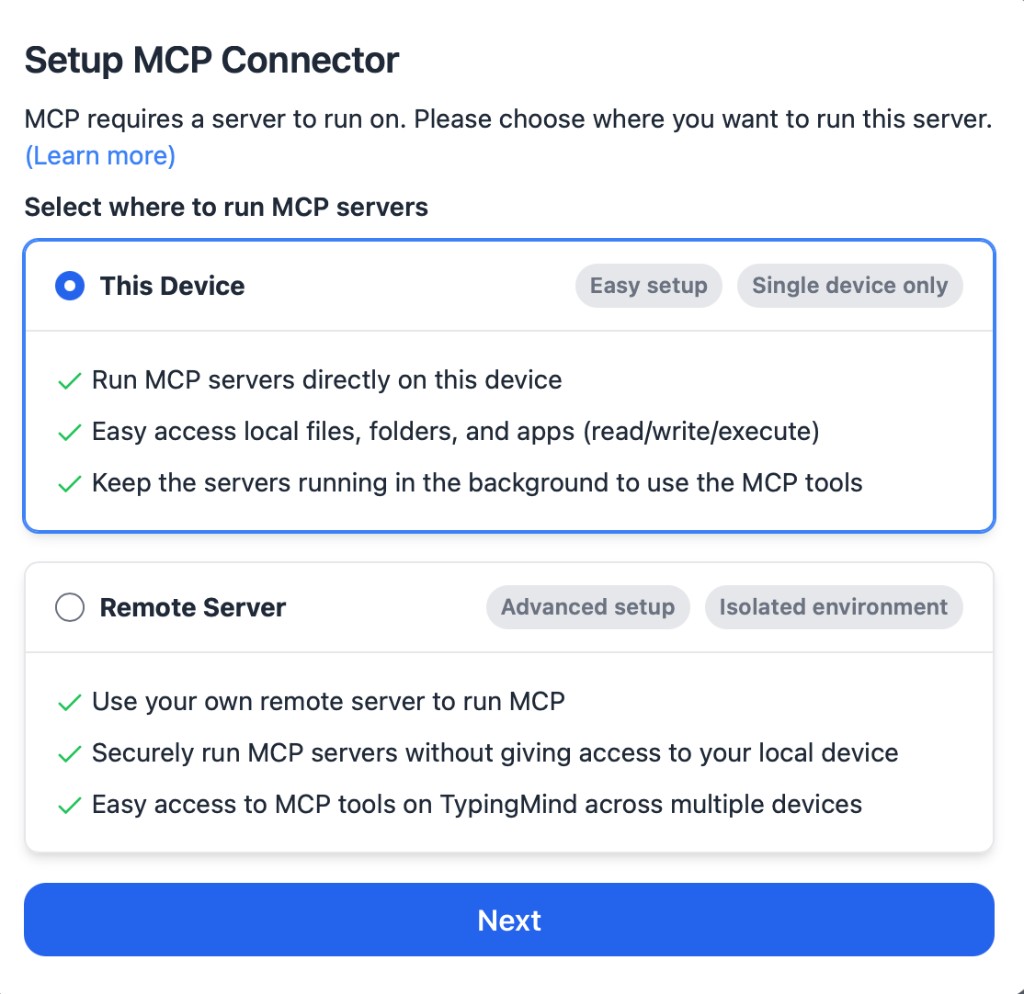
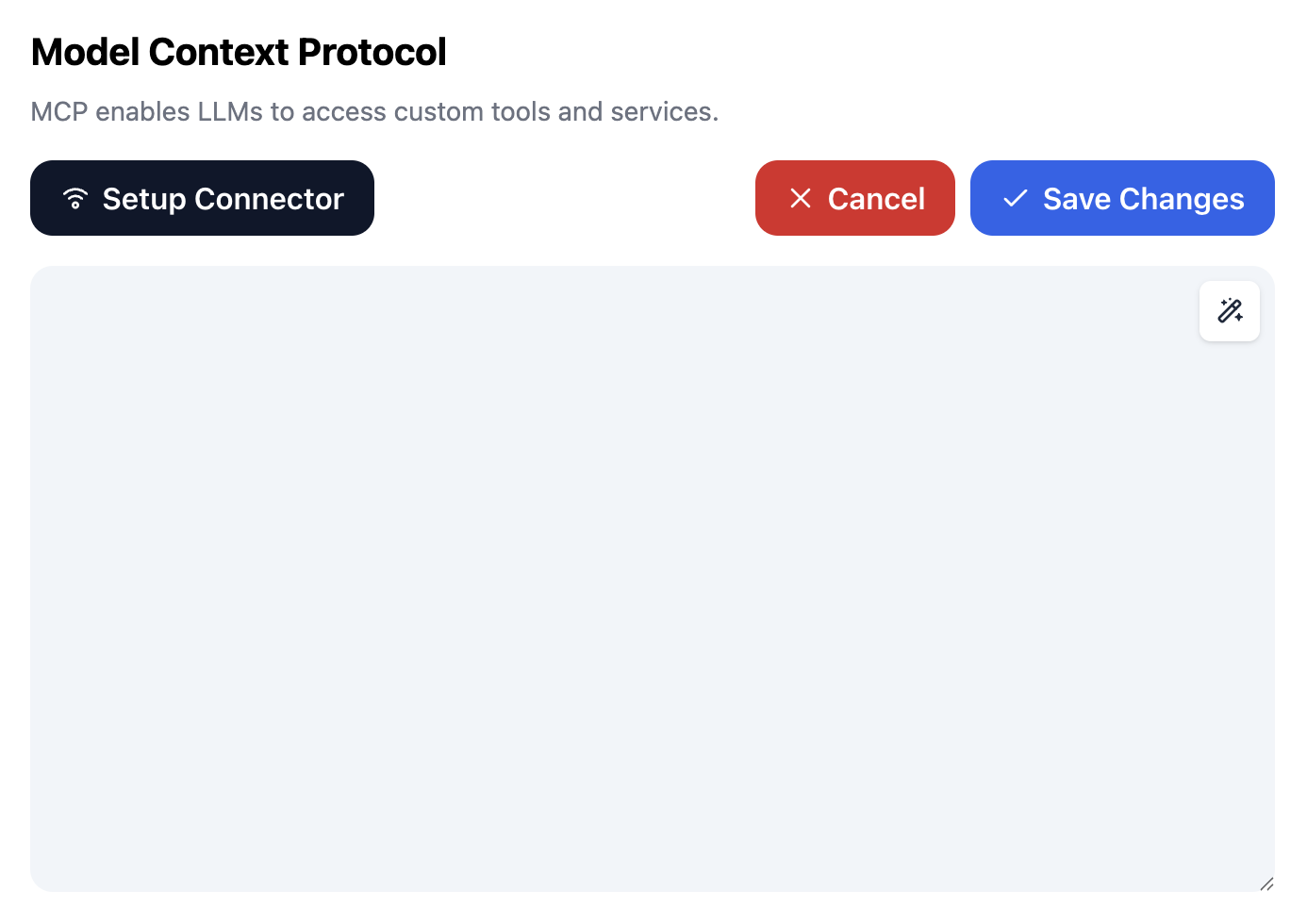
Connect it to an agent
bashclaude mcp add qanat -- qanat mcp --scope research
Any MCP client works:
json{ "mcpServers": { "qanat": { "command": "qanat", "args": ["mcp"], "cwd": "/path/to/my-alpha" } } }
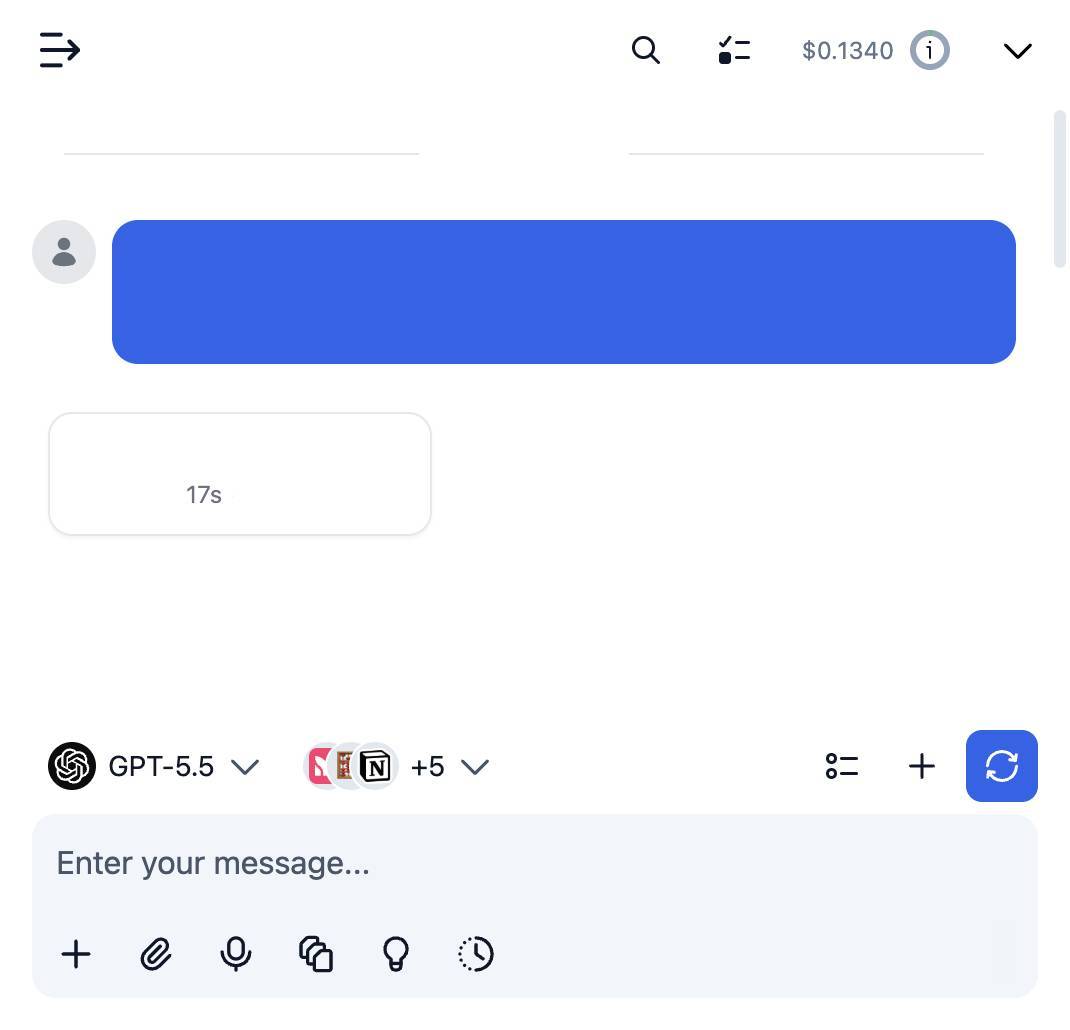
Then ask for things:
- "What is in this project, and what feeds the momentum strategy?" It traces the table back to its sources and answers from the rows.
- "Add a momentum strategy and test it." Before running anything it comes back with what your data covers and asks you to pick the window, the rebalance and the costs.
- "Which of my strategies works?" It lists each one with what it earned.
- "Why did it lose money in March?" It opens that period and shows what was held and what each name returned.
Scopes
--scope picks which tools your agent gets. There are three, and each one contains the one before
it.
| tools | ||
|---|---|---|
--scope data | 6 | read the tables, including as they stood on a past date |
--scope research | 19 | adds running a replay, reading the result, comparing runs |
| (default) | 31 | adds writing steps, ingest and scheduling |
Every tool definition is sent on every request, so a narrow scope costs fewer tokens and leaves the agent a shorter list to choose from. Pick the smallest one that does the job.
The split also decides what a caller can break. set_bar sits in full, so an agent connected at
research can record what it tried and cannot lower the line those attempts are held to.
Full table in docs/agents.md.
Serving it to something that is not on this machine
bashqanat mcp --http --port 8421 --scope research --token "$QANAT_MCP_TOKEN" # server only qanat serve --port 8421 --scope research --token "$QANAT_MCP_TOKEN" # and the scheduler
Both speak MCP's Streamable HTTP transport on /mcp. The scope is fixed by the flag that started
the server, so nothing in a request can widen it.
One process serves one project, because the store takes one writer. Two projects means two processes. It binds to 127.0.0.1 unless you say otherwise, and it refuses any other address without a token.
How a project is written
Everything is in one qanat.yaml.
yamlproject: equity store: ./data/qanat.duckdb stages: # order here is order in the pipeline - { id: raw, kind: raw } - { id: normalized, kind: features } - { id: features, kind: features } - { id: weights, kind: weights } - { id: pnl, kind: pnl } sources: - id: prices to: [raw.daily_prices] connector: rest options: url: https://api.example.com/v1/bars headers: { Authorization: "Bearer ${PRICE_API_KEY}" } steps: - id: alpha_momentum # the step that writes weights is the strategy from: [features.momentum] to: [weights.momentum] script: steps/alpha_momentum.py rebalance: 20d backtest: prices: normalized.prices fee_bps: 5 slippage_bps: 10
A step is a .sql file, or a .py file with a run(ctx):
pythondef run(ctx): bars = ctx.read("normalized.prices") # only tables the step declared in `from` return df
ctx.read() refuses any table the step did not list, so a missing dependency is an error instead
of a wrong number.
Data moves forward through the stages and never back: raw holds it as it arrived, normalized
types and deduplicates it, features holds what you measure, weights holds one table per
strategy, and pnl holds what each one earned. qanat check refuses a project that breaks the
rules. They are written out in
docs/contract.md.
Replaying it
bashqanat backtest --from 2015-01-01 --to 2024-12-31 qanat report 14
A replay walks the period one date at a time. Every step reads only the rows that existed on that date, so a step cannot see the future. It prices what the portfolio held, takes off fees and slippage, and the headline number is what is left.
Three kinds of period come out of it: in-sample, out-of-sample, and live. Live is the only one that
cannot be arrived at by looking, because it is priced after a live_from date that was stamped
before the rows existed.
More in docs/backtest.md.
How many did you try
A Sharpe of 2.2 on the first attempt is interesting. The same figure picked out of fifty is what noise looks like, and nothing inside a backtest tells those apart. So Qanat keeps the count.
bashqanat backtest --from … --to … # then, whether it worked or not: # record_trial: what you were testing, and what you decided # list_trials: how many distinct questions that adds up to
Set a bar and the count feeds into it:
yamlbacktest: bar: rule: count # none · floor · count alpha: 0.05 gate: true
count divides the significance by the number of attempts. floor is a fixed t-statistic
whatever you tried. With gate: true, calling a result live fails until it clears. Loosening the
bar is recorded with who did it, because the thing proposing strategies is also the thing that can
move the line.
What ships with it
Four strategies, so there is something to replay on day one: momentum, reversal, low_vol and
neutral_momentum. Each writes an ordinary step file you can edit or throw away. The tool is
what is given away here. The strategy never is.
Four connectors: rest for an HTTP endpoint, sql for anything SQLAlchemy reaches, csv for a
path or a URL, and synthetic for a fake market that runs before you have any key. The store is a
DuckDB file, or Postgres on localhost.
Four examples. examples/fx-bundled is real data in the repo: 27 years of ECB rates, 126 KB, no
key needed.
Status
Beta. It does what this page says on my own work, and few other people have run it. If something breaks, open an issue or say so on Discord.
MCP is the only door. What you install is the engine, the CLI that operates it, and the MCP
server. There is no screen and no second HTTP API: your agent client is the screen. qanat serve
runs the scheduler and serves this same MCP over HTTP from the process holding the store, which is
also how the unattended pass reaches the project.
Not implemented: backfills, incremental windows, and live trading. Qanat produces a portfolio, on history and going forward. It does not place an order.
Two limits worth knowing before you lean on the honesty machinery. The window is not sealed: the point-in-time views stop a step seeing the future, but nothing stops the agent reading past a date while it decides what to try. And there is no search goal, because a loop that proposes strategies and keeps the winners is an expensive way to fool yourself until the bar gates rather than reports.
Qanat runs one kind of pipeline, the kind that ends in a portfolio. Airflow, Dagster and Prefect handle arbitrary DAGs and distributed execution. Reach for those when you need them.
Issues and pull requests welcome. See CONTRIBUTING.md.
License
MIT. See LICENSE.
Copyright (c) 2026 fidetolabs