TickDB logo

TickDB

Community
TickDB

TickDB: AI-native real time stock API and market data API for US stocks, HK stocks, A-shares, forex, crypto, indices and commodities. Skill, CLI, MCP, REST API and WebSocket. AI 原生实时股票 API 与金融行情数据 API,支持美股、港股、A 股、外汇、加密货币、指数和大宗商品。

PublisherTickDB
Repositorytickdb-unified-realtime-marketdata-api
LanguagePython
Forks
16
Stars
805
Available tools
0
Transport typestdio, streamable-http
Categories
LicenseMIT
Links
  • Connect tools to AI workflows

    TickDB exposes MCP capabilities that can be used by compatible AI clients and agents.

  • 0 available tools

    Browse the callable actions below, including names and descriptions when provided by the server.

  • Ready-to-copy setup

    Use the installation snippets to configure this server in your preferred MCP client.

  • Open source signals

    805 stars and 16 forks from the linked repository.

TickDB — Unified Real-time Market Data API for Forex, Stocks, Crypto

One connection for Forex, Precious Metals, Indices, US Stocks, HK Stocks, A-Shares, and Crypto

开源工具集 · 完整 API 文档 + AI Skill + MCP 服务端实现

API Status AI-Native MCP CI Docs Check WebSocket Latency Docs License

语言版本: 🇨🇳 简体中文 • 🇹🇼 繁體中文 • 🇺🇸 English

📚 在线文档 • 🌐 官网 • 🤖 AI 接入 ↓


🎯 什么是 TickDB?

TickDB 是面向开发者、AI 代理和多市场金融应用的 AI 原生实时行情数据 API(AI-native real-time market data API)。

通过 一次接入(one connection),无缝访问外汇(Forex)、贵金属(Precious Metals)、指数(Indices)、美股(US Stocks / NASDAQ / NYSE)、港股(HK Stocks)、A 股(A-Shares)、加密货币(Cryptocurrency)等多个金融市场的实时与历史行情数据。

TickDB 专为需要可靠、低延迟、可长期依赖行情数据的开发者构建,帮助你避免管理多个数据源、协议和供应商的复杂性,专注于业务和策略本身。

支持 tick 级成交(trades)、盘口深度(order book / depth)、K 线(candlestick)等多种行情形式, 通过 REST API 与 WebSocket 接入,覆盖量化交易、AI Agent、实时行情系统、交易平台与数据分析场景。


🚀 快速接入

📦 本仓库提供完整源码:SKILL/(AI Skill 配置)· mcp/(Python MCP 服务端,13 工具 · Dockerfile · 46 单元测试 · CI · MIT)。托管端点 mcp.tickdb.ai 即基于 mcp/ 代码运行 — 你看到的、你部署的、官方在跑的,是同一套代码。

选一种适合你的接入方式:

方式适合说明
💬 SkillAI 对话即用,零配置npx 一键安装,AI 自动获取试用 Key
🔌 MCPAI 编码客户端 / 自部署开源托管端点 + JSON 配置,或基于 mcp/ 自部署
💻 CLI终端 / 脚本 / AI Agentnpm 全局安装,命令行直查行情
🔧 REST API应用集成HTTP API + 6 个端点示例
🌐 WebSocket实时流式数据低延迟订阅 ticker / depth / trade

✨ 核心特性

  • 🔌 统一接入 - 一套 API 覆盖外汇、贵金属、指数、美股、港股、A 股、加密货币
  • ⚡ 实时数据 - 基于 WebSocket 的流式推送,端到端延迟约 10-50ms
  • 🤖 AI 原生 - 官方提供 Skill / MCP / CLI 三档 AI 接入,AI Agent 与编码助手开箱即用
  • 🛠️ 开发者友好 - RESTful API + WebSocket,结构化 JSON 响应,完整文档与多语言示例
  • 🌍 全球覆盖 - 37,527+ 品种,6 大市场(US/HK/CN + Forex/Crypto/Indices)
  • 🆓 免费开始 - 无需信用卡,立即获取 API 密钥

🏗️ 典型使用场景

  • 量化交易(Quantitative Trading) - 算法与策略系统的实时行情数据源
  • AI Agent / 编码助手 - 通过 Skill / MCP 让 AI 助手直接调用行情数据,自然语言驱动查询
  • 行情看板 - 实时价格展示、资产与投资组合监控
  • 交易应用 - 构建类似 TradingView 的行情界面与图表系统
  • 数据分析与回测(Backtesting) - 历史行情分析、策略回测与研究
  • 金融服务集成 - 集成到现有交易平台或金融基础设施中
  • 自部署 / 私有化 - 不想用托管端点?基于本仓库 mcp/ 代码自部署,完全控制数据流

🚀 快速开始 — REST API

1. 注册并获取 API 密钥

访问 TickDB.ai 注册账户,即可获取 API 密钥。

🔑 身份认证

所有 HTTP API 请求都需要在请求头中包含 API 密钥:

http
X-API-Key: YOUR_API_KEY

🌐 基础 URL

https://api.tickdb.ai

📋 HTTP API 核心接口

接口方法描述
/v1/market/klineGET历史 K 线 / 蜡烛图(Candlestick)数据
/v1/market/tickerGET实时行情(Ticker)数据
/v1/market/depthGET订单簿深度(Order Book)数据
/v1/market/tradesGET最近成交(Recent Trades)历史

🏪 支持的市场

市场类型Symbol 格式示例说明
外汇(Forex / FX)GBPUSD主要货币对(Base/Quote)
贵金属(Precious Metals)XAUUSD贵金属对美元(Commodity / USD)
美股(US Stocks)AAPL.USNYSE / NASDAQ 上市股票
指数(Indices)SPX股票指数(如标准普尔 500)
港股(HK Stocks)700.HK港交所上市证券
A 股(A-Shares)600519.SH上海 / 深圳交易所股票
加密货币(Cryptocurrency)BTCUSDT加密资产交易对

2. 获取 K 线(K-line)数据

bash
curl -H "X-API-Key: YOUR_API_KEY" \
     "https://api.tickdb.ai/v1/market/kline?symbol=700.HK&interval=1h&limit=24"

3. 获取实时行情(Ticker)数据

bash
curl -H "X-API-Key: YOUR_API_KEY" \
     "https://api.tickdb.ai/v1/market/ticker?symbols=AAPL.US,700.HK,BTCUSDT"

4. 获取盘口深度(Depth)数据

bash
curl -H "X-API-Key: YOUR_API_KEY" \
     "https://api.tickdb.ai/v1/market/depth?symbol=AAPL.US&limit=10"

5. 获取成交记录(Trades)数据

bash
curl -H "X-API-Key: YOUR_API_KEY" \
     "https://api.tickdb.ai/v1/market/trades?symbols=AAPL.US&limit=20"

6. 查询可用交易品种

bash
curl -H "X-API-Key: YOUR_API_KEY" \
     "https://api.tickdb.ai/v1/symbols/available?market=HK&limit=10"

🌐 实时订阅 — WebSocket

低延迟(10-50ms)的流式数据推送,适合实时行情看板、量化策略与 Agent 自动化场景。

支持的频道

  • ticker - 实时价格更新
  • depth - 订单簿(Order Book)变化
  • trade - 实时成交执行
javascript
const ws = new WebSocket('wss://api.tickdb.ai/v1/realtime?api_key=YOUR_API_KEY');

ws.onopen = () => {
    // 订阅实时价格
    ws.send(JSON.stringify({
        cmd: 'subscribe',
        data: { channel: 'ticker', symbols: ['BTCUSDT'] }
    }));

    // 订阅订单簿变化
    ws.send(JSON.stringify({
        cmd: 'subscribe',
        data: { channel: 'depth', symbols: ['BTCUSDT'] }
    }));

    // 订阅实时成交数据
    ws.send(JSON.stringify({
        cmd: 'subscribe',
        data: { channel: 'trade', symbols: ['BTCUSDT'] }
    }));
};

🤖 AI 接入

TickDB 是 AI-native 行情数据 API,提供三档原生接入方式,覆盖从零配置对话到生产级深度集成的全场景需求。

💬 Skill — 对话即用

安装后 AI 自动获取试用 Key,无需注册即可查询 72 个热门品种:

bash
npx clawhub@latest install tickdb-market-data

或直接使用本仓库 SKILL 文件。

🔌 MCP — 永久集成

一次配置,让 Claude、Cursor、Kiro 等 AI 编码客户端永久获得 13 个行情工具。

托管端点(推荐,无需自部署):

json
{
  "mcpServers": {
    "tickdb": {
      "type": "http",
      "url": "https://mcp.tickdb.ai/",
      "headers": {
        "X-TickDB-Key": "YOUR_API_KEY"
      }
    }
  }
}

支持客户端:Claude Code · Claude Desktop · Cursor · Kiro · Codex · Zed · Cherry Studio

MCP 服务端已开源,代码位于本仓库 mcp/ 目录。

📊 mcp/ 概览:13 个 MCP 工具 · Python 3.11+ · Docker 就绪 · 46 单元测试 · MIT 许可证 · CI 持续验证

文档链接
客户端接入配置mcp/MCP_CLIENT_SETUP.md
部署说明(自部署)mcp/DEPLOYMENT.md
MCP 完整文档mcp/README.md

💻 CLI — 终端 & Agent

bash
npm install -g tickdb
tickdb config set-key YOUR_API_KEY
tickdb ticker BTCUSDT,XAUUSD

详见 官网 AI 接入页面。


📚 在线文档

完整的 API 参考、参数说明、以及可直接运行的示例请求:


🤝 社区和支持


📄 许可证

本文档采用 MIT 许可证。

Installation

TypingMind
{
  "mcpServers": {
    "tickdb-unified-realtime-marketdata-api": {
      "command": "tickdb",
      "args": []
    }
  }
}

Use TickDB MCP with multiple AI models

TypingMind connects MCP tools at the workspace level, so once TickDB is connected, you can use it with different AI models in TypingMind instead of setting it up separately for each model. You can run MCP locally on your device or connect to a remote MCP server URL.

Option 1: Use the local connector

Use this when the MCP server needs access to local files, apps, or private resources on your computer.

1

Open the MCP settings

In TypingMind, go to Settings, Advanced Settings, then Model Context Protocol and choose Setup Connector.

  1. Open TypingMind in your browser.
  2. Click the Settings icon.
  3. Go to Advanced Settings.
  4. Open the Model Context Protocol section.
  5. Click Setup Connector and choose This Device.
TypingMind MCP connector setup screen with This Device selected
2

Run the connector command

Choose This Device, copy the command from TypingMind, and run it in Terminal. Keep the process running while you use MCP.

  1. Copy the setup command shown by TypingMind.
  2. Open Terminal on macOS or Windows Terminal on Windows.
  3. Paste and run the command.
  4. Approve the package install if Terminal asks you to proceed.
  5. Keep the Terminal window running while using MCP tools.
3

Add TickDB as a server

When the connector status is Ready, click Edit Servers and paste the MCP server configuration.

  1. Wait until the connector status shows Ready.
  2. Click Edit Servers.
  3. Paste the TickDB MCP server configuration.
  4. Save the server list.
  5. Refresh if you want to confirm the connector is still ready.
TypingMind MCP settings showing active server and Edit Servers button
{
  "mcpServers": {
    "tickdb-unified-realtime-marketdata-api": {
      "command": "npx",
      "args": [
        "-y",
        "tickdb"
      ]
    }
  }
}
4

Use it across models

Save the server list, open Plugins, enable the TickDB MCP tools, then select any supported AI model in TypingMind and use the tools in chat or assign them to an AI agent.

  1. Open the Plugins page in TypingMind.
  2. Enable the TickDB MCP tools.
  3. Start a chat and choose the AI model you want to use.
  4. Use the MCP tools in chat or assign them to an AI agent.
  5. Switch to another AI model whenever needed without reconnecting MCP.
TypingMind chat using enabled MCP tools with a selected AI model
Can you use TickDB to help me with this task?
TickDB
Sure. I read it.
Here is what I found using TickDB.

Option 2: Add an MCP server URL

Use this when TickDB is already hosted remotely or your team wants one shared connector that multiple users can access.

1

Open MCP connectors

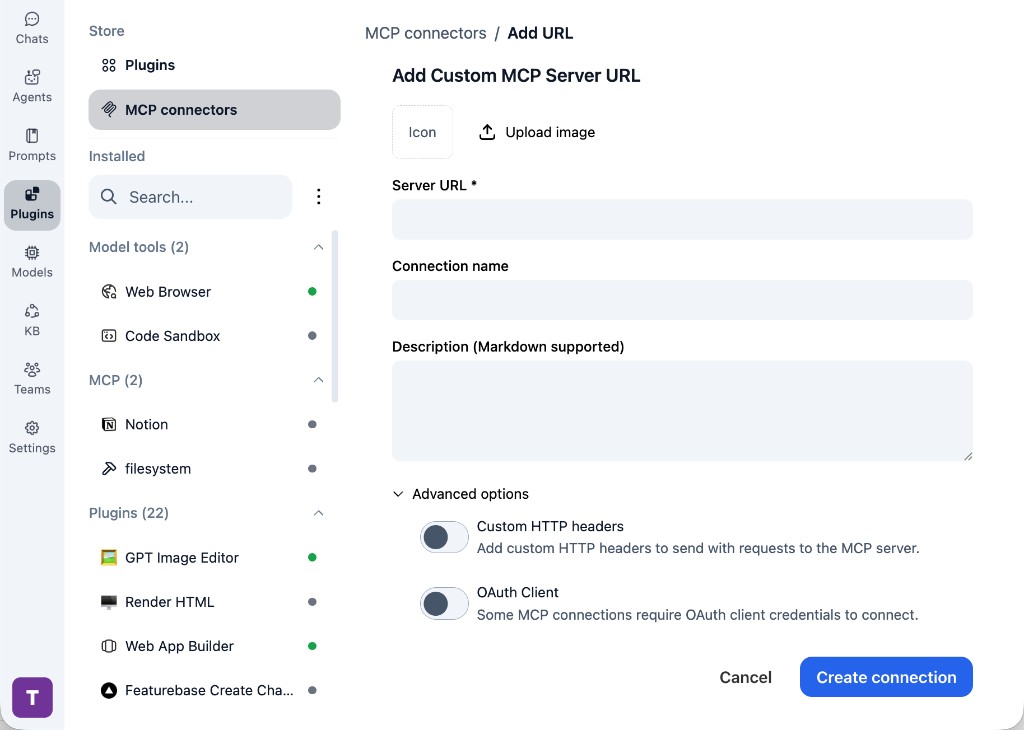
In TypingMind, go to Plugins, open MCP connectors, then choose Add URL.

  1. Open TypingMind in your browser.
  2. Go to Plugins.
  3. Open MCP connectors.
  4. Click Add URL.
TypingMind Add Custom MCP Server URL form
2

Paste the server URL

Enter the MCP server URL from the provider in the Server URL field. Add a connection name, description, icon, custom HTTP headers, or OAuth client settings if the server requires them.

  1. Paste the MCP server URL from the provider into the Server URL field.
  2. Enter a connection name for TickDB.
  3. Add a description and icon if you want it to be easier to identify.
  4. Add custom HTTP headers or OAuth client details if the server requires authentication.
3

Create the connection

Click Create connection, then return to the Plugins list and confirm the new MCP connection is active.

  1. Click Create connection.
  2. Return to the MCP connectors list.
  3. Confirm the TickDB connection appears as active.
  4. Refresh the plugin list if the connection does not appear immediately.
4

Switch models without reconnecting

Start a chat with your preferred model, enable the TickDB tools from Plugins, and switch to another model whenever needed. The MCP connection stays available to the TypingMind workspace.

  1. Start a new chat in TypingMind.
  2. Select the AI model you want to use.
  3. Enable the TickDB tools from Plugins.
  4. Ask the model to use the tool when needed.
  5. Switch to another AI model and reuse the same MCP connection.
TypingMind chat using enabled MCP tools with a selected AI model
Can you use TickDB to help me with this task?
TickDB
Sure. I read it.
Here is what I found using TickDB.

Frequently asked questions

What is the TickDB MCP server used for?

TickDB is an MCP server that lets compatible AI clients connect to external tools and context. In TypingMind, you can add this MCP server once and make its tools available in your AI workspace.

Can I use TickDB MCP with multiple AI models in TypingMind?

Yes. TypingMind connects MCP tools at the workspace level, so you can use TickDB with different AI models such as Claude, ChatGPT, Gemini, or other models you have configured in TypingMind without setting up the MCP server separately for each model.

Why use TickDB MCP with TypingMind?

TypingMind is one of the best frontends for LLM chat because it brings multiple AI models, prompts, plugins, AI agents, API keys, and MCP tools into one workspace. With TickDB connected, you can use its MCP tools across your preferred models while keeping your chat workflow organized in TypingMind.

How do I connect TickDB MCP to TypingMind?

TickDB can be connected in TypingMind with the local MCP connector or by adding a remote MCP server URL. Use the local connector when the server needs access to files, apps, or private resources on your device, and use a server URL when the MCP server is hosted remotely.

What tools does TickDB MCP provide in TypingMind?

TickDB exposes MCP capabilities that can be enabled from the TypingMind Plugins page and used in chat or assigned to AI agents.

Do I need to share my API keys with TypingMind to use TickDB MCP?

No. TypingMind is local-first and lets you keep your model providers, API keys, prompts, and MCP configuration under your control. If TickDB requires authentication, add the required headers, OAuth settings, or local configuration for that MCP server when you create the connection.

Related MCP Servers

View all

Set up your own AI workspace now

Get notified about new features and future giveaways by subscribing to our newsletter 👇