
Google Search Tool
A Playwright-based Node.js tool that bypasses search engine anti-scraping mechanisms to execute Google searches and extract results. It can be used directly as a command-line tool or as a Model Context Protocol (MCP) server to provide real-time search capabilities to AI assistants like Claude.
Key Features
- Local SERP API Alternative: No need to rely on paid search engine results API services, all searches are executed locally
- Advanced Anti-Bot Detection Bypass Techniques:
- Intelligent browser fingerprint management that simulates real user behavior
- Automatic saving and restoration of browser state to reduce verification frequency
- Smart headless/headed mode switching, automatically switching to headed mode when verification is needed
- Randomization of device and locale settings to reduce detection risk
- Raw HTML Retrieval: Ability to fetch the raw HTML of search result pages (with CSS and JavaScript removed) for analysis and debugging when Google's page structure changes
- Page Screenshot: Automatically captures and saves a full-page screenshot when saving HTML content
- MCP Server Integration: Provides real-time search capabilities to AI assistants like Claude without requiring additional API keys
- Completely Open Source and Free: All code is open source with no usage restrictions, freely customizable and extensible
Technical Features
- Developed with TypeScript, providing type safety and better development experience
- Browser automation based on Playwright, supporting multiple browser engines
- Command-line parameter support for search keywords
- MCP server support for AI assistant integration
- Returns search results with title, link, and snippet
- Option to retrieve raw HTML of search result pages for analysis
- JSON format output
- Support for both headless and headed modes (for debugging)
- Detailed logging output
- Robust error handling
- Browser state saving and restoration to effectively avoid anti-bot detection
Installation
bash# Install from source git clone https://github.com/web-agent-master/google-search.git cd google-search # Install dependencies npm install # Or using yarn yarn # Or using pnpm pnpm install # Compile TypeScript code npm run build # Or using yarn yarn build # Or using pnpm pnpm build # Link package globally (required for MCP functionality) npm link # Or using yarn yarn link # Or using pnpm pnpm link
Windows Environment Notes
This tool has been specially adapted for Windows environments:
.cmdfiles are provided to ensure command-line tools work properly in Windows Command Prompt and PowerShell- Log files are stored in the system temporary directory instead of the Unix/Linux
/tmpdirectory - Windows-specific process signal handling has been added to ensure proper server shutdown
- Cross-platform file path handling is used to support Windows path separators
Usage
Command Line Tool
bash# Direct command line usage google-search "search keywords" # Using command line options google-search --limit 5 --timeout 60000 --no-headless "search keywords" # Or using npx npx google-search-cli "search keywords" # Run in development mode pnpm dev "search keywords" # Run in debug mode (showing browser interface) pnpm debug "search keywords" # Get raw HTML of search result page google-search "search keywords" --get-html # Get HTML and save to file google-search "search keywords" --get-html --save-html # Get HTML and save to specific file google-search "search keywords" --get-html --save-html --html-output "./output.html"
Command Line Options
-l, --limit <number>: Result count limit (default: 10)-t, --timeout <number>: Timeout in milliseconds (default: 60000)--no-headless: Show browser interface (for debugging)--remote-debugging-port <number>: Enable remote debugging port (default: 9222)--state-file <path>: Browser state file path (default: ./browser-state.json)--no-save-state: Don't save browser state--get-html: Retrieve raw HTML of search result page instead of parsing results--save-html: Save HTML to file (used with --get-html)--html-output <path>: Specify HTML output file path (used with --get-html and --save-html)-V, --version: Display version number-h, --help: Display help information
Output Example
json{ "query": "deepseek", "results": [ { "title": "DeepSeek", "link": "https://www.deepseek.com/", "snippet": "DeepSeek-R1 is now live and open source, rivaling OpenAI's Model o1. Available on web, app, and API. Click for details. Into ..." }, { "title": "DeepSeek", "link": "https://www.deepseek.com/", "snippet": "DeepSeek-R1 is now live and open source, rivaling OpenAI's Model o1. Available on web, app, and API. Click for details. Into ..." }, { "title": "deepseek-ai/DeepSeek-V3", "link": "https://github.com/deepseek-ai/DeepSeek-V3", "snippet": "We present DeepSeek-V3, a strong Mixture-of-Experts (MoE) language model with 671B total parameters with 37B activated for each token." } // More results... ] }
HTML Output Example
When using the --get-html option, the output will include information about the HTML content:
json{ "query": "playwright automation", "url": "https://www.google.com/", "originalHtmlLength": 1291733, "cleanedHtmlLength": 456789, "htmlPreview": "<!DOCTYPE html><html itemscope=\"\" itemtype=\"http://schema.org/SearchResultsPage\" lang=\"zh-CN\"><head><meta charset=\"UTF-8\"><meta content=\"dark light\" name=\"color-scheme\"><meta content=\"origin\" name=\"referrer\">..." }
If you also use the --save-html option, the output will include the path where the HTML was saved:
json{ "query": "playwright automation", "url": "https://www.google.com/", "originalHtmlLength": 1292241, "cleanedHtmlLength": 458976, "savedPath": "./google-search-html/playwright_automation-2025-04-06T03-30-06-852Z.html", "screenshotPath": "./google-search-html/playwright_automation-2025-04-06T03-30-06-852Z.png", "htmlPreview": "<!DOCTYPE html><html itemscope=\"\" itemtype=\"http://schema.org/SearchResultsPage\" lang=\"zh-CN\">..." }
MCP Server
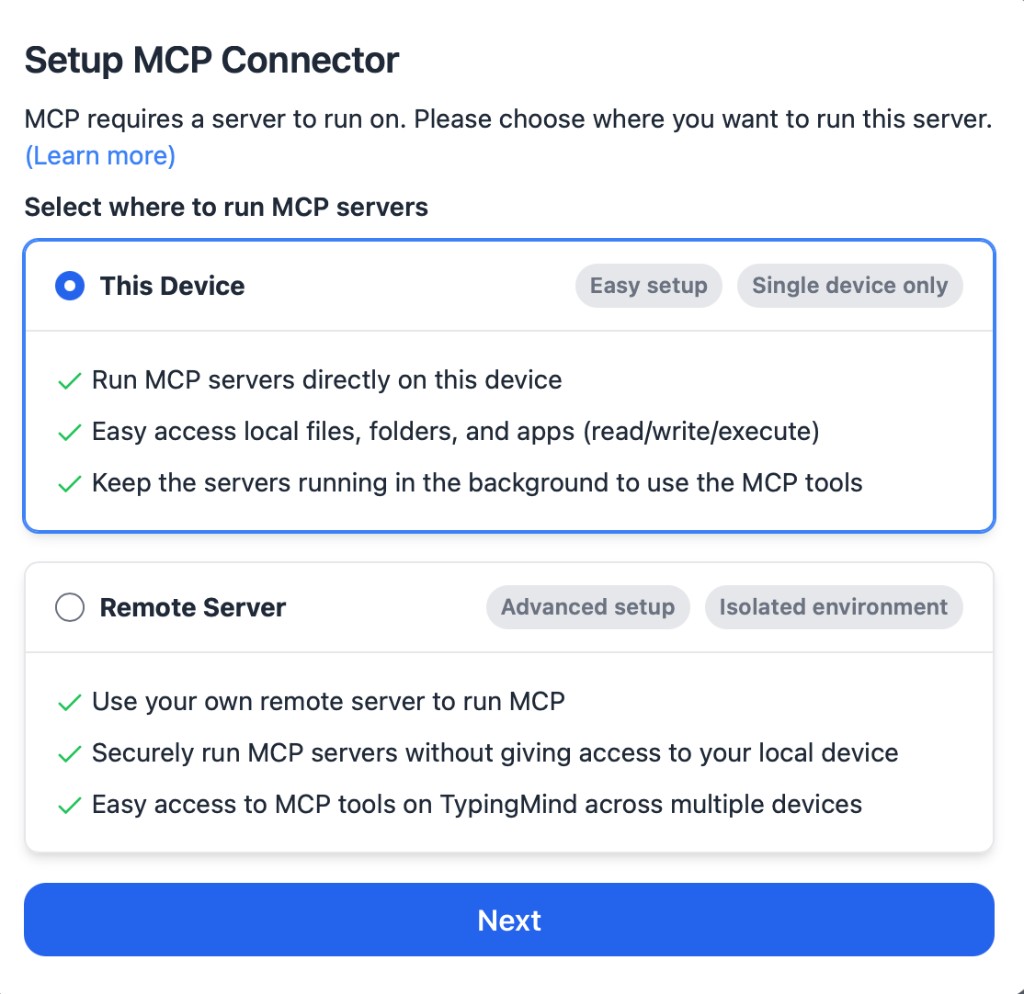
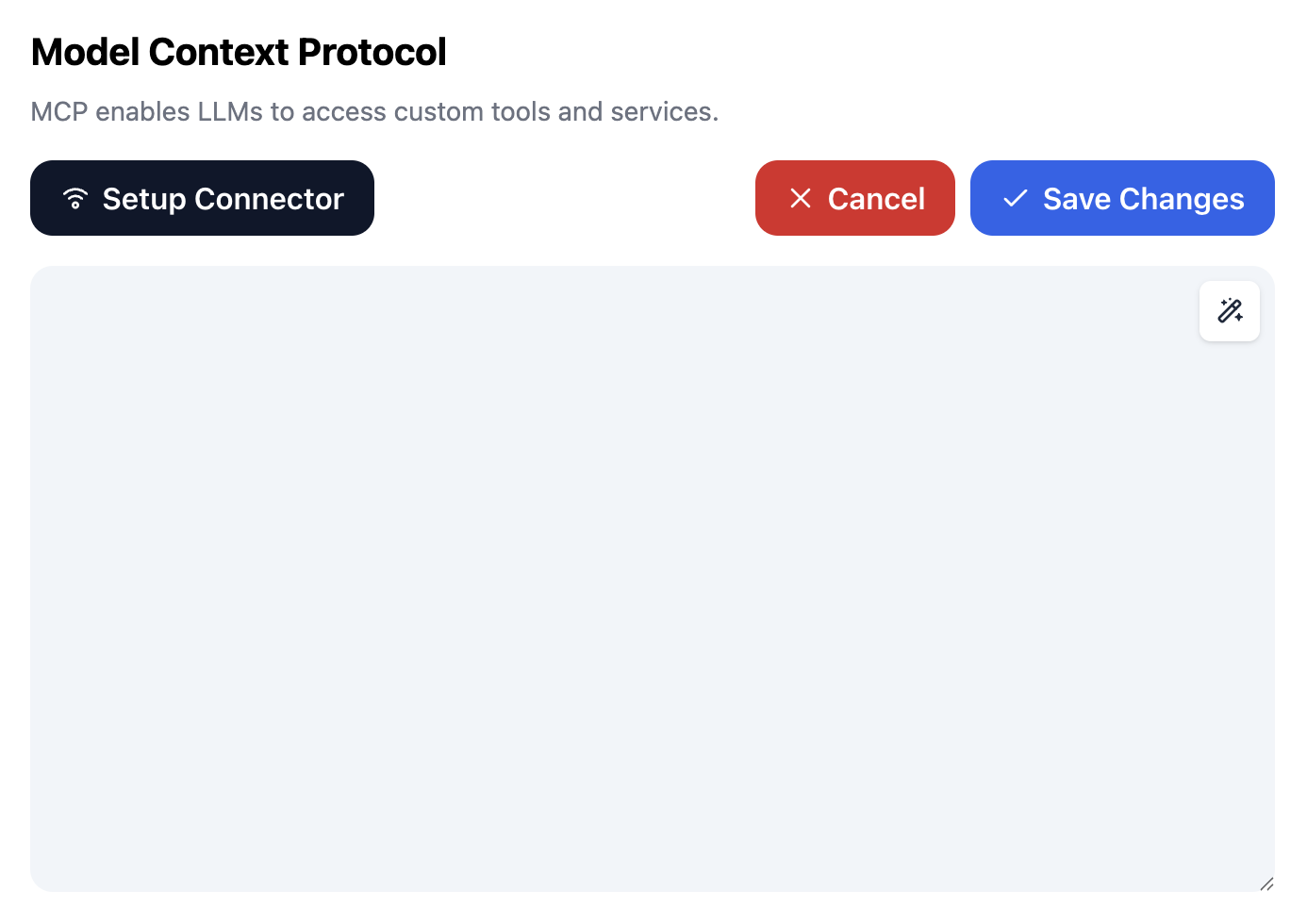
This project provides Model Context Protocol (MCP) server functionality, allowing AI assistants like Claude to directly use Google search capabilities. MCP is an open protocol that enables AI assistants to safely access external tools and data.
bash# Build the project pnpm build
Integration with Claude Desktop
-
Edit the Claude Desktop configuration file:
- Mac:
~/Library/Application Support/Claude/claude_desktop_config.json - Windows:
%APPDATA%\Claude\claude_desktop_config.json- Usually located at
C:\Users\username\AppData\Roaming\Claude\claude_desktop_config.json - You can access it directly by entering
%APPDATA%\Claudein Windows Explorer address bar
- Usually located at
- Mac:
-
Add server configuration and restart Claude
json{ "mcpServers": { "google-search": { "command": "npx", "args": ["google-search-mcp"] } } }
For Windows environments, you can also use the following configurations:
- Using cmd.exe with npx:
json{ "mcpServers": { "google-search": { "command": "cmd.exe", "args": ["/c", "npx", "google-search-mcp"] } } }
- Using node with full path (recommended if you encounter issues with the above method):
json{ "mcpServers": { "google-search": { "command": "node", "args": ["C:/path/to/your/google-search/dist/src/mcp-server.js"] } } }
Note: For the second method, you must replace C:/path/to/your/google-search with the actual full path to where you installed the google-search package.
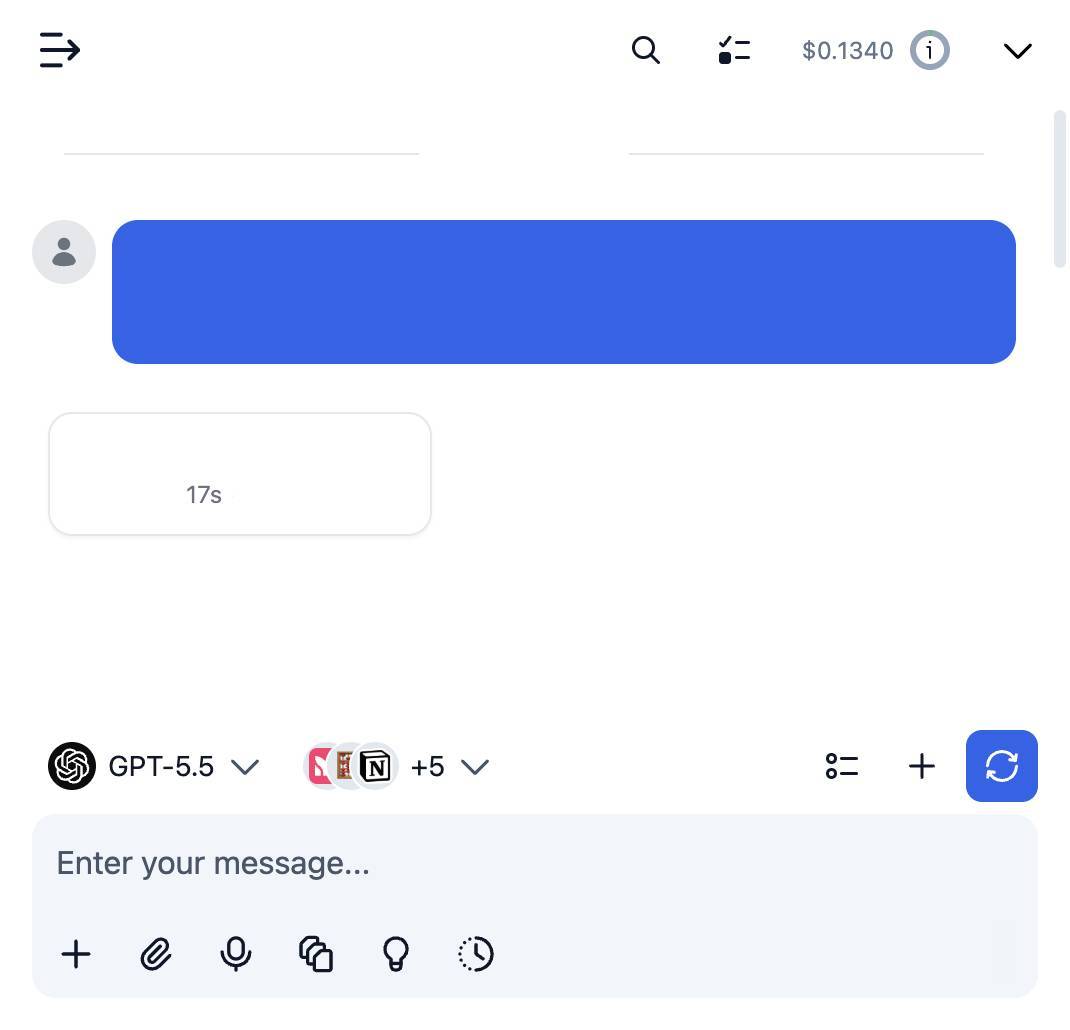
After integration, you can directly use search functionality in Claude, such as "search for the latest AI research".
Project Structure
google-search/ ├── package.json # Project configuration and dependencies ├── tsconfig.json # TypeScript configuration ├── src/ │ ├── index.ts # Entry file (command line parsing and main logic) │ ├── search.ts # Search functionality implementation (Playwright browser automation) │ ├── mcp-server.ts # MCP server implementation │ └── types.ts # Type definitions (interfaces and type declarations) ├── dist/ # Compiled JavaScript files ├── bin/ # Executable files │ └── google-search # Command line entry script ├── README.md # Project documentation └── .gitignore # Git ignore file
Technology Stack
- TypeScript: Development language, providing type safety and better development experience
- Node.js: Runtime environment for executing JavaScript/TypeScript code
- Playwright: For browser automation, supporting multiple browsers
- Commander: For parsing command line arguments and generating help information
- Model Context Protocol (MCP): Open protocol for AI assistant integration
- MCP SDK: Development toolkit for implementing MCP servers
- Zod: Schema definition library for validation and type safety
- pnpm: Efficient package management tool, saving disk space and installation time
Development Guide
All commands can be run in the project root directory:
bash# Install dependencies pnpm install # Install Playwright browsers pnpm run postinstall # Compile TypeScript code pnpm build # Clean compiled output pnpm clean
CLI Development
bash# Run in development mode pnpm dev "search keywords" # Run in debug mode (showing browser interface) pnpm debug "search keywords" # Run compiled code pnpm start "search keywords" # Test search functionality pnpm test
MCP Server Development
bash# Run MCP server in development mode pnpm mcp # Run compiled MCP server pnpm mcp:build
Error Handling
The tool has built-in robust error handling mechanisms:
- Friendly error messages when browser startup fails
- Automatic error status return for network connection issues
- Detailed logs for search result parsing failures
- Graceful exit and useful information return in timeout situations
Notes
General Notes
- This tool is for learning and research purposes only
- Please comply with Google's terms of service and policies
- Do not send requests too frequently to avoid being blocked by Google
- Some regions may require a proxy to access Google
- Playwright needs to install browsers, which will be automatically downloaded on first use
State Files
- State files contain browser cookies and storage data, please keep them secure
- Using state files can effectively avoid Google's anti-bot detection and improve search success rate
MCP Server
- MCP server requires Node.js v16 or higher
- When using the MCP server, please ensure Claude Desktop is updated to the latest version
- When configuring Claude Desktop, use absolute paths to the MCP server file
Windows-Specific Notes
- In Windows environments, you may need administrator privileges to install Playwright browsers for the first time
- If you encounter permission issues, try running Command Prompt or PowerShell as administrator
- Windows Firewall may block Playwright browser network connections; allow access when prompted
- Browser state files are saved by default in the user's home directory as
.google-search-browser-state.json - Log files are stored in the system temporary directory under the
google-search-logsfolder
Comparison with Commercial SERP APIs
Compared to paid search engine results API services (such as SerpAPI), this project offers the following advantages:
- Completely Free: No API call fees
- Local Execution: All searches are executed locally, no dependency on third-party services
- Privacy Protection: Search queries are not recorded by third parties
- Customizability: Fully open source, can be modified and extended as needed
- No Usage Limits: Not subject to API call count or frequency limitations
- MCP Integration: Native support for integration with AI assistants like Claude