World Monitor
Real-time global intelligence dashboard — AI-powered news aggregation, geopolitical monitoring, and infrastructure tracking in a unified situational awareness interface.





What It Does
- Curated news feeds across global and regional categories, AI-synthesized into briefs
- Dual map engine — 3D globe (globe.gl) and WebGL flat map (deck.gl) with a shared map-layer catalog
- Panel inventory — concrete panel implementations across specialized variants
- Cross-stream correlation — military, economic, disaster, and escalation signal convergence
- Country Instability Index (CII) — live CII v8 scores, bands, and approximate 24-hour movement for 31 Tier-1 countries
- Finance radar — stock exchanges, commodities, crypto, and a market composite
- Local AI — run everything with Ollama, no API keys required
- Site variants from a single codebase (world, tech, finance, commodity, happy, energy)
- Native desktop app (Tauri 2) for macOS, Windows, and Linux
- Multilingual UI with native-language feeds and RTL support
For the full feature list, architecture, data sources, and algorithms, see the documentation.
Support Status
All site variants and desktop binaries are built from a single codebase and ship from the same release process. The table below clarifies maintenance status so you know which surfaces are safe to depend on.
| Surface | Status | Notes |
|---|---|---|
worldmonitor.app, tech., finance., commodity., happy., energy. | Stable | Public deployments built from this repo, actively maintained |
| Desktop binaries (Windows / macOS Apple Silicon / macOS Intel / Linux AppImage) | Stable | One Tauri binary for every variant — install World Monitor and switch to tech, finance, commodity, energy, or happy in-app. There is deliberately no per-variant download |
Issues filed against any of the above are triaged from the same backlog — see the issues board for currently-open work.
Quick Start
bashgit clone https://github.com/koala73/worldmonitor.git cd worldmonitor npm install npm run dev
Open localhost:3000 (override the port with DEV_PORT in .env.local). The app runs with no environment variables.
Feature-specific data sources may require credentials. See .env.example for the full list.
For variant-specific development:
bashnpm run dev:tech # tech.worldmonitor.app npm run dev:finance # finance.worldmonitor.app npm run dev:commodity # commodity.worldmonitor.app npm run dev:happy # happy.worldmonitor.app npm run dev:energy # energy.worldmonitor.app
See the self-hosting guide for deployment options (Vercel, Docker, static).
Tech Stack
| Category | Technologies |
|---|---|
| Frontend | Vanilla TypeScript, Vite, globe.gl + Three.js, deck.gl + MapLibre GL |
| Desktop | Tauri 2 (Rust) with Node.js sidecar |
| AI/ML | Ollama / OpenRouter, Transformers.js (browser-side) |
| API Contracts | Protocol Buffers and sebuf HTTP annotations |
| Deployment | Vercel Edge Functions, Railway relay, Tauri, PWA |
| Caching | Redis (Upstash), 3-tier cache, CDN, service worker |
Full stack details in the architecture docs.
Programmatic Access
World Monitor is built for agents and scripts as well as browsers:
-
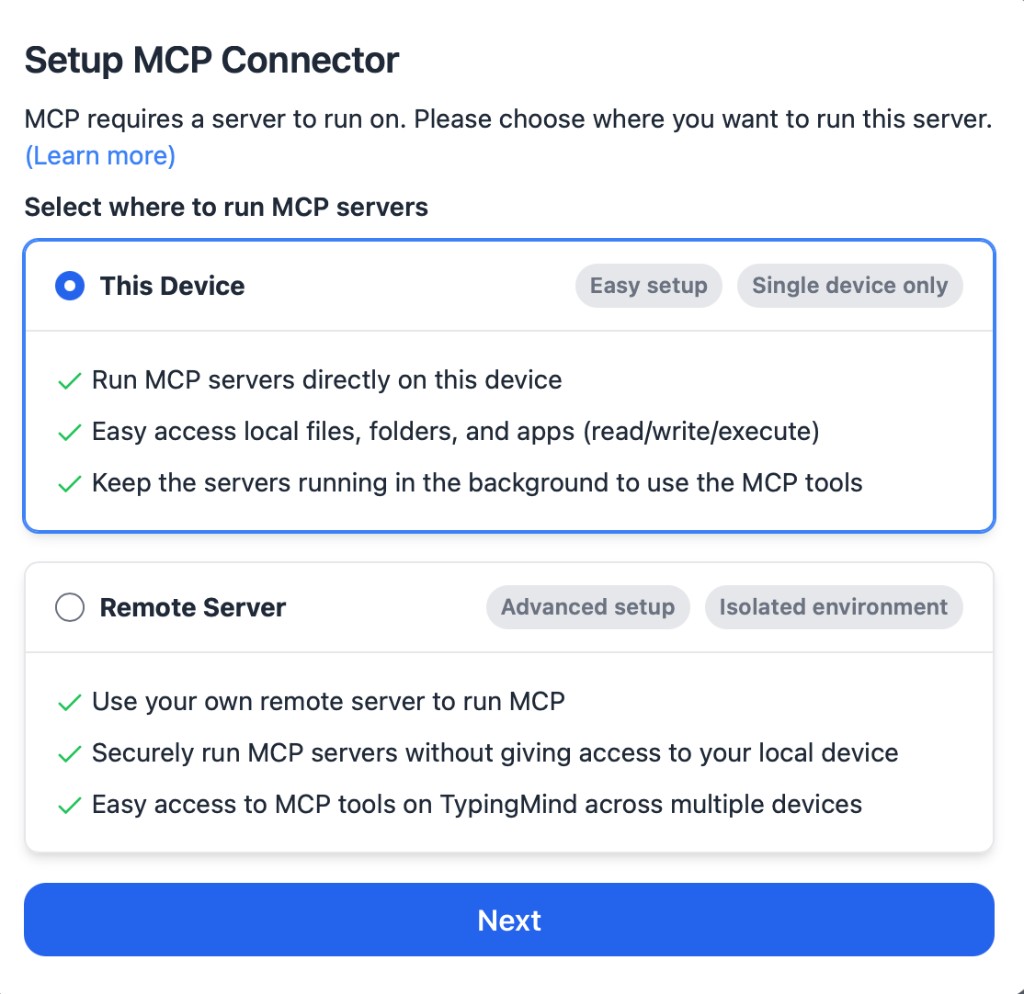
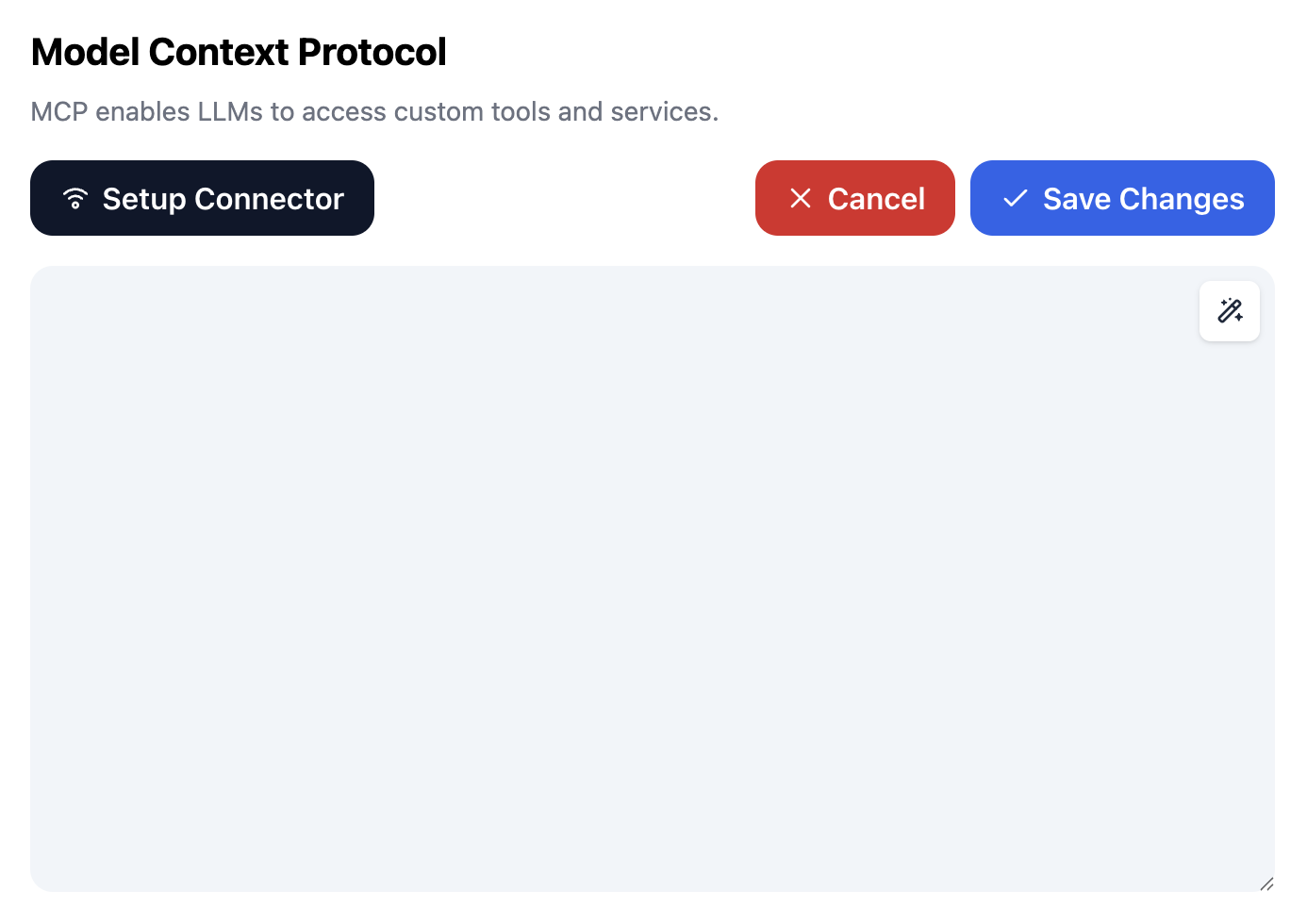
MCP server —
https://worldmonitor.app/mcp(Streamable HTTP). Publictools/list;tools/callauthenticates with aX-WorldMonitor-Keyheader or OAuth. The server also publishes its Agent Skills through the draftio.modelcontextprotocol/skillsextension (skills/list,skills/get, andskill://…resource reads). -
REST API — base
https://api.worldmonitor.app, described by the OpenAPI spec. -
CLI — the official
worldmonitornpm package (source incli/):shnpx worldmonitor tools # run ad-hoc — list every MCP tool (no key needed) npm install -g worldmonitor # or install the `worldmonitor` (alias `wm`) command worldmonitor risk IR --api-key wm_xxx -
SDKs — official zero-dependency client libraries mirroring the CLI: Python
worldmonitor-sdk(source insdk/python/), Rubyworldmonitor(sdk/ruby/), Gogithub.com/koala73/worldmonitor/sdk/go(sdk/go/). Guide: worldmonitor.app/docs/sdks.
Agent discovery files: llms.txt · agent-skills manifest · api-catalog. Get an API key at worldmonitor.app/pro.
Flight Data
Flight data provided graciously by Wingbits, the most advanced ADS-B flight data solution.
Data Sources
WorldMonitor aggregates attributed upstream sources across geopolitics, finance, energy, climate, aviation, cyber, military, infrastructure, and news intelligence. Curated feeds and freshness-tracked source groups are published in the full data sources catalog, with provider, feed-tier, license-posture, and collection-method details.
Contributing
Contributions welcome! See CONTRIBUTING.md for guidelines.
bashnpm run typecheck # Type checking npm run build:full # Production build
License
AGPL-3.0-only for the source code. Commercial use is permitted under the AGPL when you comply with its copyleft and source-availability terms.
| Use Case | Allowed? |
|---|---|
| Personal / research / educational | Yes, under AGPL-3.0-only |
| Self-hosted instance | Yes, under AGPL-3.0-only |
| Fork and modify | Yes, share source under AGPL-3.0-only when required |
| Commercial use / SaaS | Yes, under AGPL-3.0-only when you comply with AGPL obligations |
| Private-source proprietary use or official branding rights | Separate commercial or trademark permission needed |
See LICENSE for the full code license and docs/license.mdx for a plain-language summary. Commercial licensing is available as an alternative option for teams that need non-AGPL terms.
Copyright (C) 2024-2026 Elie Habib. All rights reserved.
Author
Elie Habib — GitHub
Contributors
Security Acknowledgments
We thank the following researchers for responsibly disclosing security issues:
- Cody Richard — Disclosed three security findings covering IPC command exposure, renderer-to-sidecar trust boundary analysis, and fetch patch credential injection architecture (2026)
See our Security Policy for responsible disclosure guidelines.