 TypingMind×
 Llama-3.1-Nemotron
How to self-host Llama-3.1-Nemotron with Hugging Face TGI as private AI
Run Llama-3.1-Nemotron from NVIDIA as your own private, self-hosted AI. TGI runs the model on your own GPU server, and TypingMind gives you a full chat app on top of it. Your prompts stay on your servers, and there is no per-message cost.
About Llama-3.1-Nemotron: Llama-3.1-Nemotron-70B-Instruct is a large language model customized by NVIDIA to improve the helpfulness of LLM generated responses to user queries.
Llama-3.1-Nemotron Overview
| Model | Llama-3.1-Nemotron |
| Made by | NVIDIA |
| Runs on | Hugging Face TGI |
| Versions | Llama-3.1-Nemotron-70B-Instruct-HF |
| Model weights | 141.1 GB |
| Minimum GPU | 4 × 80 GB GPUs |
| Context window | 128K |
| Capabilities | Tool calling |
| License | Llama 3.1 Community License |
| Access | Open to everyone |
| TGI model ID | nvidia/Llama-3.1-Nemotron-70B-Instruct-HF |
| Downloads on Hugging Face | 13.3K last month |
| Model icon | Get the icon for TypingMind |
Which version of Llama-3.1-Nemotron should you pick?
Each version is a different size of Llama-3.1-Nemotron. Bigger versions give better answers but need more GPU memory. Pick the biggest one that fits your GPUs.
| Model ID | Parameters | Weights | Suggested GPU |
|---|---|---|---|
nvidia/Llama-3.1-Nemotron-70B-Instruct-HFused in this guide | 70.6B | 141.1 GB | 4 × 80 GB GPUs |
Suggested GPU is a rough guide: the full-precision weights plus about 20% and 2 GB for chats. Longer context windows and more users need more. A 24 GB GPU is an NVIDIA L4, A10G, or RTX 4090, and an 80 GB GPU is an A100 or H100.
Run Llama-3.1-Nemotron with TGI
The steps below use nvidia/Llama-3.1-Nemotron-70B-Instruct-HF.
Before you start
- You need a Linux server with an NVIDIA GPU, Docker, and the NVIDIA Container Toolkit. A cloud GPU server works too. TGI doesn't run on a Mac; on a laptop, use Ollama or LM Studio.
- Hugging Face has archived TGI. It still works, but it no longer gets updates, and new model families go to vLLM and SGLang instead.
Get Llama-3.1-Nemotron from Hugging Face
Open nvidia/Llama-3.1-Nemotron-70B-Instruct-HF on Hugging Face. The model ID is the part after huggingface.co/, and you can copy it with the button next to the name. The text-generation-inference tag means the model works with TGI.

Llama-3.1-Nemotron is open to everyone, so you don't need a Hugging Face account or token to download it.
Start Llama-3.1-Nemotron with TGI
On your GPU server (4 × 80 GB GPUs or more), run:
docker run -d --rm --name tgi --gpus all --shm-size 1g \
  -p 127.0.0.1:8080:80 \
  -v $PWD/data:/data \
  ghcr.io/huggingface/text-generation-inference:3.3.5 \
  --model-id nvidia/Llama-3.1-Nemotron-70B-Instruct-HF \
  --num-shard 4 \
--cors-allow-origin https://www.typingmind.com-dkeeps TGI running after you close the terminal.-p 127.0.0.1:8080:80serves TGI on port 8080 of your server, for connections from the server itself only. The SSH tunnel in step III is one of them.-v $PWD/data:/datakeeps the downloaded model, so the next start is fast.--num-shardsplits the model across your GPUs.--cors-allow-origin https://www.typingmind.comlets only the TypingMind web app call TGI from a browser, not other websites you visit.
The first start downloads 141.1 GB of model weights, so it can take a while. Follow along with:
docker logs -f tgiTGI is ready when the log prints Connected. Press Ctrl+C to stop following the log, then check it with:
curl http://localhost:8080/v1/chat/completions \
  -H 'Content-Type: application/json' \
-d '{"model": "tgi", "messages": [{"role": "user", "content": "Say hi"}]}'You should get a JSON reply with the model's answer.
Connect your computer to TGI
TypingMind runs on https://, so your browser blocks calls to a plain http:// server, unless the server is at localhost. An SSH tunnel makes TGI show up at localhost:8080 on your computer. On your computer, run:
ssh -N -L 8080:localhost:8080 user@your-gpu-serverReplace user@your-gpu-server with how you log in to the server, and keep this terminal open while you chat. Skip this step if TGI runs on the computer you use for TypingMind.
Add Llama-3.1-Nemotron to TypingMind
Open www.typingmind.com in your browser. Use the web version: the TypingMind Mac app and the Setapp version block plain http:// addresses like TGI's.
Click Models in the left sidebar, then Add custom model.
Fill in the form:
| Name | Llama-3.1-Nemotron-70B-Instruct-HF (TGI)or any name you like |
| Model ID | nvidia/Llama-3.1-Nemotron-70B-Instruct-HF |
| Context Length | 32768lower it if TGI rejects long chats |
| API Type | OpenAI Chat Completions API |
| Endpoint URL | http://localhost:8080/v1/chat/completions |
| Authentication Type | No authentication |
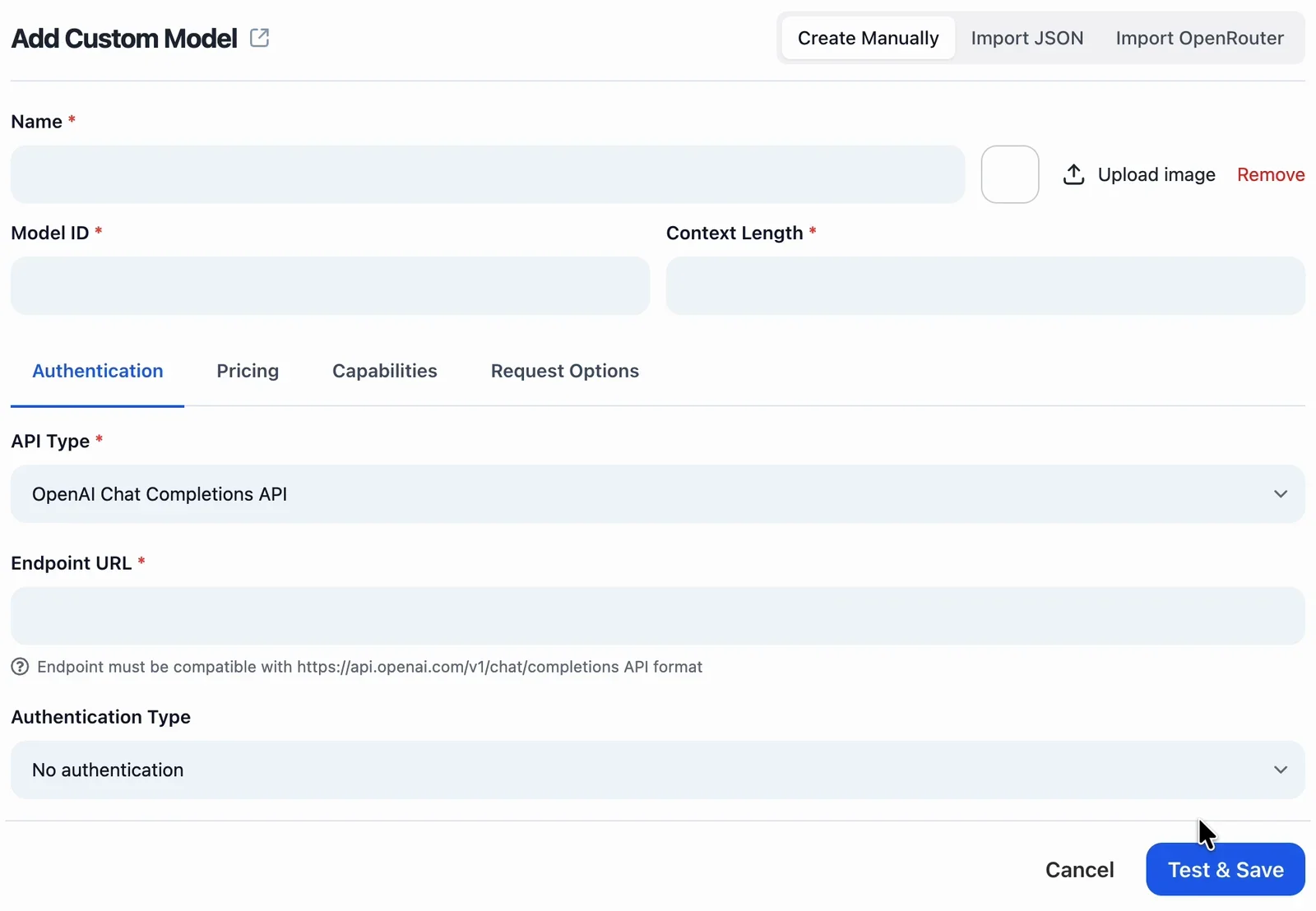 Llama-3.1-Nemotron-70B-Instruct-HF (TGI)nvidia/Llama-3.1-Nemotron-70B-Instruct-HF32768http://localhost:8080/v1/chat/completions
Open the Capabilities tab and turn off Auto check capabilities on save, so TypingMind keeps the features you set below.
Then set the features for Llama-3.1-Nemotron:
- Support System Role: on
- Support Streaming Output: on
- Support Plugins: on
- Support Image Input: off
- Support PDF Input: off
- Support External Image URLs: off
- Support Thinking: off
- Support Prompt Caching: off
Click Test & Save. If your browser asks to let www.typingmind.com access other apps and services on this device, click Allow. This lets the page reach TGI at localhost.
Chat with Llama-3.1-Nemotron in TypingMind
Pick Llama-3.1-Nemotron-70B-Instruct-HF (TGI) in the model menu under the chat box and say hi. Replies come straight from your own GPU server.
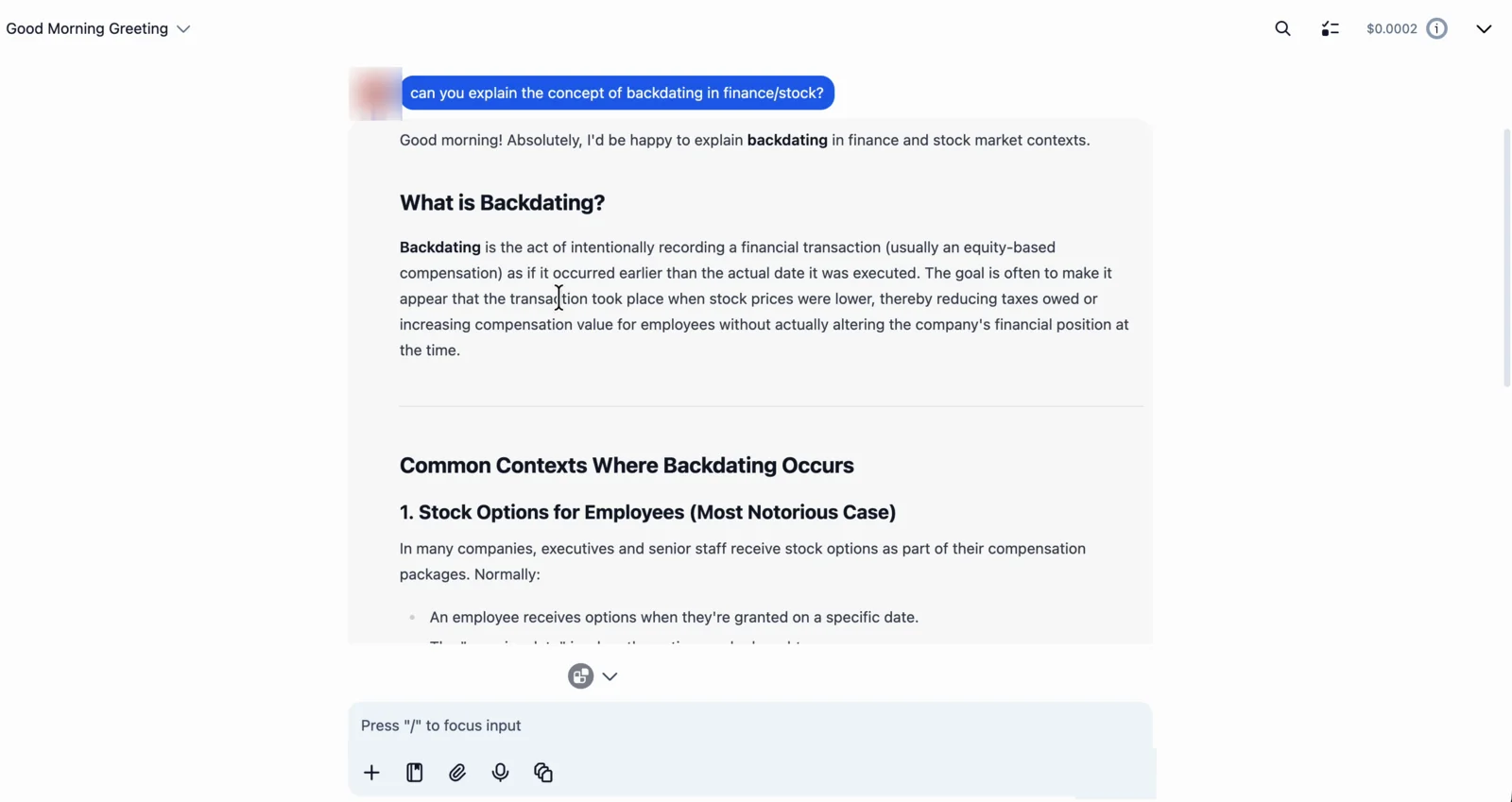 Llama-3.1-Nemotron-70B-Instruct-HF (TGI)
Use plugins with Llama-3.1-Nemotron
Llama-3.1-Nemotron supports tool calling, so it can use TypingMind plugins. Open the plugin menu next to the model picker and turn on the ones you want, like web search, image generation, or Mermaid diagrams. The model calls them when it needs them.
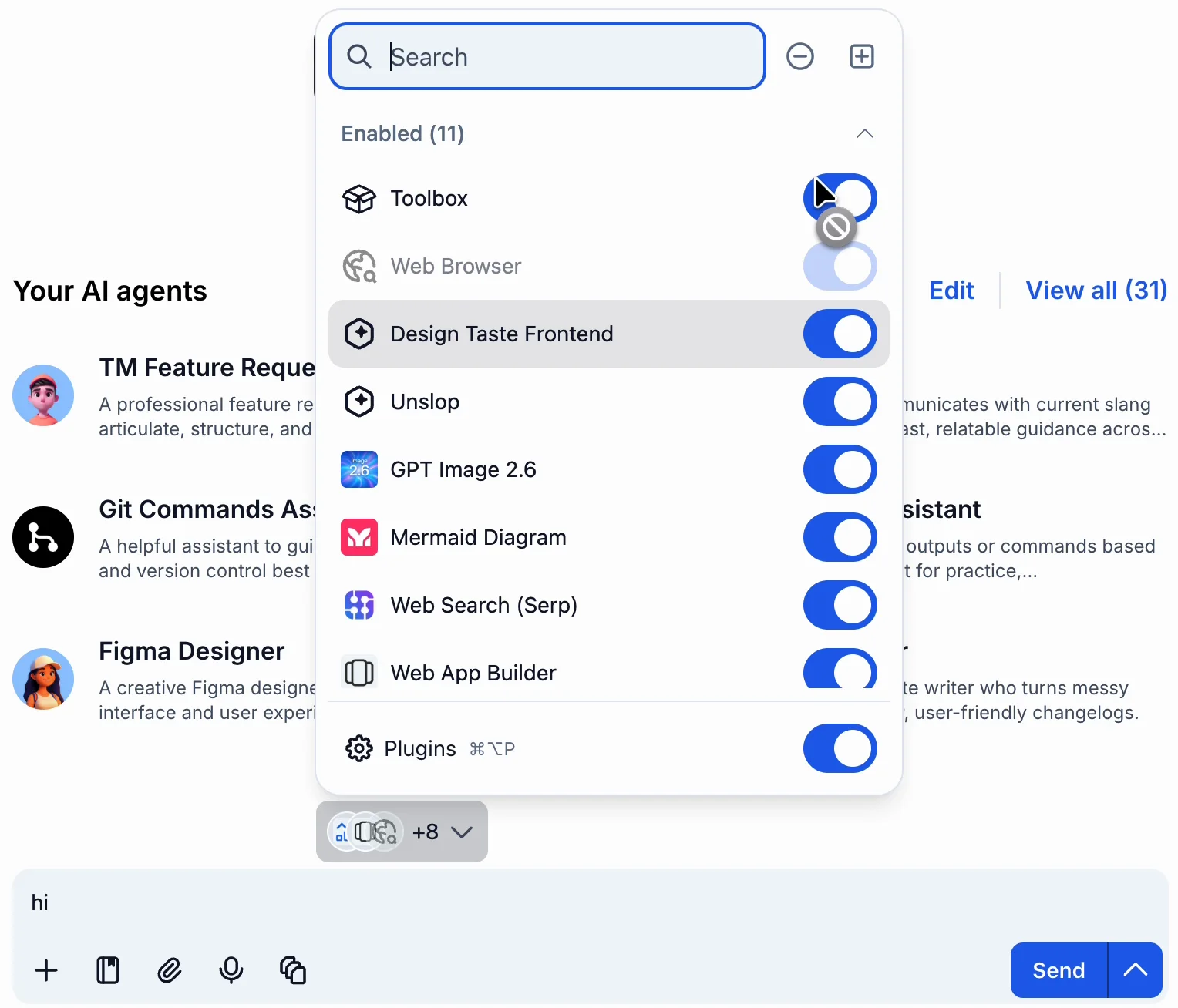 Llama-3.1-Nemotron-70B-Instruct-HF (TGI)
You can now use your private AI with TypingMind's chat features: prompts, AI agents, projects, and switching between your self-hosted model and cloud models in the same chat.
Tips and troubleshooting
1. "Could not connect to the API (code: 1)"
TypingMind can't reach TGI. Check these in order:
- The SSH tunnel is still open. If you closed its terminal, run the tunnel command from step III again.
- TGI is still running on the server:
docker psshould listtgi. If it's gone, run the command from step II again. - TGI answers on the server. Run this on the server:
curl http://localhost:8080/v1/chat/completions \
  -H 'Content-Type: application/json' \
-d '{"model": "tgi", "messages": [{"role": "user", "content": "Say hi"}]}'- You clicked Allow when the browser asked about accessing apps on this device.
- You're using TypingMind in the browser, not the Mac or Setapp app.
2. TGI stops with "CUDA out of memory"
The model is too big for your GPU. Add GPUs and split the model across them with --num-shard.
3. Long chats fail with a token limit error
TGI fits the context window to your GPU memory. Lower Context Length in the TypingMind model settings.
4. The first message of a new chat seems stuck
TypingMind writes a title for each new chat. If the title is made by the same model, your reply can wait behind the title. Go to Settings → Internal prompts, open Advanced Settings under Auto generate title for new chats, and pick another model for title generation, or turn auto titles off.
5. See what TGI is doing
Watch every request as it happens:
docker logs -f tgiTGI runs one model at a time. To switch models, stop it with docker stop tgi and start it again with a new --model-id.
Frequently Asked Questions
Is Llama-3.1-Nemotron free to run with TGI?
Yes. TGI is free and open source, and Llama-3.1-Nemotron is an open model. Llama-3.1-Nemotron is open to everyone on Hugging Face, so you don't need a token to download it. You only pay for your own GPU server, with no per-message cost.
Is Llama-3.1-Nemotron private when I run it with TGI?
Yes. Your messages go from your browser to TGI on your own server, not to an AI company. TypingMind keeps your chat history in your browser. If you turn on Cloud Sync, your chats are also backed up to TypingMind's cloud.
How much GPU memory do I need for Llama-3.1-Nemotron?
nvidia/Llama-3.1-Nemotron-70B-Instruct-HF, the version used in this guide, needs about 4 × 80 GB GPUs.
Which Model ID do I use in TypingMind?
TGI serves one model per server, so it does not use the Model ID to pick a model. Use the Hugging Face model ID, for example nvidia/Llama-3.1-Nemotron-70B-Instruct-HF, so you can tell your models apart in TypingMind.
Can Llama-3.1-Nemotron use TypingMind plugins?
Yes. Llama-3.1-Nemotron's chat template supports tools, and TGI supports tool calling, so turn on Support Plugins to use plugins like web search.
Can Llama-3.1-Nemotron read images?
No. Llama-3.1-Nemotron is a text model, so keep Support Image Input off.
Can I run TGI on my Mac or laptop?
Not really. TGI is built for NVIDIA GPUs, and Docker on a Mac cannot use the Mac's GPU. On a Mac or a laptop, use Ollama or LM Studio instead.
Does TypingMind run locally?
TypingMind runs in your browser at www.typingmind.com, and your chats are stored locally in your browser by default. When you chat with a self-hosted model, your messages go straight from your browser to the model on your own GPU server, not through TypingMind’s servers. If you turn on Cloud Sync, your chats are also backed up to TypingMind’s cloud.
Can I self-host TypingMind?
Yes. To self-host TypingMind for your team or company, use the self-hosted version of TypingMind Teams. You run it on your own servers next to your self-hosted models, so chats, users, and settings stay inside your own infrastructure. Contact our sales team to get started.