
gflow-cli
Python CLI and MCP server for Google Flow. Drive Veo (image-to-video, text-to-video) and Imagen (text-to-image) from your terminal: scripted, batched, pipeline-ready.








⚠️ Read this before you install. gflow-cli is alpha and reverse-engineered — not affiliated with Google. It drives a headed browser on your own Google Flow session, so treat it as your own account risk: automation is subject to Google's ToS, and endpoints or UI can change without notice. It works with any Google account that has Flow access, and every generation bills against your account's Flow credit allowance. Read the full DISCLAIMER.
🛡️ "Will this get my account flagged?" The honest, specific answer — what the tool does to stay unremarkable (headed real Chrome, randomised interaction timing, paced submissions), what it deliberately does not do (no proxies, no fingerprint spoofing, no pretending it isn't automation), what you can tune, and what we cannot promise — is in docs/ACCOUNT_SAFETY.md.
💳 What failure costs you. Credits are only spent on Veo video generation — images and composition ops are free, so most breakage costs nothing. When Flow's UI drifts mid-run, the CLI fails fast and loudly with distinct exit codes (e.g. selector drift = exit 23) instead of resubmitting, and batch items are recorded locally before submission so a broken run never silently burns credits on a stale state. See KNOWN_ISSUES for the current risk list.
🌐 Headed browser today. gflow drives Flow through a persistent Playwright Chromium profile, because Google's auth and reCAPTCHA gates require it. The Architecture section shows where you can help.
Why gflow-cli?
You have a Google account with Flow access, you have Veo credits, and you run real batch work. gflow-cli gives you:
- Batch generation. Loop prompts straight from the shell:
for p in $(cat prompts.txt); do gflow image t2i "$p"; done. Image batching plusgflow video t2v/i2v/r2vall ship today, andgflow video extendcontinues an existing clip past Flow's 8s ceiling. - Consistent subjects.
gflow character createmints a Flow Character (face and body reference) so the same person appears from one generation to the next. - Prompt tools.
--tool creative-directorrewrites a terse prompt into a vivid one (Google's 5-component formula) before generating — on any command. Bring your own with My Tools. - Pipelines. Wire Veo into your content automation, AI-video stack, or batch experiments.
- Terminal-native. After one
gflow auth login, you stay in the shell. No clicking through dialogs.
Same Veo and Imagen models, same quality, same billing against your own Google account, now programmatic.
60-second quick start
bash# 1 · Install (uv recommended; also: pip install gflow-cli) uv tool install gflow-cli uv tool run --from gflow-cli playwright install chromium # one-time, ~150 MB # later: `gflow update` upgrades in place (every command shows a banner when a newer release is out) # 2 · Authenticate (one-time, opens a real Chrome window) gflow auth login --browser chrome # Check the current balance (or use `credits list` for every saved profile) gflow credits user # 3 · Generate gflow image t2i "a hot air balloon over Tokyo at sunrise" # or: gflow video t2v "Slow cinematic push-in on a sunlit forest clearing" --aspect 16:9 # or mint a reusable Character (face + body reference): gflow character create --project <id> --name "Aria" --face-prompt "..." --body-prompt "..."
Outputs land under $GFLOW_CLI_OUTPUT_DIR, or you can route them to S3, MinIO, or Google Cloud Storage with GFLOW_CLI_STORAGE_URI. The first call takes 30 to 90 seconds while Chromium warms up; later calls reuse the warm session.
Why
--browser chrome? It is the only strategy that marks the profile as a real-Chrome profile, which is what later generation runs open it with. The defaultautopicks it whenever Chrome is installed — see docs/AUTHENTICATION.md.
Installing from a local checkout?
uv tool install <path>ignoresuv.lockand resolves dependencies from thepyproject.tomlranges, so it can hand you a Playwright build this project has never tested. Playwright ships the browser driver, and an untested minor can wedge a generation silently. Carry the locked version explicitly:bashuv tool install --force --with playwright==1.59.0 .Installing from PyPI (
uv tool install gflow-cli) is unaffected — the published range is upper-bounded. Check what you actually have withuv tool run --from gflow-cli python -c "import importlib.metadata as m; print(m.version('playwright'))".
For the full 10-minute walkthrough with troubleshooting and multi-account setup, see USER_GUIDE: Journey 1.
Examples
One command in, real Flow output back. Left: gflow image t2i generating a photorealistic scene in your library. Right: a frame-to-frame transform.
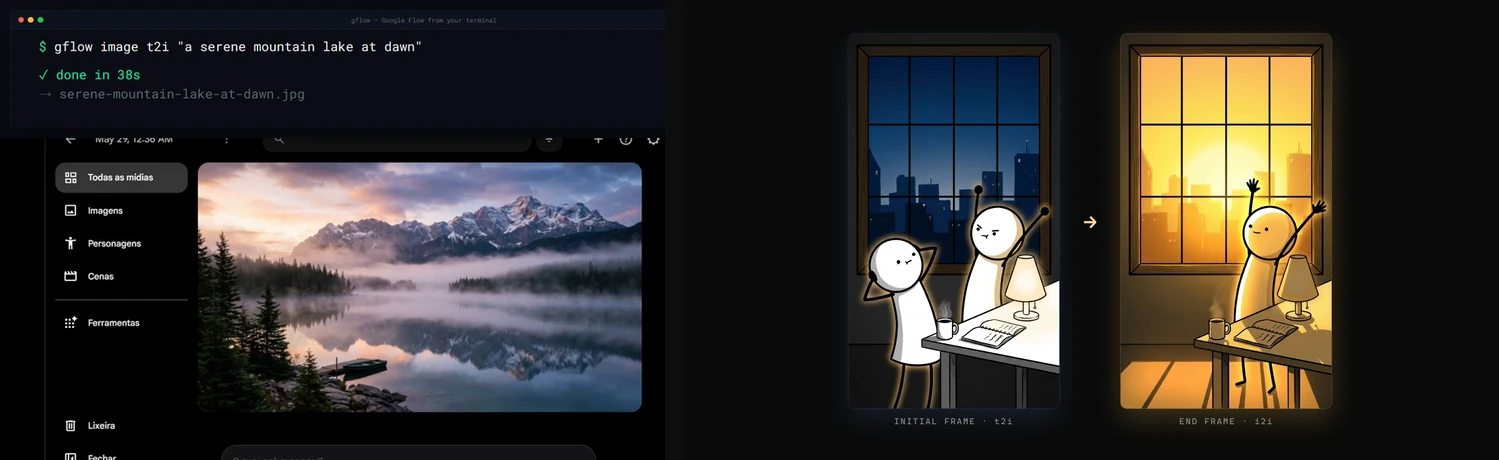
Demo
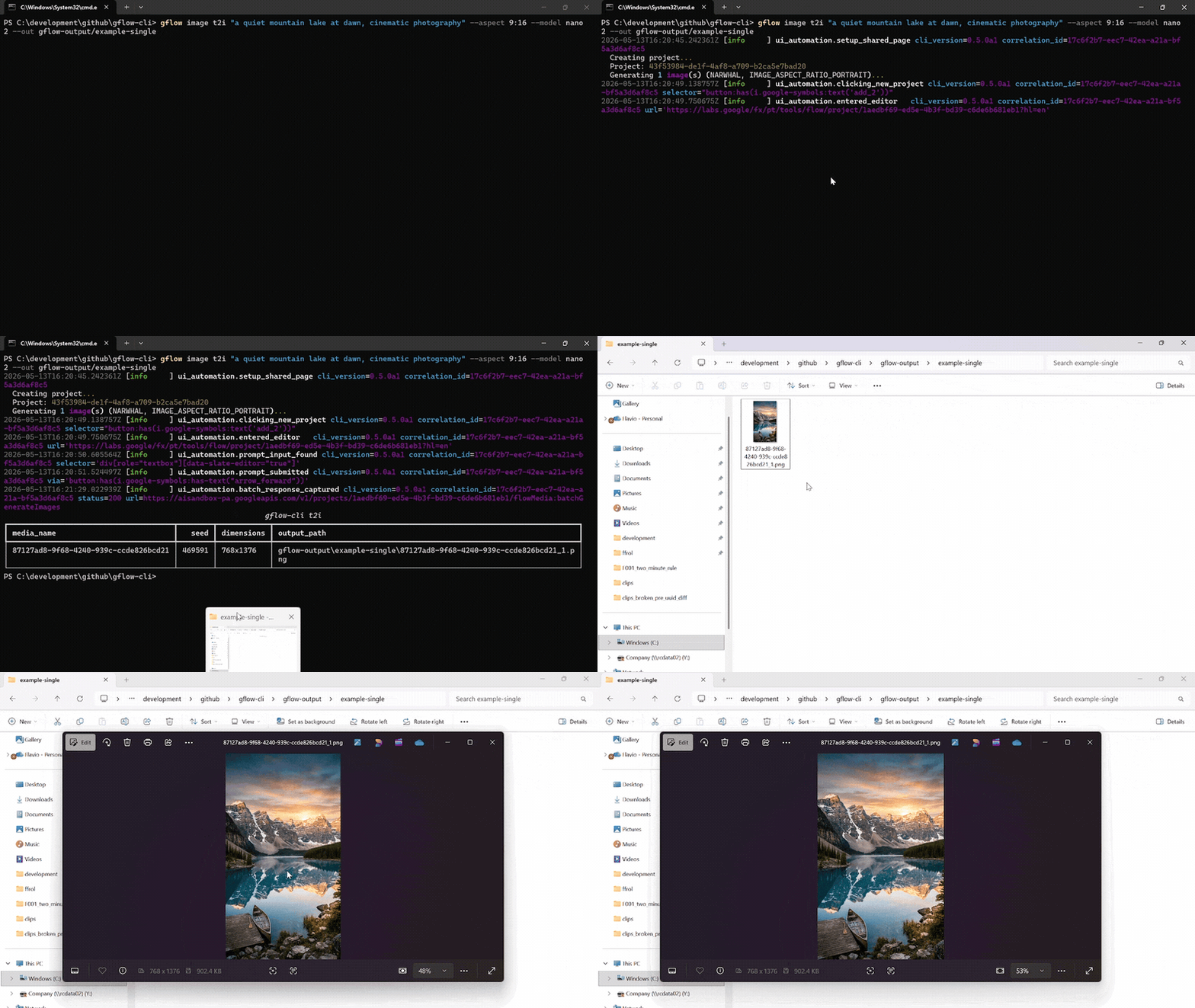
A single gflow image t2i "..." --aspect 9:16 --model nano2 call against a logged-in Flow profile. The terminal streams the run's structlog JSON, then lists the written PNG. Chromium drives the Flow editor silently in the background.
Reproduce the recording with scripts/record_demo.ps1 (Windows, OBS, ffmpeg, gifski). More formats, including the side-by-side split-screen: docs/DEMOS.md.
Documentation
docs/INDEX.md is the master routing layer. Quick links:
| Topic | Read |
|---|---|
| 🎯 Getting started | User Guide · Usage · Configuration |
| Storage & catalog | External Storage · Data Layer |
| 🎭 Characters | Characters, reusable subjects (gflow character) |
| 🤖 Agentic & automation | Instructions (gflow instructions, persistent brief cards) · Movie (gflow movie, multi-scene manifests) · Tools (--tool, prompt rewriting) · MCP server (gflow mcp run / gflow serve) |
| 🔐 Auth & sessions | Authentication · Known issues |
| 📣 Where to install from | Marketplaces (every channel and what each actually delivers) · Container (why the image introspects but cannot generate) |
| 🏗️ Internals | Architecture · Security · Debugging |
| 📦 Releases | Changelog · Roadmap · Release protocol · Project status |
| 🤝 Contributing | Contributing · Development · GitHub workflow |
For AI agents & LLMs
gflow-cli ships four agent entry points. Pick the one your tool reads first.
| File | Audience | Tools |
|---|---|---|
| AGENTS.md | Universal coding-agent spec | Cursor · Codex · Aider · Antigravity · Jules · Devin · Windsurf · Zed · Warp · opencode · Copilot |
| CLAUDE.md | Claude Code's auto-loaded memory | Claude Code |
| llms.txt | LLM-readable summary (llmstxt.org format) | Paste into ChatGPT, Claude, or Gemini to onboard the model |
skills/gflow-cli/SKILL.md | Claude Code Skill | Symlink into ~/.claude/skills/ |
Install the plugin (Claude Code)
One step, and you get the gflow-cli and video-production skills plus the MCP server:
/plugin marketplace add ffroliva/gflow-cli /plugin install gflow@gflow-cli
The plugin ships disabled. Claude Code starts a plugin's MCP servers automatically once a
plugin is enabled, with no prompt of its own — and this server drives your own Google account,
where Veo video generation bills your credits. So installing it starts nothing, and enabling it
is a deliberate act. Images and composition are free; only video spends. For a hard guarantee,
register the server yourself with gflow mcp run --no-spend, which never registers the
credit-spending tools at all. See docs/MCP.md for the details, including which
revision /plugin marketplace add gives you.
Codex users: codex plugin marketplace add . then codex plugin add gflow@gflow-cli.
Onboard any agent in one line. Paste this into your agent of choice:
"Read AGENTS.md and docs/INDEX.md, then help me with my Flow batch."
Architecture & current limitations
textgflow CLI → Provider (interchangeable) → Flow (ui_automation) / Mock (tests) / [planned: Official Veo] ↓ Playwright Chromium (headed — login AND generation, by default) ↓ aisandbox-pa.googleapis.com (Google's private Flow API)
Current transport: ui_automation drives Flow through a persistent Playwright Chromium profile. It is production-stable and verified end-to-end every release (see the per-release LIVE_VERIFICATION_* evidence files).
Two Flow frontends: Google is moving accounts from labs.google onto flow.google.com (#639) — same product, different widget toolkit and wire protocol (batchexecute instead of aisandbox-pa). The migrated driver covers text-to-video, image-to-video from a local start frame, reference-to-video from local files, text-to-image, and image-to-image from local files. Image generation supports Nano Banana 2 / Pro, the four aspect ratios measured on that host (16:9, 4:3, 1:1, 9:16), and counts 1–4; an existing project is required at the transport boundary. UUID/entity references, instructions, Imagen 4, and the rest of the matrix keep the labs driver until ported (GFLOW_CLI_FLOW_HOST, see CONFIGURATION).
What's blocked: a pure HTTP transport for video generation. The video upload endpoint returns HTTP 401 under non-Chrome browsers plus a reCAPTCHA mint we cannot reproduce headlessly. Three earlier HTTP strategies (evaluate_fetch, bearer, sapisidhash) live under src/gflow_cli/api/transports/experimental/ for research, off the production path.
How you can help: if you have driven aisandbox-pa.googleapis.com from outside a real Chrome session, or you understand Google's anti-bot stack here, please open an issue. A working REST transport would unlock serverless deployments, true horizontal concurrency, and roughly 10x the project's reach. Details: docs/ARCHITECTURE.md § Headed-browser dependency.
Project status
Alpha. Image (t2i, i2i, upload, upscale, batch) and video (t2v, i2v, r2v, chain, extend) run end-to-end on ui_automation, with a 5-model Veo picker plus --duration and --count. Beyond single generations: gflow movie renders multi-scene manifests, gflow instructions manages persistent Agent-Mode brief cards (credits-free), gflow character handles reusable subjects, gflow scene does credit-free server-side stitching, --tool applies prompt-rewriting tools, and an MCP server (gflow mcp run stdio / gflow serve Streamable HTTP) exposes the core surface to AI agents with a CI-enforced CLI↔MCP parity contract.
Full milestone history lives in CHANGELOG.md. Where the project is heading: ROADMAP.md.
Support gflow-cli
gflow-cli is built and maintained by one person. Every release is verified against real Google Flow, which spends real AI credits, and breakages get fixed fast because people run it in their pipelines. Sponsorship pays for both.


Relying on gflow-cli at work? The monthly company tiers put your logo here, and Silver and above also get priority issues. All tiers and what each one gets: docs/SPONSORS.md.
Patched gflow-cli in your fork? Please open an issue or a pull request — a fix that lands upstream helps everyone.
Hall of fame
No sponsors yet. Be the first — every public sponsor is listed here.
License & legal
MIT License © 2026 Flavio Oliva (ffroliva). The MIT license covers gflow-cli's code only. It grants no rights to Flow, Veo model output, or any Google service. Google's own terms (Labs Additional Terms and any plan-specific subscription terms) govern your generations. See the DISCLAIMER.
Acknowledgements
edge-tts, design inspiration for community SDKs over private cloud APIs.googleapis/python-genai, the official Veo SDK that a future provider release may alias.- Keysight, Google Labs – Flow AI with Veo3: A Network Traffic Analysis, an independent capture that helped validate the route patterns.
Stats






Star history
If gflow-cli saves you time, please ⭐ the repo. It is the cheapest way to support the project.





